1800 287 223 · [email protected]
Construction Drawings

Construction drawings are the backbone of any construction project. They translate the architect’s vision into a detailed plan that builders, contractors, and engineers can follow. Understanding these drawings is crucial for ensuring that a project is executed accurately and efficiently. In this guide, we’ll break down the process of understanding construction drawings, making it easier for you to navigate through the complexities of these essential documents.

Construction Drawings Tips and Tricks

1. Start with the Title Block

The title block is usually located at the bottom right corner of a construction drawing and contains key information such as the project name, drawing number, date, and scale. This is where you can find out who created the drawing and when it was last updated. The scale indicates the ratio between the drawing’s dimensions and the actual dimensions of the building, which is vital for accurate interpretation.

2. Understand the Different Types of Drawings

Construction drawings come in various forms, each serving a specific purpose. The most common types include:

  • Site Plans: Show the overall layout of the construction site, including the position of the building, landscaping, roads, and utilities.
  • Floor Plans: Detail the layout of each floor, showing walls, windows, doors, and other architectural elements.
  • Elevation Drawings: Provide a view of the building from the outside, showing the height and external materials.
  • Section Drawings: Cut through the building to show the internal structure, including walls, floors, and roofs.
  • Detail Drawings: Focus on specific components or assemblies, providing a more detailed view of complex areas.

Familiarizing yourself with these types of drawings is essential to grasp the full scope of a construction project.

3. Learn the Language of Symbols and Notations

Construction drawings are filled with symbols and notations that convey important information. These symbols represent various elements like doors, windows, electrical outlets, and plumbing fixtures. Learning what these symbols mean is crucial for understanding the drawing. Additionally, notations provide details such as material specifications, dimensions, and construction methods.

Invest time in studying the legend or key that accompanies the drawings, as it will help you decode the symbols and notations used.

4. Interpreting Dimensions and Scale

Dimensions are typically indicated in feet and inches (or metric units), and they define the size and placement of objects within the drawing. Understanding how to read dimensions and scale is vital for accurate construction. The scale is particularly important when transferring the measurements from the drawing to the actual construction site. For instance, a 1:50 scale means that 1 unit on the drawing equals 50 units in reality.

Make sure to double-check dimensions and scales to ensure that everything aligns with the construction specifications.

5. Review Notes and Specifications

Construction drawings are often accompanied by notes and specifications that provide additional guidance on materials, construction techniques, and safety requirements. These notes are critical to ensuring that the project is built to the desired standards. Always review these sections thoroughly to avoid any misunderstandings during the construction process.

6. Cross-Referencing Drawings

A single construction project may involve multiple drawings that need to be cross-referenced. For example, a floor plan might need to be compared with an elevation drawing to ensure consistency in the design. Cross-referencing helps in identifying potential conflicts or discrepancies between different parts of the project. This step is crucial for coordinating various trades, such as plumbing, electrical, and HVAC, ensuring that they work together seamlessly.

7. Consulting with Professionals

If you encounter any uncertainties while interpreting construction drawings, don’t hesitate to consult with architects, engineers, or a construction drawings service. These professionals have the expertise to clarify complex details and ensure that the project is built according to the design intent.

Conclusion

Understanding construction drawings is a skill that takes time and practice to master. By following this step-by-step guide, you’ll be better equipped to interpret these vital documents, leading to smoother project execution and fewer errors on the construction site. Whether you are a builder, contractor, or project manager, having a solid grasp of construction drawings will enhance your ability to contribute to the successful completion of any project.

For more professional assistance, consider using a construction drawings service like ASTCAD to ensure that your project’s drawings are accurate, detailed, and compliant with industry standards.

How to get better at construction drawing?

Getting better at construction drawing involves a mix of developing technical skills, understanding industry standards, and practicing effective communication. Here are some steps you can take to improve your abilities:

1. Master the Basics
Learn Drafting Fundamentals: Start with a solid understanding of basic drafting techniques, including line types, scale, and the use of symbols and notations common in construction drawings.

Familiarize Yourself with CAD Software: Proficiency in computer-aided design (CAD) software is essential. Spend time mastering the tools and features of the software you use, whether it’s AutoCAD, Revit, or another platform.

2. Study Industry Standards
Understand Building Codes and Regulations: Familiarize yourself with local building codes and industry standards, such as those set by organizations like the American Institute of Architects (AIA). Knowing these standards ensures your drawings are compliant and professionally recognized.
Review Real-World Examples: Study existing construction drawings from real projects. Analyze how professionals approach different aspects of a project, such as site plans, floor plans, elevations, and sections.

3. Practice, Practice, Practice
Work on Real Projects: The best way to improve is by doing. If possible, get involved in real construction projects, even if on a small scale. Practical experience will expose you to real-world challenges and nuances that can’t be fully captured in a classroom or textbook.
Take on Complex Challenges: Don’t shy away from complicated projects. Challenging yourself with complex designs, multi-story buildings, or intricate detailing will push your skills further.

4. Enhance Your Technical Knowledge
Learn Structural and Mechanical Systems: Understanding the structural, electrical, and plumbing systems within a building will help you create more accurate and functional drawings. Consider taking courses or reading up on these topics.
Stay Updated on Technology: The field of construction drawing is constantly evolving with new technologies. Stay current with the latest software updates, tools, and best practices in drafting.

5. Improve Your Attention to Detail
Double-Check Your Work: Mistakes in construction drawings can lead to costly errors during construction. Develop a habit of reviewing your work thoroughly, checking dimensions, annotations, and consistency.
Focus on Clarity: Ensure that your drawings are clear and easy to understand. Use consistent symbols, clear labels, and maintain an organized layout to communicate your design effectively.

What makes good construction drawings?

Good construction drawings are the foundation of any successful construction project, providing clear and precise instructions that guide the construction process. Here are the key qualities that make construction drawings effective:

1. Clarity and Legibility
Clear Layout: The drawings should be organized in a logical manner, with a clean and readable layout. This includes consistent use of fonts, line weights, and symbols that are easy to understand.
Unambiguous Information: There should be no room for interpretation. All elements, from dimensions to annotations, should be straightforward and easy to read.

2. Accuracy
Precise Dimensions: Measurements must be exact, with no rounding errors. Accurate dimensions ensure that all components will fit together as planned during construction.
Correct Scale: The drawings should be to scale, and the scale should be appropriate for the level of detail required. This allows for accurate interpretation of the drawing’s elements.

3. Comprehensive Detail
Complete Information: Good construction drawings include all necessary information, such as materials, dimensions, installation details, and finishes. They should cover every aspect of the construction process.
Detailed Sections and Elevations: Including detailed sections and elevations helps to clarify complex areas of the project, providing insight into how different components interact.


CS

Claire Sutton

Architectural CAD Specialist & Technical Writer · BArch (Hons), QUT · ASTCAD, Brisbane

Claire has 10 years of experience in Revit BIM modelling, architectural documentation, and CAD conversion projects across Southeast Queensland and NSW. She has delivered NCC-compliant documentation for residential, commercial, and industrial facilities.

More articles by Claire Sutton →
3D part modelling

In the rapidly evolving world of design and engineering, 3D part modelling stands out as a crucial skill for creating detailed and precise components. Whether you’re new to the field or seeking to refine your skills, mastering 3D part modelling can open up a plethora of opportunities. This guide offers valuable tips and tricks for beginners to help you get started with 3D part modelling, particularly if you’re considering leveraging 3D part modelling services.

3D Part Modelling Service

Understanding 3D Part Modelling

Before diving into tips and tricks, it’s essential to understand what 3D part modelling entails. At its core, 3D part modelling is the process of creating a digital representation of a physical component using specialised software. This digital model can be used for simulations, visualisations, or as a basis for manufacturing processes like 3D printing.

Tip 1: Start with the Basics

As a beginner, it’s crucial to build a strong foundation. Familiarize yourself with basic 3D modelling concepts such as vertices, edges, and faces. These are the building blocks of any 3D model. Understanding how to manipulate these elements will allow you to create more complex shapes and designs.

Recommended Software: Consider starting with user-friendly software like Tinkercad or Fusion 360. These platforms offer intuitive interfaces and extensive tutorials that can ease you into the world of 3D modelling.

Tip 2: Utilise Online Resources and Tutorials

The internet is a treasure trove of tutorials, courses, and forums dedicated to 3D part modelling. Websites like YouTube, Coursera, and Udemy offer step-by-step guides tailored to various skill levels. Engaging with these resources will accelerate your learning curve and introduce you to advanced techniques and industry practices.

Pro Tip: Join online communities or forums related to 3D part modelling. Platforms such as Reddit’s r/3Dmodeling or dedicated Discord servers can provide support, feedback, and inspiration from fellow modellers.

Tip 3: Practice Regularly

Like any skill, proficiency in 3D part modelling comes with practice. Set aside time each week to work on different projects. Start with simple models and gradually increase complexity as your confidence grows. Practising regularly will help you become more comfortable with the tools and techniques used in 3D modelling.

Challenge Yourself: Try to replicate existing objects or create custom designs based on real-world components. This approach helps you understand practical applications and refine your modelling skills.

Tip 4: Learn the Importance of Precision

In 3D part modelling, precision is key. Pay attention to dimensions, tolerances, and geometric accuracy. Many software tools offer features to help you measure and align parts accurately. Developing a habit of checking your work ensures that the final model meets the required specifications and functions as intended.

Helpful Feature: Most 3D modelling software includes a measurement tool or grid system. Utilise these tools to maintain precision throughout your design process.

Tip 5: Explore Advanced Techniques Gradually

Once you’re comfortable with the basics, start exploring more advanced techniques. Learn about parametric modelling, where dimensions and constraints define the shape, or delve into surface modelling for more complex geometries. Gradually incorporating these techniques will enhance your ability to create sophisticated and functional 3D models.

Resource Recommendation: Books or online courses focused on advanced 3D modelling techniques can provide deeper insights and practical examples.

Tip 6: Understand File Formats and Compatibility

Different 3D part modelling services and applications use various file formats. Familiarize yourself with common formats like STL, OBJ, and STEP. Understanding these formats is essential for ensuring compatibility between your models and the services or software you’re using.

Best Practice: Always check the requirements of the 3D part modelling service you plan to use. Ensuring that your file format aligns with their specifications can prevent potential issues during the modelling or manufacturing process.

Tip 7: Collaborate and Seek Feedback

Collaboration is a valuable aspect of 3D part modelling. Share your work with peers or mentors to receive constructive feedback. Participating in collaborative projects or seeking advice from more experienced modellers can provide new perspectives and improve your skills.

Networking Tip: Attend local or online 3D modelling meetups and workshops to connect with others in the field. Networking can lead to valuable learning experiences and professional opportunities.

Conclusion

Mastering 3D part modelling requires patience, practice, and a willingness to learn. By starting with the basics, utilising available resources, and practising regularly, you can build a solid foundation. Exploring advanced techniques, understanding file formats, and seeking feedback will further enhance your skills.

If you’re considering using professional 3D part modelling services, applying these tips will ensure that you can communicate your needs effectively and collaborate efficiently with service providers. With dedication and perseverance, you’ll find yourself adept at creating precise and impressive 3D models that can bring your ideas to life. Happy modelling!


JH

James Hartley

Senior Mechanical Engineer · BEng (Mechanical), UQ · Member, Engineers Australia · ASTCAD, Brisbane

James has 14 years of hands-on experience delivering CAD design, structural drafting, and engineering documentation across Australia’s mining, oil & gas, and manufacturing sectors. He specialises in SolidWorks, Autodesk Inventor, and AutoCAD for complex multi-discipline projects.

More articles by James Hartley →
Structural 2D and 3D Drafting

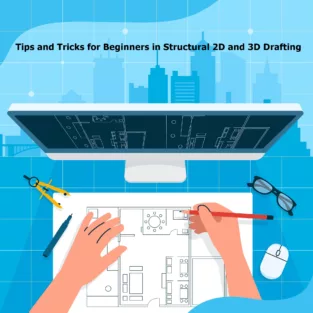
Structural 2D and 3D drafting are essential components of the engineering and construction industries. These techniques allow for the precise visualisation, planning, and execution of various structural projects. For beginners venturing into this field, understanding the fundamentals and mastering essential tips and tricks can significantly enhance your efficiency and accuracy. Here’s a comprehensive guide to help you get started.

Understanding the Basics

Before diving into tips and tricks, it’s crucial to grasp the basics of structural 2D and 3D drafting.

  1. Structural 2D Drafting: This involves creating flat representations of structures, such as floor plans, elevations, and sections. It’s essential for detailing and documenting construction projects.
  2. Structural 3D Drafting: This technique provides a three-dimensional representation of structures, allowing for better visualisation and analysis. It’s particularly useful for complex projects and steel structure drawings.

Essential Tips for Structural 2D Drafting

1. Master the Tools

  • Familiarize with CAD Software: Get comfortable with popular CAD software like AutoCAD, Revit, or MicroStation. Understanding the interface, commands, and shortcuts can save time and reduce errors.
  • Use Layers Effectively: Organise your drawings by using layers for different elements (e.g., walls, beams, annotations). This makes editing easier and enhances clarity.

2. Precision and Accuracy

  • Snap and Grid Settings: Utilise snap and grid settings to ensure precise placement of elements. This is crucial for maintaining accuracy in your drawings.
  • Dimensioning: Always double-check dimensions and annotations. Accurate dimensioning is vital for shop drawings and ensuring that the design can be built correctly.

3. Standardisation

  • Adopt Industry Standards: Follow industry standards and best practices for drafting. This ensures consistency and makes your drawings easily understandable by other professionals.
  • Templates and Blocks: Create or use standard templates and blocks for repetitive elements. This not only saves time but also maintains consistency across your drawings.

Essential Tips for Structural 3D Drafting

1. Start with a Solid Foundation

  • Understand the Project Requirements: Before starting any 3D model, thoroughly understand the project requirements and specifications. This helps in creating accurate and relevant models.
  • Plan Your Model: Break down the project into manageable parts and plan your modelling approach. This prevents confusion and ensures a systematic workflow.

2. Leverage Technology

  • Use BIM Software: Building Information Modelling (BIM) software like Revit or Tekla Structures is invaluable for 3D drafting. These tools enhance collaboration and provide detailed information about the structural components.
  • Automation Tools: Utilise automation tools and scripts to streamline repetitive tasks. This can significantly boost productivity and reduce manual errors.

3. Visualisation and Analysis

  • Rendering: Use rendering tools to create realistic visualisations of your models. This helps in identifying potential issues and presenting the design to stakeholders.
  • Clash Detection: Conduct clash detection to identify and resolve conflicts between different structural elements. This is especially important for steel structure drawings to ensure seamless integration.

Tips for Both 2D and 3D Drafting

1. Continuous Learning

  • Stay Updated: The field of structural drafting is constantly evolving with new technologies and practices. Stay updated through online courses, webinars, and industry publications.
  • Learn from Others: Join professional forums and communities. Engaging with other professionals can provide valuable insights and tips.

2. Attention to Detail

  • Review and Revise: Always review your work for errors and inconsistencies. Regular revisions ensure that your drawings are accurate and up to date.
  • Document Everything: Maintain detailed documentation of your work processes and decisions. This is helpful for future reference and ensures transparency.

3. Collaboration and Communication

  • Work with Teams: Structural drafting often involves collaboration with other engineers, architects, and contractors. Effective communication and teamwork are crucial for successful project execution.
  • Use Collaboration Tools: Utilise collaboration tools like BIM 360 or Navisworks to share and manage your models. These tools facilitate real-time collaboration and project management.

Conclusion

Structural 2D and 3D drafting are critical skills for any aspiring engineer or draftsman. By mastering the tools, adhering to industry standards, and continuously learning, you can enhance your drafting skills and contribute effectively to any structural project. Whether you’re working on shop drawings or steel structure drawings, these tips and tricks will help you achieve precision and efficiency in your work. Embrace the technology, stay detail-oriented, and always be open to learning and collaboration.

By following these guidelines, beginners can build a strong foundation in structural drafting and set themselves up for a successful career in this dynamic field.

What is 2D vs 3D drawings in construction?

In construction, 2D and 3D drawings serve distinct but complementary purposes, each contributing to different stages of the project lifecycle. Understanding the differences between these types of drawings is essential for effective planning, design, and execution of construction projects.

2D Drawings
Definition: 2D drawings are flat, two-dimensional representations of a structure. They provide detailed views and specifications of the various components of a building or construction project.

Types of 2D Drawings:
Plans: Horizontal views of a structure, typically showing the layout of a floor or site.
Elevations: Vertical views of the exterior or interior faces of a structure.
Sections: Cutaway views that show internal details along a specific plane.
Details: Enlarged views of specific parts of the design, providing intricate details about construction elements.

Purpose:
Documentation: Provides precise measurements, dimensions, and notes necessary for construction.
Communication: Serves as a common language among architects, engineers, contractors, and other stakeholders.
Regulation Compliance: Ensures that the design meets local building codes and regulations.

Advantages:
Simplicity: Easier to create and interpret for basic designs and straightforward projects.
Standardization: Widely used and understood in the industry with standardized symbols and notations.

3D Drawings
Definition: 3D drawings are three-dimensional representations of a structure, providing a more realistic and comprehensive view of the project. They are often created using Building Information Modeling (BIM) software.

Types of 3D Drawings:
Models: Full three-dimensional representations of the entire structure.
Renderings: Photorealistic images of the model, often used for presentations and visualizations.
Walkthroughs: Animated sequences that simulate walking through the structure, providing an immersive experience.

Purpose:
Visualization: Helps stakeholders understand the spatial relationships and aesthetics of the project.
Clash Detection: Identifies conflicts between different building systems (e.g., structural, mechanical, electrical) before construction begins.
Coordination: Facilitates collaboration among various disciplines by integrating all aspects of the design into a single model.

Advantages:
Enhanced Understanding: Provides a clear and detailed visualization, making it easier to understand complex designs.
Improved Accuracy: Reduces errors and omissions by allowing for comprehensive reviews and modifications.
Efficiency: Speeds up the design process by enabling simultaneous updates and real-time collaboration.

How to make 2D drawing from 3D?

Creating a 2D drawing from a 3D model is a common task in CAD software. Here’s a step-by-step guide to help you through the process:
Step-by-Step Guide
1. Prepare Your 3D Model
Ensure your 3D model is complete and error-free.
Check for any issues with geometry, such as holes or overlaps.
2. Open Your CAD Software
Use CAD software that supports both 3D modeling and 2D drawing, such as AutoCAD, SolidWorks, or Fusion 360.
3. Set Up Your Workspace
Open a new drawing file or start a new 2D drawing project within your CAD software.
4. Orient the 3D Model
Rotate and position your 3D model to the desired views (e.g., top, front, side, isometric).
You can create different views for different parts of your 2D drawing.
5. Create the 2D Views
Use the ‘Base View’ or ‘Standard View’ tool in your CAD software to generate 2D views from the 3D model.
Typically, you can select from standard views like top, front, right side, and isometric.


JH

James Hartley

Senior Mechanical Engineer · BEng (Mechanical), UQ · Member, Engineers Australia · ASTCAD, Brisbane

James has 14 years of hands-on experience delivering CAD design, structural drafting, and engineering documentation across Australia’s mining, oil & gas, and manufacturing sectors. He specialises in SolidWorks, Autodesk Inventor, and AutoCAD for complex multi-discipline projects.

More articles by James Hartley →
Civil Engineering

CAD is an essential tool in civil engineering, enabling professionals to create detailed and precise drawings and models of infrastructure projects. For beginners, mastering CAD can be a daunting task. However, by optimising CAD performance, new users can enhance their efficiency and productivity. Here are some practical tips for beginners in civil engineering to get the most out of CAD Civil Works.

Tips for Beginners in Civil Engineering

1. Choose the Right Software

There are various CAD software options available, each with its unique features and capabilities. For civil engineering, popular choices include AutoCAD Civil 3D, Bentley MicroStation, and SolidWorks. Select a program that best fits your project requirements and budget. Ensure that your software is up to date, as newer versions often include performance improvements and new features.

2. Invest in Adequate Hardware

CAD software can be demanding on your computer’s resources. To avoid performance bottlenecks, invest in a high-performance computer with a fast processor, sufficient RAM (at least 16 GB), and a high-quality graphics card. SSDs (Solid State Drives) are also recommended for faster data access and retrieval. Regularly update your hardware drivers to ensure compatibility and optimal performance.

3. Customise Your Workspace

Most CAD software allows users to customise their workspace. Tailor the interface to your needs by organising toolbars, menus, and command shortcuts. This customisation can significantly reduce the time spent navigating the software and improve your workflow efficiency. Additionally, create templates for frequently used settings to save time on repetitive tasks.

4. Master Keyboard Shortcuts

Keyboard shortcuts are a great way to speed up your work in CAD. Familiarize yourself with the most commonly used shortcuts for commands like copy, paste, move, and rotate. Learning these shortcuts will help you execute commands quickly without having to navigate through menus, thus streamlining your design process.

5. Utilise Layers Effectively

Layers are a powerful feature in CAD that allows you to organise different elements of your design. Use layers to separate different components, such as roads, utilities, and structures. This organisation makes it easier to manage complex drawings and make adjustments without affecting unrelated parts of your design. Proper layer management also aids in clearer communication with team members and clients.

6. Optimise File Management

Large CAD files can slow down your software and lead to longer load times. Keep your files organised by using a logical naming convention and directory structure. Regularly clean up your files by removing unnecessary elements and purging unused data. Consider using external references (Xrefs) to manage large projects, as this can help keep your main file size manageable.

7. Leverage CAD Standards and Templates

Adopting industry standards and using templates can ensure consistency and improve efficiency. Templates provide a predefined setup that includes layers, dimension styles, and other settings, reducing the need to recreate these elements for each project. Familiarize yourself with relevant CAD standards in civil engineering to ensure your designs meet industry requirements.

8. Take Advantage of Online Resources

There are numerous online resources available for learning CAD, including tutorials, forums, and webinars. Websites like YouTube, Autodesk University, and CAD forums offer a wealth of knowledge from experienced users. Don’t hesitate to seek help and learn from the community, as this can provide valuable insights and tips for optimising your CAD performance.

9. Regularly Save and Backup Your Work

CAD software can be prone to crashes, especially when handling large files. To avoid losing your work, save your progress frequently and create regular backups. Use version control to keep track of changes and revert to previous versions if needed. Consider using cloud storage solutions for additional security and easy access to your files from different locations.

10. Stay Updated with Software Updates and Patches

Software developers regularly release updates and patches to fix bugs, improve performance, and add new features. Ensure that your CAD software is always up to date to benefit from these improvements. Enable automatic updates if available, or regularly check the software developer’s website for the latest releases.

Conclusion

Optimising CAD performance is crucial for beginners in civil engineering to enhance their productivity and produce high-quality designs. By choosing the right software, investing in adequate hardware, customising your workspace, and leveraging online resources, you can significantly improve your CAD skills. Implement these tips and watch as your efficiency and confidence in using CAD Civil Works grow, paving the way for successful projects and a promising career in civil engineering.


By following these guidelines, beginners can optimise their CAD performance and streamline their workflow, ultimately leading to more efficient and effective civil engineering projects.

Is civil engineering easy to study?

The difficulty of studying civil engineering can vary greatly depending on several factors, including your background, interests, and aptitude in related subjects such as mathematics, physics, and technical drawing. Here are some considerations:

1. Mathematics and Physics
Mathematics: Civil engineering involves a lot of math, including calculus, algebra, and geometry. A strong foundation in these areas is crucial.
Physics: Understanding the principles of physics, especially mechanics and material science, is essential for analyzing structures and systems.

2. Technical Skills
Computer-Aided Design (CAD): Proficiency in CAD software is necessary for creating detailed engineering drawings.
Programming: Some aspects of civil engineering may require knowledge of programming and simulation software.

3. Problem-Solving and Critical Thinking
Problem-Solving: Civil engineers often need to solve complex problems and design solutions that are both efficient and sustainable.
Critical Thinking: Evaluating different solutions and understanding their implications is a key part of the field.

4. Coursework and Projects
Course Load: The coursework can be heavy and demanding, with subjects ranging from fluid mechanics to structural analysis.
Projects: Practical projects and internships are a significant part of the curriculum, providing hands-on experience but also adding to the workload.

What do civil engineers do on?

Civil engineers are involved in a wide range of activities related to the design, construction, and maintenance of infrastructure. Here are some key tasks and responsibilities:

1. Design and Planning
Structural Design: Designing structures such as buildings, bridges, dams, and tunnels, ensuring they are safe, stable, and sustainable.
Site Planning: Planning the layout of infrastructure projects, including roads, railways, and airports, taking into account environmental and regulatory considerations.
Feasibility Studies: Conducting studies to assess the viability of projects, including cost estimates, risk analysis, and environmental impact assessments.

2. Construction Management
Project Management: Overseeing construction projects from start to finish, ensuring they are completed on time, within budget, and to the required standards.
Quality Control: Ensuring materials and workmanship meet specified standards and codes.
Coordination: Working with contractors, architects, and other engineers to coordinate construction activities.

3. Infrastructure Maintenance
Inspection and Maintenance: Inspecting existing structures to identify and address issues such as wear and tear, structural weaknesses, and compliance with current regulations.
Rehabilitation: Planning and overseeing the repair and renovation of aging infrastructure.

4. Environmental Engineering
Water Resources Management: Designing and managing systems for water supply, drainage, and wastewater treatment.
Environmental Protection: Developing solutions to minimize the environmental impact of construction projects, including erosion control, pollution prevention, and habitat conservation.

5. Transportation Engineering
Transportation Systems: Designing and managing transportation systems, including highways, rail networks, and public transit systems.
Traffic Analysis: Analyzing traffic patterns and implementing measures to improve traffic flow and safety.


JH

James Hartley

Senior Mechanical Engineer · BEng (Mechanical), UQ · Member, Engineers Australia · ASTCAD, Brisbane

James has 14 years of hands-on experience delivering CAD design, structural drafting, and engineering documentation across Australia’s mining, oil & gas, and manufacturing sectors. He specialises in SolidWorks, Autodesk Inventor, and AutoCAD for complex multi-discipline projects.

More articles by James Hartley →
Structural Drawing

Knowing how to read structural drawings is an essential skill for structural engineers, architects, site managers, and construction professionals across Australia. These drawings — prepared to AS/NZS 1100 (Technical Drawing Standard) — contain all the information needed to construct a building’s structural frame safely and to specification.

This guide walks you through every element of a structural drawing set, from the title block and legend through to reinforcement schedules and cross-referencing with architectural and MEP drawings.

What Are Structural Drawings?

Structural drawings are engineering documents that define the load-bearing elements of a structure — foundations, columns, beams, slabs, walls, and connections. Unlike architectural drawings (which show what a building looks like), structural drawings show how it stands up. In Australia, structural drawings must comply with:

  • AS/NZS 1100 — Technical drawing conventions
  • AS 3600 — Concrete structures
  • AS 4100 — Steel structures
  • AS 1170 — Structural loading (dead, live, wind, seismic)
  • National Construction Code (NCC)

Step 1: Start with the Title Block

Always begin at the title block — usually in the bottom-right corner of each sheet. It contains:

  • Project name and address
  • Drawing title and number (e.g. “S-101 Foundation Plan”)
  • Scale (e.g. 1:100, 1:50)
  • Revision number and date
  • Engineer’s name and stamp — required for NCC-regulated work
  • Drawing date and issue status (IFC, IFT, IFA)

Check the revision status first — always work from the latest “Issued for Construction” (IFC) revision.

Step 2: Read the Legend and General Notes

Before reading any geometry, review the legend and general notes sheet (usually sheet S-001). These define:

  • Abbreviations (e.g. RHS = Rectangular Hollow Section, SHS = Square Hollow Section, CHS = Circular Hollow Section, UB = Universal Beam, UC = Universal Column)
  • Material grades (e.g. Grade 300 steel, 32 MPa concrete, N12 rebar)
  • Cover requirements for concrete reinforcement
  • Weld symbols (per AS/NZS 2980)
  • Bolt grades and connection standards

Step 3: Identify the Drawing Type

A structural drawing set includes several drawing types — each shows something different:

Drawing TypeWhat It ShowsCommon Scale
Foundation PlanFooting locations, pile caps, slab-on-ground1:100 or 1:200
Floor Framing PlanBeam and slab layout at each level1:100
Roof Framing PlanRoof beams, rafters, purlins, bracing1:100
ElevationSide view — heights, bracing, cladding rails1:100 or 1:50
SectionCut-through view of structural assembly1:50 or 1:20
DetailEnlarged view of connections, reinforcement, joints1:10 or 1:5
Reinforcement ScheduleBar marks, sizes, lengths, bending shapesN/A (tabular)

Step 4: Identify Structural Elements

  1. Foundations — Strip footings, pad footings, raft slabs, or piles. Shown with heavy lines and hatching.
  2. Columns — Vertical load-carrying elements. On plan views, shown as solid squares or circles with a grid reference (e.g. C1, C2).
  3. Beams — Horizontal elements. Shown as dashed lines on floor plans above, with section marks calling up beam schedule entries (e.g. B1 = 310UB46.2).
  4. Slabs — Shown with thickness, top/bottom reinforcement, and drop panels where applicable.
  5. Walls — Structural (load-bearing) walls shown in solid fill; non-structural shown with lighter lines.
  6. Bracing — Diagonal elements (steel flats, RHS, rods) shown with crossing lines on elevations.

Step 5: Read Grid Lines and Dimensions

Grid lines organise all structural elements. In Australia, grids follow AS/NZS 1100 conventions:

  • Letters (A, B, C…) for one axis (usually north-south)
  • Numbers (1, 2, 3…) for the other axis (usually east-west)
  • Grid intersections locate every column (e.g. column at B3)
  • Grid dimensions run between grid lines — these are structural centres, not finished face dimensions

Step 6: Read Reinforcement Details (Concrete Structures)

Reinforcement is specified using bar marks and a reinforcement schedule. In Australia (AS 3600):

  • N bars = deformed (ribbed) bars — standard structural reinforcement
  • R bars = plain round bars — ties, fitments
  • L bars = low ductility (less common in primary structure)
  • Bar notation: N16 @ 200 B1 = 16mm deformed bar at 200mm centres, bottom layer, first direction
  • Cover is specified separately — typically 20–65mm depending on exposure class

The reinforcement schedule lists every bar mark with its shape code (per AS 3600 Appendix D), diameter, length, and quantity.

Step 7: Read Steel Connection Details

Steel connection details show how members join. Look for:

  • Weld symbols — fillet welds (triangle), full penetration welds, plug welds. Weld size specified on symbol.
  • Bolt groups — number of bolts, grade (e.g. Grade 8.8), diameter (M20, M24), and bolt pattern
  • End plates and cleats — plate thickness, grade (e.g. 250, 350)
  • Galvanising note — required for external or corrosive environments

Step 8: Cross-Reference with Other Drawing Sets

Structural drawings never stand alone. Always cross-reference:

  • Architectural drawings — wall positions, openings, setouts. Structural elements must fit within architectural envelope.
  • Civil drawings — site levels, stormwater, retaining structures
  • MEP/Services drawings — penetrations through slabs and beams, structural reinforcement around openings
  • Geotechnical report — foundation bearing capacity, settlement, ground type (AS 1726)

Step 9: Check Revisions

Revisions are shown with revision clouds or triangle revision markers. The revision table in the title block records every change. Before using any drawing on site:

  • Check you have the current revision (compare revision number and date)
  • Read all revision notes — even small changes to concrete cover or bar spacing matter
  • Confirm the issue status is IFC (Issued for Construction), not IFT (Issued for Tender) or IFA (Issued for Approval)

Common Structural Drawing Symbols (AS/NZS 1100)

SymbolMeaning
▲ with numberSection mark — points to where the section is cut
Circle with arrowElevation mark — direction of view
Dashed lineHidden element (below slab, below ground)
Centre line (CL or ℄)Structural centreline
Diagonal cross hatchConcrete fill or structural concrete element
Grid bubble (circle with letter/number)Grid line reference
Revision cloud + triangleRevised area with revision letter

What is the difference between architectural and structural drawings?

Architectural drawings focus on the design, aesthetics, and spatial layout of a building — what it looks like. Structural drawings focus on the load-bearing system — how the building stands up. In Australia, structural drawings are prepared by a registered structural engineer to AS/NZS 1100 and referenced standards (AS 3600, AS 4100, AS 1170), while architectural drawings are prepared by a registered architect. Both sets must coordinate: structural elements (columns, walls, beams) must fit within the architectural design.

What Australian standard covers structural drawing conventions?

AS/NZS 1100 — Technical Drawing is the primary standard governing structural drawing conventions in Australia. It covers drawing layout, line types, symbols, dimensioning, and annotation conventions. Reinforcement detailing follows AS 3600 Appendix D. Steel connection detailing follows AS 4100. Engineers and drafters preparing structural drawings in Australia must comply with these standards and the National Construction Code.

What does N16@200 mean on a structural drawing?

N16@200 means 16mm diameter deformed (N-grade) reinforcing bar placed at 200mm centres. In AS 3600 notation, ‘N’ indicates deformed high-strength bar (fy = 500 MPa), ’16’ is the bar diameter in millimetres, and ‘@200’ means the bars are spaced 200mm apart. You’ll also see a suffix like B1 (bottom, first direction) or T2 (top, second direction) to indicate bar layer and orientation within the slab or beam.

How do I find the current revision of a structural drawing?

Check the title block — usually in the bottom-right corner of each sheet. The revision table lists every revision with a letter (A, B, C…), date, description, and engineer’s initials. Always confirm the issue status: IFC (Issued for Construction) is the only status suitable for construction work. IFT (Issued for Tender) and IFA (Issued for Approval) drawings are not for construction use. On digital sets, check the metadata and compare with the document register from your project manager.

Need professionally prepared structural drawings for your Australian project? ASTCAD’s structural drafting team produces AS/NZS 1100-compliant drawings for commercial, industrial, and residential structures across Australia. Get a free quote today.


JH

James Hartley

Senior Mechanical Engineer · BEng (Mechanical), UQ · Member, Engineers Australia · ASTCAD, Brisbane

James has 14 years of hands-on experience delivering CAD design, structural drafting, and engineering documentation across Australia’s mining, oil & gas, and manufacturing sectors. He specialises in SolidWorks, Autodesk Inventor, and AutoCAD for complex multi-discipline projects.

More articles by James Hartley →

Related Services

Mechanical Drafting

The ability to read mechanical drawings — also called engineering drawings or technical drawings — is a foundational skill for mechanical engineers, machinists, fitters, welders, and anyone involved in manufacturing or fabrication. In Australia, mechanical drawings follow AS/NZS 1100 conventions with GD&T per AS 1101.101.

This guide explains every element of a mechanical drawing — from the title block and projection type through to tolerances, surface finish symbols, and GD&T — so you can confidently interpret any drawing you encounter on the job.

What Is a Mechanical Drawing?

A mechanical drawing is a technical document that fully defines a manufactured part or assembly. It communicates every dimension, tolerance, material specification, surface finish requirement, and manufacturing note needed to make the part — without ambiguity. A well-drawn mechanical drawing can be sent to any workshop in Australia and the part will come back exactly right.

Mechanical drawings typically include:

  • Orthographic views (front, top, side)
  • Section and detail views
  • Dimensions and tolerances
  • GD&T symbols
  • Surface finish callouts
  • Material and treatment specifications
  • A title block and revision history
  • A bill of materials (for assemblies)

Step 1: Read the Title Block First

The title block — bottom-right corner of every drawing sheet — contains everything you need to verify before reading geometry:

FieldWhat It Tells You
Part Name / Drawing TitleWhat the drawing depicts
Drawing NumberUnique reference ID for document control
RevisionCurrent revision letter (A, B, C…) — always use the latest
Scalee.g. 1:1, 1:2, 2:1 — ratio of drawn size to actual size
Materiale.g. 304 SS, 6061-T6 Aluminium, 1020 Steel, HDPE
Surface Treatmente.g. Anodise, Zinc Plate, Powder Coat, Passivate
General TolerancesDefault tolerances when not specified individually (e.g. ±0.1 linear, ±0.5°)
Projection SymbolFirst angle (ISO / AS) or third angle (US/ASME) — critical for reading views correctly
Drafter / Checker / ApprovedAccountability chain

Australia uses First Angle Projection (AS/NZS 1100). The projection symbol is a truncated cone — in first angle, the cone points left. In third angle (common in US drawings), the cone points right. Confusing the two means you’ll read the top view when you should read the bottom view.

Step 2: Understand the Views

Mechanical drawings use multiple 2D views to fully describe a 3D object:

View TypeDescriptionWhen Used
Front ViewPrimary view — the most descriptive face of the partAlways
Top ViewLooking straight down at the partMost parts
Side View (Left or Right)Looking from the left or rightWhen front + top don’t fully describe the part
Isometric View3D pictorial — for visualisation only, not dimensioningComplex parts, assembly aids
Section ViewCut through the part to show internal featuresHoles, bores, internal pockets
Detail ViewMagnified area with its own scale callout (e.g. “DETAIL A — 2:1”)Small features, thread details
Auxiliary ViewView projected from an angled surfaceAngled faces that aren’t captured in standard views

Step 3: Read Line Types

Every line type in a mechanical drawing means something specific (AS/NZS 1100):

Line TypeAppearanceMeaning
Visible outlineThick solid lineEdge visible in this view
Hidden lineThin dashed lineEdge behind the current view surface
Centre lineThin long-short-long dashAxis of symmetry, centre of holes/cylinders
Dimension lineThin solid with arrowheadsShows what is being measured
Extension lineThin solid projecting from featureExtends to meet dimension line
Leader lineThin line with arrowhead and notePoints to a feature with a note or callout
Section line (hatch)Thin diagonal lines at 45°Cut surface in section view
Phantom lineLong-short-short dashAlternate positions, adjacent parts, repeat features
Break lineIrregular freehand or straight with ZShows a portion is removed for space

Step 4: Read Dimensions

Dimensions are the core of any mechanical drawing. Australian mechanical drawings use millimetres (mm) as the default unit (the “mm” is often omitted once stated in the title block). Key rules:

  • Never scale the drawing — always use the stated dimensions
  • Dimensions without a tolerance apply the title block’s general tolerance
  • Chain dimensioning — dimensions in a chain; errors accumulate
  • Datum dimensioning — all dimensions from a common reference; no error accumulation
  • prefix = diameter (cylindrical features)
  • R prefix = radius
  • prefix = square feature
  • SR = spherical radius, S⌀ = spherical diameter

Step 5: Read Tolerances

Tolerances define how much a dimension can vary and still be acceptable. There are two main systems:

Linear Tolerances

  • Bilateral: 25.00 ±0.05 = acceptable range 24.95–25.05
  • Unilateral: 25.00 +0.10/−0.00 = acceptable range 25.00–25.10
  • Limits: 24.95 / 25.10 (max and min written directly)

Geometric Dimensioning & Tolerancing (GD&T)

GD&T uses feature control frames to specify form, orientation, location, and runout. In Australia, GD&T follows AS 1101.101 (equivalent to ISO 1101). Common symbols:

SymbolCharacteristicApplies To
⏤ (straight line)StraightnessAxis or surface
FlatnessSurface
Circularity (roundness)Cross section
CylindricityFull cylinder
ParallelismSurface or axis
PerpendicularitySurface or axis
AngularitySurface or axis
Position (true position)Hole or feature location
Concentricity / coaxialityAxis to datum
↗ (circular arrow)Circular runoutRotating surfaces

A feature control frame reads left to right: geometric characteristic symbol | tolerance value | datum references. For example: ⌖ | ⌀0.05 | A | B means “true position within a diameter 0.05mm zone, relative to datums A and B.”

Step 6: Read Surface Finish Symbols

Surface finish symbols (per AS/NZS 1100.303) specify the required surface roughness. The value given is the Ra (arithmetic mean roughness) in micrometres (µm):

  • Ra 0.8 µm — fine machined (ground, honed)
  • Ra 1.6 µm — standard machined finish
  • Ra 3.2 µm — general machined
  • Ra 6.3 µm — rough machined
  • The “tick” symbol (√) with a horizontal bar means the surface must be machined; with a circle in the tick means no machining allowed (as-cast/as-forged)

Step 7: Read Thread Callouts

Threads are called out with a standard notation. In Australia, most mechanical threads are ISO metric per AS 1275:

  • M12 × 1.75 — 6H = Metric thread, 12mm nominal diameter, 1.75mm pitch, 6H tolerance class (internal thread)
  • M12 × 1.75 — 6g = External thread (lowercase = external, uppercase = internal)
  • M8 THRU = M8 thread through the full thickness
  • M8 × 20 DEEP = M8 thread 20mm deep (blind hole)

Step 8: Read Welding Symbols (if applicable)

Welded assemblies include welding symbols per AS 2812 / AS/NZS 2980. The reference line runs horizontally. The arrow points to the joint. Symbols below the line indicate the arrow side; above the line indicates the other side:

  • Fillet weld — right triangle symbol; size given as leg length (e.g. 6 ←▷)
  • Full penetration butt weld — single or double bevel/V symbols
  • All-around weld — circle at the arrow/reference line junction
  • Field weld — flag at the junction

Step 9: Read Assembly Drawings

Assembly drawings show how individual parts fit together. Key features:

  • Item balloons — circles with item numbers pointing to each part
  • Bill of Materials (BOM) — table listing item number, part number, description, material, quantity
  • Exploded view — parts shown separated along their assembly axes
  • Assembly dimensions — overall envelope dimensions and critical fit dimensions
  • Individual part drawings are referenced by part number — read both together

What is the difference between first angle and third angle projection?

First angle projection (used in Australia and Europe per AS/NZS 1100 and ISO) places views as if the object has been rolled away from the viewer — the right side view appears on the left, the top view appears below the front view. Third angle projection (used in the USA per ASME Y14.5) places views as if the object rolls towards the viewer — the right side view appears on the right, the top view appears above the front view. Always check the projection symbol in the title block. Misidentifying the projection type will cause you to read the wrong view.

What does ±0.1 mean on a mechanical drawing?

±0.1 is a bilateral tolerance. It means the dimension can be 0.1mm larger or 0.1mm smaller than the stated value. For example, if a hole is dimensioned as ⌀20.00 ±0.1, the acceptable range is ⌀19.90mm to ⌀20.10mm. This is different from a unilateral tolerance like +0.2/−0.0, which would mean 20.00mm to 20.20mm. The general tolerance in the title block applies to all dimensions that don’t have an individual tolerance callout.

What does Ra 1.6 mean on a mechanical drawing?

Ra 1.6 specifies a surface roughness of 1.6 micrometres arithmetic mean roughness (Ra). This is a standard machined finish achieved by turning, milling, or grinding. Smoother surfaces have lower Ra values (e.g. Ra 0.4 for ground or lapped surfaces). Rougher surfaces have higher values (e.g. Ra 6.3 for a rough milled surface). The surface finish symbol in Australia follows AS/NZS 1100.303. The value is always in micrometres (µm).

How do I read a feature control frame in GD&T?

A feature control frame is read left to right in three compartments: (1) the geometric characteristic symbol (e.g. ⌖ for position, ⊥ for perpendicularity), (2) the tolerance value — often preceded by ⌀ if it’s a diameter zone — e.g. ⌀0.05, and (3) the datum references (e.g. A, B, C). So ⌖ | ⌀0.05 | A | B means: the true position of this feature must fall within a cylindrical tolerance zone of diameter 0.05mm, located relative to datums A and B. In Australia, GD&T follows AS 1101.101, equivalent to ISO 1101.

Need mechanical drawings prepared to Australian standards? ASTCAD’s mechanical drafting team produces AS/NZS 1100-compliant drawings for manufacturing, fabrication, and engineering projects across Australia. Request a quote.


JH

James Hartley

Senior Mechanical Engineer · BEng (Mechanical), UQ · Member, Engineers Australia · ASTCAD, Brisbane

James has 14 years of hands-on experience delivering CAD design, structural drafting, and engineering documentation across Australia’s mining, oil & gas, and manufacturing sectors. He specialises in SolidWorks, Autodesk Inventor, and AutoCAD for complex multi-discipline projects.

More articles by James Hartley →
CAD Drafting

In the world of design and engineering, Computer-Aided Design (CAD) has become an indispensable tool. Whether you’re an architect designing buildings, an engineer conceptualizing machinery, or a product designer crafting consumer goods, CAD drafting lays the foundation for bringing ideas to life with precision and efficiency. However, mastering CAD drafting requires more than just familiarity with software; it demands a thorough understanding of its fundamental principles and techniques. In this guide, we’ll delve into the step-by-step process of mastering CAD drafting, empowering you to create intricate designs with confidence.

A Step-by-Step Guide to CAD Drafting

Understanding CAD Fundamentals

Before diving into CAD software, it’s crucial to grasp the underlying concepts that govern the drafting process. CAD operates on the principles of geometry, precision, and scalability. Familiarize yourself with basic geometric shapes, dimensions, and measurement units. Understanding concepts like layers, drawing scales, and coordinate systems will lay a solid foundation for your CAD journey.

Choosing the Right Software

CAD software comes in various forms, each tailored to different industries and design requirements. Research and select the software that best suits your needs and budget. Popular options include AutoCAD, SolidWorks, and Fusion 360. Take advantage of free trials and tutorials to explore different software interfaces and functionalities before committing to one.

Getting Started with Basic Tools

Once you’ve chosen your CAD software, acquaint yourself with its basic tools and interface. Learn how to navigate the workspace, access drawing tools, and manipulate objects. Mastering functions like drawing lines, circles, arcs, and rectangles forms the backbone of CAD drafting. Practice creating and modifying simple shapes until you’re comfortable with the software’s basic operations.

Understanding Drawing Constraints

CAD drafting relies heavily on precise measurements and constraints to ensure accuracy and consistency in designs. Familiarize yourself with drawing constraints such as dimensions, angles, and relationships between objects. Learn how to apply constraints to geometry to maintain design integrity and facilitate modifications.

Exploring Advanced Techniques

As you gain proficiency in basic CAD operations, explore advanced techniques to enhance your drafting skills. Learn how to create 3D models, apply textures and materials, and generate realistic renderings. Experiment with parametric design, which allows you to create dynamic models that can be easily modified and adapted to different scenarios.

Practising and Refining Your Skills

Like any craft, mastering CAD drafting requires practice and perseverance. Dedicate time to regular practice sessions, tackling increasingly complex design challenges. Take advantage of online tutorials, forums, and communities to seek guidance, exchange ideas, and learn from experienced professionals. Don’t be afraid to experiment and push the boundaries of your creativity.

Collaborating and Receiving Feedback

CAD drafting often involves collaboration with colleagues, clients, and stakeholders. Learn how to effectively communicate your design intent through annotated drawings, sketches, and presentations. Solicit feedback from peers and mentors to identify areas for improvement and refine your drafting skills further.

Staying Updated with Industry Trends

The field of CAD is constantly evolving, with new software updates, tools, and techniques emerging regularly. Stay abreast of industry trends and technological advancements by attending workshops, conferences, and webinars. Continuously expand your knowledge and skill set to remain competitive in the ever-changing landscape of CAD drafting.

Conclusion

Mastering CAD drafting is a journey that requires dedication, patience, and a thirst for knowledge. By understanding the fundamentals, exploring advanced techniques, and practising regularly, you can elevate your drafting skills to new heights. Embrace challenges, seek inspiration from fellow designers, and never stop learning. With perseverance and passion, you’ll soon find yourself creating intricate designs with confidence and precision.

What is CAD in drafting?

CAD stands for Computer-Aided Design. It’s a technology that uses computer software to create, modify, analyze, or optimize designs for various purposes, including architectural and engineering drafting. CAD software replaces traditional drafting methods by providing tools for precise drawing, dimensioning, and annotation, along with features for 3D modeling and visualization. CAD has revolutionized the design process by improving accuracy, efficiency, and flexibility in creating technical drawings and models.

Is CAD drafting a good career?

CAD drafting can be a rewarding career for individuals who enjoy design, technical work, and working with computer software. Here are some factors to consider when evaluating whether CAD drafting is a good career choice for you:

Job Stability: CAD drafting skills are in demand across various industries, including architecture, engineering, manufacturing, construction, and product design. As long as these industries continue to exist, there will be a need for CAD drafters.
Technological Advancement: The CAD software landscape is constantly evolving with new tools and features. As a CAD drafter, you’ll have the opportunity to stay up-to-date with the latest technology and expand your skillset.
Variety of Industries: CAD drafters can work in a wide range of industries, allowing for versatility and the opportunity to specialize in areas such as architecture, mechanical engineering, civil engineering, interior design, etc.
Creativity and Problem-Solving: While CAD drafting involves technical skills, it also requires creativity and problem-solving abilities to produce accurate and visually appealing designs.
Career Progression: With experience and additional training, CAD drafters can advance to roles such as CAD manager, design engineer, or project manager.
Remote Work Opportunities: With the advancement of technology, many CAD drafting jobs can be done remotely, offering flexibility in work location.


JH

James Hartley

Senior Mechanical Engineer · BEng (Mechanical), UQ · Member, Engineers Australia · ASTCAD, Brisbane

James has 14 years of hands-on experience delivering CAD design, structural drafting, and engineering documentation across Australia’s mining, oil & gas, and manufacturing sectors. He specialises in SolidWorks, Autodesk Inventor, and AutoCAD for complex multi-discipline projects.

More articles by James Hartley →
DWG file to a MicroStation DGN

To convert a DWG file to a Microstation DGN file in AutoCAD 2024, you can follow these steps:

  1. Open AutoCAD 2024: Launch AutoCAD 2024 on your computer.
  2. Load DWG File: Open the DWG file you want to convert to DGN by either clicking on “Open” from the File menu or by using the Open command (Ctrl + O).
  3. Export to DGN: Once the DWG file is open, you can export it to a Microstation DGN file format. To do this, follow these steps:
    • Go to the “File” menu.
    • Select “Export” > “Other Formats”.
    • Choose “Microstation DGN (*.dgn)” in the Export dialogue box as the export file type.
    • Specify the location where you want to save the DGN file and provide a name for it.
    • Click the “Save” or “Export” button to start the conversion process.
  4. Adjust Export Settings (Optional): Depending on your needs, you may have to adjust export settings such as units, layers, line weights, etc. Make sure to review these settings before exporting if necessary.
  5. Conversion Confirmation: After the export process is complete, you should see a confirmation message indicating that the DWG file has been successfully converted to a DGN file.
  6. Check the DGN File: Once the conversion is finished, you can open the Microstation DGN file in Microstation or any other software that supports this format to verify that the conversion was successful.

Benefits of DWG to DGN

Converting a DWG file to a Microstation DGN file in AutoCAD can offer several benefits, especially if you’re working in an environment where both AutoCAD and Microstation software are used. Here are some of the advantages:

  1. Interoperability: Converting DWG files to DGN format enables interoperability between AutoCAD and Microstation. It allows users of both software platforms to exchange design files seamlessly without losing critical data or formatting.
  2. Collaboration: In multi-disciplinary projects where different teams use AutoCAD and Microstation, converting DWG files to DGN format facilitates collaboration. It ensures that all team members can access and work on design files regardless of the software they use.
  3. Preservation of Design Intent: Converting DWG files to DGN format helps preserve design intent. While both DWG and DGN are widely used CAD formats, they have subtle differences in how they handle certain elements. Converting ensures that the design elements, such as text, dimensions, and annotations, are accurately translated between the two formats.
  4. Compliance: Some projects or organisations may have specific requirements or standards that mandate the use of Microstation DGN files. Converting DWG files to DGN format ensures compliance with these requirements, allowing seamless integration into project workflows.
  5. Access to Microstation Features: By converting DWG files to DGN format, users gain access to Microstation-specific features and capabilities. This can be particularly advantageous for users who need to leverage Microstation’s tools and functionalities for certain tasks or projects.
  6. Quality Assurance: Converting DWG files to DGN format allows users to perform quality assurance checks to ensure that the design elements are accurately preserved during the conversion process. It helps identify and address any discrepancies or issues before finalising the design.
  7. Long-Term Archiving: DGN files are commonly used for long-term archiving of design data. Converting DWG files to DGN format ensures that the design files remain accessible and usable for future reference, even if software preferences or versions change over time.

Overall, Converting DWG files to Microstation DGN format within AutoCAD presents a multitude of benefits, significantly enhancing interoperability, collaboration, and compliance across different design platforms. By seamlessly translating designs between these formats, teams can bridge the gap between software preferences, fostering smoother communication and project coordination.

This conversion process ensures that design integrity is preserved throughout, minimising the risk of data loss or corruption. Elements such as layers, line types, and object properties are accurately retained, maintaining the original intent of the design while enabling users to work seamlessly with the converted files in Microstation.

Furthermore, embracing DGN format facilitates compliance with industry standards and regulations, particularly in sectors where Microstation is prevalent or mandated. This ensures that projects adhere to specified guidelines, streamlining approval processes and mitigating potential issues related to format compatibility.

Moreover, converting to DGN format provides access to specific features and functionalities unique to Microstation, unlocking additional capabilities for users and expanding the range of tools available for design and analysis.

In essence, converting DWG files to Microstation DGN format within AutoCAD enhances cross-platform compatibility and reinforces collaboration, compliance, and access to specialised features, ultimately contributing to more efficient and effective design workflows.

How do I import a DWG into MicroStation?

To import a DWG file into MicroStation, follow these steps:

1- Open MicroStation.
2- Go to the File menu and select Attach.
3- In the Attach Reference dialog box, choose the DWG file you want to import.
4- Adjust the settings according to your requirements.
5- Click OK to import the DWG file into MicroStation.
That’s it! The DWG file should now be successfully imported into MicroStation.

Is AutoCAD compatible with MicroStation?

Yes, AutoCAD is compatible with MicroStation.

AutoCAD and MicroStation are both Computer-Aided Design (CAD) software applications commonly used in the architecture, engineering, and construction industries. While they serve similar purposes, they are developed by different companies and have different file formats.

However, there are ways to make them compatible with each other to some extent. For example:
File Conversion: Both AutoCAD and MicroStation support various file formats for import and export. You can typically convert files between the two formats using intermediate formats like DXF (Drawing Exchange Format) or DWG (AutoCAD Drawing Database) for AutoCAD, and DGN (MicroStation Design File) for MicroStation.
Third-Party Tools: There are third-party tools available that specialize in translating files between different CAD formats. These tools can often provide more seamless conversions than using built-in import/export functions.
Interoperability Plugins: Some software developers create plugins or add-ons specifically designed to enhance interoperability between AutoCAD and MicroStation. These can streamline the process of working with files between the two platforms.


CS

Claire Sutton

Architectural CAD Specialist & Technical Writer · BArch (Hons), QUT · ASTCAD, Brisbane

Claire has 10 years of experience in Revit BIM modelling, architectural documentation, and CAD conversion projects across Southeast Queensland and NSW. She has delivered NCC-compliant documentation for residential, commercial, and industrial facilities.

More articles by Claire Sutton →
Convert DWG to DGN

Convert DWG to DGN

Converting DWG (AutoCAD Drawing) files to DGN (MicroStation Design) files is a common task in the engineering and design industry. Both DWG and DGN are popular formats used by different design software. To convert DWG to DGN, you can follow these steps:

  1. Using AutoCAD:

AutoCAD, a popular CAD software, can export DWG files to the DGN format.

  • Open the DWG file in AutoCAD.
  • Go to the “File” menu and select “Save As.”
  • In the “Save As” dialogue box, choose “MicroStation DGN (*.dgn)” from the “Save as type” drop-down menu.
  • Specify the location where you want to save the DGN file and provide a name for it.
  • Click the “Save” button to start the conversion process.
  1. Using Bentley MicroStation:

Bentley MicroStation is a software commonly used for working with DGN files.

  • Open Bentley MicroStation.
  • Go to the “File” menu and select “Open” to locate and open the DWG file you want to convert.
  • After opening the DWG file, go to the “File” menu again and select “Save As.”
  • In the “Save As” dialogue box, choose the “DWG” format as the “Save as type.”
  • Specify the location and name for the converted DGN file.
  • Click the “Save” button to begin the conversion.

DWG to DGN conversion services

  1. Using Online Converters:

Alternatively, you can use online file conversion services to convert DWG to DGN. There are several websites that offer this service. Here’s a generic process you can follow:

  • Go to a reliable online file converter website that supports DWG to DGN conversion.
  • Upload the DWG file from your computer.
  • Choose “DGN” as the output format.
  • Start the conversion process. The website will process your file and generate the DGN file for download.

Keep in mind that online converters may have file size limitations and could potentially compromise the security of sensitive files. Therefore, if you’re working with confidential or large files, it’s recommended to use the desktop versions of AutoCAD or MicroStation.

Always check the integrity of the converted file to ensure that the conversion process hasn’t resulted in any loss of data or formatting issues. Additionally, it’s a good practice to make a backup of your original DWG file before conversion, so you can revert to it if needed.

Convert DWG to DGN

Converting DWG (AutoCAD Drawing) files to DGN (MicroStation Design) files can offer several benefits, especially when working with different CAD software or sharing data across different platforms. Here are some advantages of converting DWG to DGN:

  1. Interoperability: DWG and DGN are two different file formats used by two popular CAD software, AutoCAD (DWG) and MicroStation (DGN). Converting between these formats allows users from different design disciplines or organisations to collaborate more effectively, as they can work on the same project using their preferred CAD software.
  2. Data Sharing: Converting DWG to DGN enables seamless data sharing between AutoCAD and MicroStation users without any loss of data or formatting issues. It ensures that the design information is accurately transferred, reducing the need for rework and potential errors that can occur when manually recreating drawings.
  3. Compliance with Project Requirements: Sometimes, specific projects or organisations may have requirements to use a particular CAD software. Converting DWG to DGN allows you to comply with these requirements, ensuring a smooth workflow and adherence to project guidelines.
  4. Access to MicroStation Features: By converting DWG to DGN, you gain access to the unique features and functionalities of MicroStation. This may include advanced design tools, rendering capabilities, or specialised workflows that are not available in AutoCAD.
  5. Preservation of Drawing Integrity: Converting between file formats can sometimes result in data loss or corruption. However, if done using reliable conversion tools, the integrity of the drawing data can be preserved, maintaining accuracy and consistency throughout the process.
  6. Legacy Data Conversion: In cases where legacy data is stored in DWG format but needs to be used in MicroStation, converting DWG to DGN is a practical way to bring older drawings into the current design environment.
  7. Reduced File Size: DGN files generally tend to have smaller file sizes compared to equivalent DWG files. This can be beneficial for file storage, transfer, and overall project management, particularly when dealing with large-scale projects.
  8. Standardisation: If an organisation standardises on using a specific CAD software (e.g., MicroStation), converting DWG to DGN helps maintain a consistent CAD environment and streamlines the training process for employees.
  9. Cross-Platform Compatibility: DGN files can be opened and viewed by various CAD software that supports the MicroStation format, making it easier to share designs with stakeholders who might not have access to AutoCAD.

Benefits of Convert DWG to DGN

Converting DWG (AutoCAD drawing) files to DGN (MicroStation design) files can offer several benefits, especially when working in a mixed CAD environment or collaborating with stakeholders using different software platforms. Here are some of the benefits of converting DWG to DGN:

  1. Interoperability: DWG and DGN are two widely used CAD formats, and converting between them enables seamless data exchange between AutoCAD and MicroStation users. It ensures that both teams can work together efficiently without worrying about compatibility issues.
  2. Collaborative Projects: Converting DWG to DGN allows different teams or organisations using different CAD platforms to work on the same project. This is particularly useful in large-scale infrastructure projects involving multiple stakeholders.
  3. Cross-platform Support: By converting DWG to DGN, you can leverage the unique features and tools available in both AutoCAD and MicroStation, making it easier to utilise the strengths of each software in a single project.
  4. Data Transformation: In some cases, data from DWG files may need to be transformed or adapted to fit specific requirements in a MicroStation environment. Converting the files to DGN provides an opportunity to customise and optimise the data for MicroStation use.
  5. Enhanced Data Integrity: Converting DWG to DGN ensures that the information and geometry in the drawing files remain accurate and intact during the transfer. This minimises the risk of data loss or corruption.
  6. Standards Compliance: Some organisations or industries may have specific CAD standards that require files to be in the DGN format. By converting DWG to DGN, you can ensure compliance with these standards.
  7. Access to MicroStation Features: MicroStation has unique features and capabilities that are not available in AutoCAD. By converting DWG to DGN, you can take advantage of these features, which may enhance the design process and improve overall productivity.
  8. Version Control: If multiple versions of the same drawing exist in both DWG and DGN formats, converting them to a single format simplifies version control and reduces confusion during the review and revision processes.

CS

Claire Sutton

Architectural CAD Specialist & Technical Writer · BArch (Hons), QUT · ASTCAD, Brisbane

Claire has 10 years of experience in Revit BIM modelling, architectural documentation, and CAD conversion projects across Southeast Queensland and NSW. She has delivered NCC-compliant documentation for residential, commercial, and industrial facilities.

More articles by Claire Sutton →
Visual Accuracy

The new release of AutoCAD 2016 features certain significant improvements. These improvements include a more comprehensive canvas, richer design context, and intelligent tools such as Smart Dimensioning, Coordination Model, Enhanced PDFs, and Stunning Visual Experience.

Autocad New feature Visual Accuracy

AutoCAD software tools are known worldwide for providing 2D and 3D design features, documentation and collaboration processes for any design task. Furthermore, the software tools enable designers to share their work with one another by using TrustedDWG® technology.

The purpose of this article is to:

  • Look briefly at the new features present in the newest AutoCAD release,
  • Identify significant changes between the newest and previous software releases,
  • Determine the impact of Visual Accuracy and other major benefits which the newest release of AutoCAD provides.

What New Features are Present in the Autocad 2016 Newest Release?

  • With Smart Dimensioning, appropriate measurements are created automatically, based on the drawing context. Bypassing the cursor over a selected object, the designer gets a preview of the dimension before creating it. For example, by selecting and holding a cursor over the cross-section of a duct, modified inner and outer diameters can be previewed before they are created.
  • The Coordination Model makes it possible to attach and view Navisworks® and BIM 360 Glue models directly inside AutoCAD. This makes it possible to import architectural design data created by Navisworks or to import a building design project into AutoCAD. The ability to merge design data between AutoCAD and BIM models provides the framework for KBE (Knowledge-Based Engineering), and for maintaining concurrency and synergy between product design teams.
  • The Enhanced PDFs feature makes it possible to quickly create smarter, smaller and powerful PDF files which are text searchable.
  • The Visual Experience feature enables the engineer to see design details with certain visual enhancements such as Line Fading. True curves are used instead of line segments for image rendering. For example, a circle is created as a continuous curve rather than several straight line segments. Instead of performing several Undo operations, a Command preview enables the designer to see the results of a command before committing to it. Large selection sets are easier to copy or move.
  • The designer is able to customise his/her design environment and systems settings and to prevent unwanted changes from being made.

In What Areas Are There Significant Software Changes?

The following list highlights significant software changes between AutoCAD 2016 (newest release) and previous versions of AutoCAD.

In terms of User Interaction, AutoCAD 2016 provides:

  • The Help Find tool, Improved graphics, Command preview, and resizable viewports are improved in AutoCAD 2016 and AutoCAD 2015.
  • The Move/Copy feature has been boosted in AutoCAD 2016 over previous versions.

In terms of the Design Interface, AutoCAD 2016 provides:

  • Center of polygon object snap
  • High-fidelity lines and curves
  • Coordination model
  • Point cloud dynamic UCS (Unified Computing System) and geometry extraction

In terms of Documentation, AutoCAD 2016 provides:

  • Revision Cloud enhancements
  • Smart dimensioning
  • PDF enhancements and optimised file output
  • The searchable text and hyperlink support in exported PDFs
  • Simplified, powerful rendering
  • Overriding of Xref (External Reference File in a cloud system) layer properties

What Major Benefits does the Newest Release of Autocad Provide?

The previous section of this article mentioned significant software improvements between AutoCAD 2016 and previous versions. It may be informative to look more closely at what some of these software improvements mean.

Coordination Models enable design data from Navisworks and BIM360 models (NWC, NWD) to be attached directly into AutoCAD. This feature supports the collaborative and synergistic product development model available in BIM. This feature also supports KBE (Knowledge-Based Engineering) and Expert Systems, which is important for retaining in-house design expertise and knowledge.

Smart dimensioning speeds up design work, because many “Undo” commands can be avoided by using the Preview feature in the new software release. Instead of establishing a dimension for an object and undoing it in order to create a new dimension, the object can be selected with the cursor, previewed or “hovered over”, before establishing the dimension.

The “Snap to geometric centre” feature enables the designer to snap to the centre of closed regular or irregular polylines.

Improvements to the drawing canvas dramatically improve the visual accuracy seen on screen. Although the human visual system can interpret a series of jagged line segments as an integrated smooth curve, it is much better to represent smooth curves and arcs with true curves. Doing so creates graphic objects with true fidelity and visual acuity, and creates a much better viewing experience.

A number of preset rendering options have been introduced, such as “Coffee-Break Quality”. Image-based lighting has been introduced to improve visual rendering.

The “UI finder” utility makes it easy to find just about anything in AutoCAD’s UI, including entries on the application menu and the status bar.

PDF enhancements create smaller files (about half the size of previous PDFs). The PDFs are generated quicker, and they permit text search and selection, even with multibyte and Unicode characters. Furthermore, SHX fonts (which have the source text added as a comment) are supported. Hyperlinks are maintained, whether they are embedded URLs or links between drawing content.

The System Variable Monitor (Sysvar) protects the design engineer from having his established or preset environment from being altered. In a multi-tasking environment, it is likely that an impolite application may alter sysvar settings, but fail to reset them to their previous settings after the application has completed its tasks.

Conclusion

Although this article sounds as if it is focused on sales or marketing, its purpose is to keep the CAD engineer aware of improved software features (such as improved visual accuracy in AutoCAD 2016) which become available in new CAD software releases.

The CAD engineer works in a fast-paced environment in which technological progress should be expected. In order to stay current and not to become obsolete, it is necessary for the CAD engineer to be aware of improved capabilities in new software releases.

Australian Design & Drafting Services provide excellent Autocad service for CAD Design and Drafting. Contact Us for more info


JH

James Hartley

Senior Mechanical Engineer · BEng (Mechanical), UQ · Member, Engineers Australia · ASTCAD, Brisbane

James has 14 years of hands-on experience delivering CAD design, structural drafting, and engineering documentation across Australia’s mining, oil & gas, and manufacturing sectors. He specialises in SolidWorks, Autodesk Inventor, and AutoCAD for complex multi-discipline projects.

More articles by James Hartley →
Get a free quote — 1800 287 223