
Engineer reviewing CAD drafting cost estimates for Australian project

Understanding CAD drafting cost in Australia is the first step to budgeting your engineering or construction project accurately. If you’re planning an engineering or construction project and considering outsourcing your CAD work, one of the first questions you’ll ask is: how much does CAD drafting cost in Australia? The honest answer is that it varies significantly — but understanding what drives those costs will help you budget accurately and avoid paying more than you should. This guide breaks down real 2026 pricing for CAD drafting services across Australia, from simple 2D drawings through to complex 3D modelling and full project documentation sets.


What Affects the Cost of CAD Drafting in Australia?

CAD drafting costs in Australia aren’t fixed — they depend on several factors that any reputable provider will assess before quoting. Understanding these factors will help you compare quotes more accurately and spot providers who are either overcharging or cutting corners.

Project Complexity

A simple 2D floor plan for a small residential renovation is a fundamentally different task from a full structural steel shop drawing set for an industrial facility. Complexity directly drives cost — the more detailed, coordinated, and technically demanding the drawings, the higher the rate and the more hours required. Projects that require compliance with Australian Standards (such as AS1100 for technical drawings or the NCC for building documentation) also require additional care and expertise.

Discipline

Different engineering disciplines command different rates. Mechanical and structural drafting typically sits at the higher end of the scale because it requires specialist knowledge of tolerances, material properties, and fabrication processes. Architectural drafting ranges in the middle. Civil and electrical drafting varies depending on the scope. As a rule of thumb, the more specialised the discipline, the higher the hourly rate.

Software Required

Most projects have software requirements — whether that’s AutoCAD, SolidWorks, Revit, Inventor, MicroStation, or Civil 3D. If your project requires a less common platform or specific version compatibility, this can affect cost. Providers who maintain licences across a broad range of software (as any full-service CAD company should) are better positioned to serve complex, multi-discipline projects without surprises.

Turnaround Time

Rush jobs cost more. If you need drawings within 24–48 hours, expect to pay a premium — typically 20–50% above standard rates. Conversely, projects with flexible timelines often attract more competitive pricing because the provider can schedule the work efficiently alongside other projects.

Onshore vs Offshore Providers

Australia has both locally based CAD companies and offshore providers (typically based in India or the Philippines) that serve Australian clients remotely. Offshore providers generally quote lower rates, but the tradeoff includes communication delays, potential misalignment with Australian Standards, and less accountability. Australian-based teams — particularly those with licensed engineers overseeing the work — provide greater confidence for projects where compliance, IP protection, and direct communication are priorities.


CAD Drafting Rates in Australia — What to Expect in 2026

Based on current market rates across Brisbane, Sydney, Melbourne, and Perth, here is a realistic pricing guide for CAD drafting costs in Australia in 2026:

Dedicated drafter (staff leasing, per hour): $35–$75/hr

Hourly rate (general CAD drafting): $45–$120/hr, depending on discipline and provider type

Architectural drafting: $80–$130/hr

Mechanical drafting (2D): $85–$140/hr

Structural drafting: $90–$150/hr

Electrical/schematic drafting: $75–$120/hr

3D CAD modelling: $100–$160/hr

BIM modelling (Revit): $95–$150/hr

Simple 2D drawing (single sheet): $150–$500 per drawing

Residential DA drawing set: $800–$2,500

Commercial construction documentation: $3,000–$15,000+

Industrial/engineering project set: $2,500–$20,000+

Keep in mind these are market averages — a highly experienced licensed mechanical engineer drafting a complex FEA-linked assembly will sit at the top of the range, while a straightforward as-built drawing for a small fitout will sit at the lower end.


Hourly vs Project-Based Pricing — Which is Better?

Hourly pricing works best when the project scope is uncertain, evolving, or likely to involve revisions. It protects you from paying a large upfront fee for a scope that changes. The downside is less cost certainty — if the project takes longer than expected, your bill grows accordingly. Always ask for an estimated hour range before proceeding.

Project-based (fixed-fee) pricing works best when your scope is clearly defined — for example, a specific number of drawings to a known standard, with a defined revision allowance. Fixed fees give you full cost certainty and incentivise the provider to work efficiently.

For ongoing relationships — such as having a dedicated drafter work alongside your team — staff leasing arrangements offer the best value, typically at $35–$75/hr for a committed resource without the overhead of employment.


How to Get an Accurate Quote for CAD Drafting

  • Scope of work: List each deliverable — floor plans, elevations, sections, fabrication drawings.
  • Input documents: Sketches, PDFs, existing CAD files, or starting from scratch?
  • Software format required: DWG, DXF, Revit, SolidWorks, PDF?
  • Australian Standards: AS1100, NCC, or relevant industry codes?
  • Revision allowance: How many rounds of changes are you expecting?
  • Timeline: When do you need the drawings, and are any stages time-critical?

At ASTCAD, we provide obligation-free quotes for all disciplines — mechanical, structural, electrical, architectural, and civil — across Brisbane, Sydney, Melbourne, Perth, and Gold Coast. Contact our team with your project details, and we’ll turn around a clear, itemised quote within 24 hours.


Frequently Asked Questions

Is it cheaper to use an offshore CAD drafting company?

Offshore providers typically quote lower hourly rates — often $15–$35/hr compared to $75–$150/hr for Australian providers. However, the total project cost is rarely as low as the rate suggests once you factor in additional revision rounds, time zone delays, and drawings that may not align with Australian Standards. For projects where compliance, IP, and communication matter, Australian-based providers generally offer better overall value.

How long does a typical CAD drafting project take?

Timelines vary by project type. A single floor plan: 4–8 hours. A residential DA set: 2–5 business days. A commercial documentation package: 2–4 weeks. Industrial multi-discipline projects: several weeks to months. Always confirm your timeline in writing, especially for time-sensitive work.

What’s the difference between CAD drafting and engineering design?

CAD drafting produces the technical drawings — dimensioned, standards-compliant documents used by contractors and councils. Engineering design is the broader process of determining what needs to be built and how. Many full-service firms like ASTCAD offer both, so clients can work with one provider from concept through to construction-ready documentation.

Ready to Get a Quote?

ASTCAD is a Brisbane-based CAD design and drafting company serving clients across Australia, covering all engineering disciplines with transparent, fixed-fee pricing and a 24-hour quote turnaround. Get your free, no-obligation quote today.

CS

Claire Sutton

Architectural CAD Specialist & Technical Writer · BArch (Hons), QUT · ASTCAD, Brisbane

Claire has 10 years of experience in Revit BIM modelling, architectural documentation, and CAD conversion projects across Southeast Queensland and NSW. She has delivered NCC-compliant documentation for residential, commercial, and industrial facilities.

More articles by Claire Sutton →
PDF TO DWG CONVERSIONS

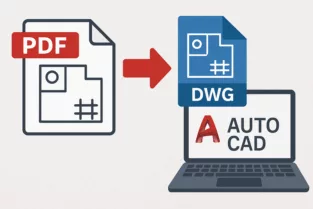
In today’s design and engineering workflows, drawings are often shared in PDF format because it’s easy to view, print, and distribute. However, when you need to edit, modify, or reuse drawings, PDFs quickly become a limitation. This is where PDF to DWG conversions play a crucial role.

Whether you’re an architect, engineer, contractor, or CAD beginner, understanding how to convert PDF files into editable DWG format can save time, reduce rework, and improve accuracy. This beginner-friendly guide walks you through the entire PDF to DWG conversion process, tools, challenges, and best practices.


What is PDF to DWG conversion?

PDF to DWG conversion is the process of transforming a PDF drawing into a DWG file, which is the native format used by AutoCAD and other CAD software. Once converted, the drawing becomes fully editable, allowing users to modify dimensions and layouts, edit layers and annotations, reuse existing designs, and extract accurate CAD data.

PDF to DWG conversions are commonly used for legacy drawings, as-built plans, and scanned documents.


Why PDF to DWG conversion is important

  • Editable drawings: Convert static PDFs into fully editable CAD files
  • Cost efficiency: Avoid redrawing from scratch
  • Accuracy improvement: Maintain scale and geometry
  • Better collaboration: DWG files are easier to share and revise
  • Time saving: Faster updates and revisions

Types of PDFs used for conversion

1. Vector-based PDFs

Created directly from CAD software, vector PDFs contain actual lines, arcs, and text objects. These are far easier and more accurate to convert — the geometry is already defined mathematically, so conversion tools can extract it cleanly.

2. Raster-based (scanned) PDFs

Created by scanning paper drawings, raster PDFs are essentially images. They require additional cleanup and tracing after conversion. Quality depends heavily on scan resolution — a 300 DPI scan will convert significantly better than a faded 72 DPI photocopy.


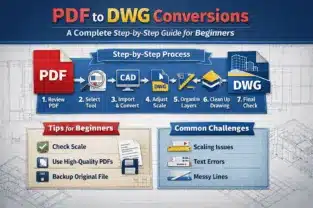
Step-by-step guide: PDF to DWG conversion for beginners

Step 1: Review the PDF file

Check drawing scale and clarity, identify layers, text, and dimensions, and determine whether the source is a scanned or vector-based PDF. This determines your tool choice and how much manual cleanup to expect.

Step 2: Choose the right conversion tool

Common options include AutoCAD’s built-in PDF import (PDFIMPORT command), online PDF to DWG converters, dedicated CAD conversion software, and professional conversion services. For beginners, AutoCAD’s built-in tools are a reliable starting point for vector PDFs.

Step 3: Import or convert the PDF

Open AutoCAD, use the PDFIMPORT command, select your PDF file, choose the relevant pages, and adjust import settings. For scanned PDFs, you’ll need a raster-to-vector tracing step first.

Step 4: Check scaling and units

Verify drawing units (mm, inches, metres) and use known reference dimensions to confirm the scale is correct before editing anything. Scaling errors caught early save significant rework later.

Step 5: Organise layers

Separate walls, dimensions, text, and symbols into named layers. Delete unnecessary elements. A well-layered DWG is far easier to work with and is expected by most engineering and architecture clients.

Step 6: Clean and edit the drawing

Remove duplicate lines, fix broken geometry, align misinterpreted elements, and convert exploded text back into editable text objects. This is the most time-consuming step for raster-source conversions.

Step 7: Final quality check

Verify dimensions against the original PDF, check alignment and accuracy, and save in the required DWG version for your client or project requirements.


Common challenges in PDF to DWG conversions

  • Incorrect scaling after import
  • Text converted as polylines instead of editable text
  • Extra or broken lines from PDF compression artefacts
  • Missing or incorrectly mapped layers
  • Poor quality scanned PDFs producing unusable geometry

Best PDF to DWG conversion tips

  • Always verify scale after conversion using a known dimension
  • Use high-resolution PDFs (300 DPI minimum for scanned drawings)
  • Clean the drawing before starting new edits
  • Don’t over-trust auto-conversion tools — always manually review critical dimensions
  • Keep a backup of the original PDF before making any edits

What is the best software for PDF to DWG conversion?

AutoCAD’s built-in PDF import tool is ideal for beginners. For complex projects, dedicated CAD conversion software or professional services offer better accuracy.

Can scanned PDFs be converted to DWG?

Yes, but scanned PDFs are raster-based and require extra cleanup. Accuracy depends on scan quality and manual editing.

Is PDF to DWG conversion 100% accurate?

No automatic conversion is 100% accurate. Manual verification and editing are always required to ensure precision.

How long does a PDF to DWG conversion take?

Simple vector PDFs can be converted in minutes, while complex or scanned drawings may take several hours.

Are online PDF to DWG converters safe to use?

Online tools are suitable for simple drawings, but sensitive or confidential files should be handled by trusted software or professional services.

What file version should I save the DWG in?

Save the DWG version compatible with your AutoCAD or client requirements to avoid compatibility issues.


CS

Claire Sutton

Architectural CAD Specialist & Technical Writer · BArch (Hons), QUT · ASTCAD, Brisbane

Claire has 10 years of experience in Revit BIM modelling, architectural documentation, and CAD conversion projects across Southeast Queensland and NSW. She has delivered NCC-compliant documentation for residential, commercial, and industrial facilities.

More articles by Claire Sutton →
DWG to DGN Conversion

In today’s collaborative engineering and infrastructure projects, working with multiple CAD file formats is common. Two of the most widely used formats are DWG (AutoCAD) and DGN (MicroStation). When teams use different software platforms, accurate file conversion becomes essential. This is where DWG to DGN conversion plays a critical role.

This beginner-friendly guide explains everything you need to know about DWG to DGN conversion, including tools, processes, best practices, and common challenges.

What is DWG to DGN conversion?

DWG to DGN conversion is the process of transforming AutoCAD DWG files into MicroStation DGN format while maintaining design accuracy, layers, annotations, and geometry. DWG is primarily used in AutoCAD and other Autodesk tools, while DGN is the native format of Bentley MicroStation, widely used in infrastructure, transportation, and civil engineering projects.

Why DWG to DGN conversion is important

  • Cross-platform project collaboration
  • Government and infrastructure projects requiring DGN files
  • Maintaining design consistency across CAD software
  • Reducing rework and manual redrawing
  • Improving workflow efficiency

Common challenges

  • Loss of layers or incorrect layer mapping
  • Font and text alignment issues
  • Line style and weight mismatches
  • Missing blocks or symbols
  • Scaling and unit inconsistencies

Step-by-step guide

Step 1: Review the DWG file

Clean unnecessary layers, remove unused blocks and references, check drawing units and scale, and ensure text styles and fonts are standard.

Step 2: Choose the right conversion tool

Options include Bentley MicroStation, AutoCAD with export options, or dedicated CAD conversion software.

Step 3: Set conversion preferences

Map DWG layers to DGN levels, define line styles and weights, match colors and symbology, and set correct units and scale.

Step 4: Convert DWG to DGN

Import or open the DWG file in MicroStation, save or export in DGN format, and use batch conversion for multiple files if needed.

Step 5: Verify the converted DGN file

Check geometry accuracy, review text, dimensions and annotations, verify layers and line styles, and confirm scale and alignment.

Step 6: Final cleanup and optimisation

Fix text spacing issues, correct level naming, optimise file size, and apply MicroStation standards if required.

Best conversion tips

  • Always clean DWG files before conversion
  • Use standard fonts to avoid text errors
  • Maintain consistent units across files
  • Test convert a sample file before batch processing
  • Perform post-conversion quality checks

What is the difference between DWG and DGN files?

DWG is used mainly by AutoCAD, while DGN is used by MicroStation. They differ in structure, layer management, and symbology handling.

Can DWG be converted to DGN without data loss?

Yes, with proper tools and settings, DWG to DGN conversion can be done with minimal or no data loss.

Which software is best for DWG to DGN conversion?

Bentley MicroStation is one of the most reliable tools for accurate DWG to DGN conversion.

Are DWG to DGN conversion tutorials helpful for beginners?

Yes, step-by-step tutorials help beginners understand settings, avoid errors, and ensure accurate results.

What are the most common DWG to DGN conversion errors?

Common errors include incorrect layers, font issues, scale mismatches, and line style differences.

Should I convert DWG to DGN manually or use professional services?

For simple drawings, manual conversion is sufficient. For complex or large projects, professional services are recommended.


CS

Claire Sutton

Architectural CAD Specialist & Technical Writer · BArch (Hons), QUT · ASTCAD, Brisbane

Claire has 10 years of experience in Revit BIM modelling, architectural documentation, and CAD conversion projects across Southeast Queensland and NSW. She has delivered NCC-compliant documentation for residential, commercial, and industrial facilities.

More articles by Claire Sutton →
electrical drafting services

Electrical systems are the backbone of modern buildings, industries, and infrastructure projects. From residential homes to large commercial complexes, every electrical installation must be carefully planned, documented, and executed. This is where an Electrical Drafting Service plays a vital role. For beginners, understanding electrical drafting may seem complex, but with the right explanation, it becomes much easier to grasp.

This guide explains Electrical Drafting Services step by step, covering what they are, why they matter, the drafting process, and how beginners can benefit from professional electrical drafting.


What Is an Electrical Drafting Service?

An Electrical Drafting Service involves creating detailed technical drawings that visually represent electrical systems within a structure. These drawings show the layout of wiring, lighting systems, power outlets, control panels, switchboards, and safety devices such as circuit breakers and grounding systems.

Electrical drafting acts as a communication bridge between engineers, electricians, contractors, and inspectors. Without accurate drafting, electrical installations can lead to errors, safety hazards, and costly rework.


Why Electrical Drafting Services Are Important

Electrical drafting is not just about drawing lines and symbols—it ensures safety, efficiency, and compliance.

Key benefits include:

  • Clear visualization of electrical layouts
  • Improved coordination between teams
  • Compliance with local electrical codes and standards
  • Reduced installation errors
  • Faster approvals and inspections
  • Accurate cost estimation and material planning

For beginners, a professional Electrical Drafting Service simplifies complex electrical concepts into readable and standardized drawings.


Common Types of Electrical Drafting Drawings

Before diving into the step-by-step process, it’s important to understand the types of drawings created through electrical drafting:

  • Lighting Layout Drawings
  • Power and Socket Layouts
  • Single Line Diagrams (SLD)
  • Wiring and Cable Routing Drawings
  • Panel Schedule Drawings
  • Earthing and Grounding Layouts
  • Fire Alarm and Low-Voltage System Drawings

Each drawing serves a specific purpose during installation, inspection, and maintenance.


Step-by-Step Electrical Drafting Process for Beginners

Step 1: Understanding Project Requirements

The first step in any Electrical Drafting Service is gathering project information. This includes:

  • Architectural and structural drawings
  • Client requirements
  • Load calculations
  • Applicable electrical codes and standards

For beginners, this stage helps build a strong foundation by understanding how electrical systems integrate with the building design.


Step 2: Reviewing Electrical Standards and Codes

Electrical drafting must follow national and international standards such as IEC, NEC, or local electrical authority guidelines. These standards define:

  • Symbol usage
  • Line types
  • Safety clearances
  • Load distribution rules

Following codes ensures that drafted drawings are safe, approved, and legally compliant.


Step 3: Creating Electrical Layout Drawings

At this stage, the drafter begins placing electrical components on the floor plan. This includes:

  • Lights
  • Switches
  • Power points
  • Distribution boards

A professional Electrical Drafting Service ensures proper spacing, accessibility, and functionality while keeping the layout clean and readable.


Step 4: Developing Wiring and Circuit Diagrams

Once layouts are approved, wiring diagrams and circuit connections are created. These drawings show:

  • Cable routes
  • Circuit numbers
  • Wire sizes
  • Connection points

For beginners, wiring diagrams are essential to understand how power flows throughout the system.


Step 5: Preparing Single Line Diagrams (SLD)

Single Line Diagrams provide a simplified representation of the electrical system using single lines instead of detailed wiring. An SLD includes:

  • Power source
  • Transformers
  • Switchgear
  • Distribution panels

This step is critical in any Electrical Drafting Service as it helps engineers analyze load distribution and fault levels.


Step 6: Panel Schedules and Load Calculations

Panel schedules show detailed information about electrical panels, including:

  • Circuit numbers
  • Connected loads
  • Breaker sizes
  • Phase distribution

This step ensures electrical balance and prevents overloads, making it especially important for commercial and industrial projects.


Step 7: Final Review and Documentation

The final step includes:

  • Cross-checking drawings for accuracy
  • Ensuring code compliance
  • Coordinating with other disciplines
  • Preparing final submission drawings

A professional Electrical Drafting Service delivers error-free documentation ready for construction and approval.


Tools Used in Electrical Drafting Services

Modern electrical drafting relies on advanced software such as:

  • AutoCAD Electrical
  • Revit MEP
  • DraftSight
  • MicroStation

These tools help beginners learn standardized drafting techniques while maintaining accuracy and efficiency.


Who Needs Electrical Drafting Services?

An Electrical Drafting Service is essential for:

  • Residential builders
  • Commercial developers
  • Industrial facilities
  • Electrical contractors
  • Engineers and consultants
  • Renovation and retrofit projects

Even small projects benefit from professional drafting to avoid costly electrical mistakes.


Benefits of Outsourcing Electrical Drafting Services

Outsourcing electrical drafting offers several advantages:

  • Access to skilled drafting professionals
  • Faster project turnaround
  • Reduced overhead costs
  • High-quality, standardized drawings
  • Easy scalability for large projects

For beginners and growing businesses, outsourcing ensures reliable results without investing heavily in in-house resources.

An Electrical Drafting Service is a crucial component of any successful electrical project. From planning and safety to execution and maintenance, electrical drafting ensures that every detail is accurately documented and easy to follow. For beginners, understanding the step-by-step drafting process provides clarity and confidence when working with electrical systems.

Whether you’re planning a small residential project or a large commercial installation, professional Electrical Drafting Services help you achieve precision, safety, and efficiency—right from concept to completion.

What is an Electrical Drafting Service used for?

An Electrical Drafting Service is used to create accurate drawings that guide electrical installation, inspection, and maintenance of buildings and infrastructure.

Are Electrical Drafting Services required for small projects?

Yes. Even small residential or renovation projects benefit from electrical drafting to ensure safety, proper planning, and compliance with codes.

What is the difference between electrical drafting and electrical design?

Electrical drafting focuses on creating technical drawings based on approved designs, while electrical design involves calculations, planning, and system engineering.

Which software is best for Electrical Drafting Service?

AutoCAD Electrical and Revit MEP are widely used due to their accuracy, industry acceptance, and advanced electrical libraries.

How accurate are professional Electrical Drafting Services?

Professional drafting services deliver highly accurate drawings that reduce errors, rework, and installation delays.

Can Electrical Drafting Services help with approvals?

Yes. Well-prepared electrical drawings improve approval speed from authorities and inspectors.


CS

Claire Sutton

Architectural CAD Specialist & Technical Writer · BArch (Hons), QUT · ASTCAD, Brisbane

Claire has 10 years of experience in Revit BIM modelling, architectural documentation, and CAD conversion projects across Southeast Queensland and NSW. She has delivered NCC-compliant documentation for residential, commercial, and industrial facilities.

More articles by Claire Sutton →
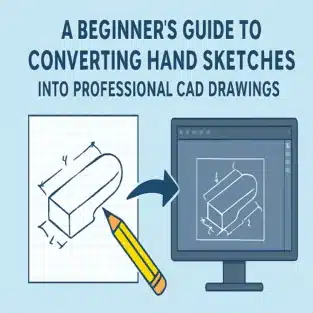
CAD Drawings

Turning hand-drawn sketches into detailed, accurate CAD drawings is one of the most important steps in today’s design, engineering, and construction workflows. Whether you’re an architect sketching a concept on paper, a product designer drawing your first prototype idea, or a homeowner planning renovations, converting a simple sketch into a computer-generated drawing unlocks clarity, precision, and professional quality.

This beginner-friendly guide walks you through the entire process step by step. By the end, you’ll understand exactly how to transform rough sketches into polished CAD drawings ready for manufacturing, construction, or presentation.


Why Convert Hand Sketches Into CAD Drawings?

Hand sketches are perfect for capturing ideas quickly. But for technical execution, you need accuracy. This is where CAD (Computer-Aided Design) comes in.

Here’s why converting your sketches into CAD drawings matters:

  • Precision: CAD software ensures correct dimensions, scale, and alignment.
  • Easy Editing: You can modify, update, or redesign quickly.
  • Professional Presentation: CAD drawings look clean and industry-standard.
  • Compatibility: CAD files can be shared with engineers, manufacturers, or drafting services.
  • 3D Capability: Sketches can evolve into 3D models for visualization.
  • Digital Archive: No risk of losing or damaging paper sketches.

For beginners, the conversion process may seem complex, but with the right steps, it becomes straightforward.


Step-by-Step Guide: How to Convert Hand Sketches Into Professional CAD Drawings


Step 1: Start With a Clear Hand Sketch

Your final CAD drawing is only as good as your initial sketch.

Tips for creating a clear sketch:

  • Use a pencil or black ink for visible lines.
  • Include basic dimensions (length, width, height).
  • Add notes or labels for specific features.
  • Keep the sketch clean—avoid smudges.
  • Use graph paper for better alignment (optional).

Remember, it doesn’t need to be perfect—just understandable.


Step 2: Scan or Photograph Your Sketch

The next step is to digitize your sketch.

Two simple methods:

1. Scan the Sketch

  • Use any flatbed scanner.
  • Save the file as PNG, JPG, or PDF.

Pros: High clarity and ideal for CAD tracing.

2. Photograph the Sketch

  • Use a smartphone camera.
  • Capture the sketch in good lighting.
  • Hold the camera parallel to avoid distortion.

Tip: Ensure edges are visible and lines are sharp.


Step 3: Import the Image Into Your CAD Software

Most CAD tools allow you to import a raster image (your sketch) and use it as a background layer.

Popular CAD software options:

  • AutoCAD
  • SolidWorks
  • Fusion 360
  • SketchUp
  • Revit (for architectural drafting)
  • LibreCAD (free)

Once imported, scale the image roughly to size. You’ll refine the scale later using dimensions.


Step 4: Trace the Geometry

Now the real drafting begins.

Use CAD tools like:

  • Line
  • Polyline
  • Arc
  • Circle
  • Spline
  • Trim
  • Offset

Follow the sketch lines and trace over them cleanly. This step transitions your rough drawing into professional CAD geometry.


Step 5: Add Dimensions and Annotations

CAD drawings must be dimensionally correct.

Add:

  • Linear dimensions
  • Angular dimensions
  • Radiuses and diameters
  • Notes and labels
  • Title block (if needed)

Make sure every important measurement is accurate. This step ensures your drawing can be used for fabrication or construction.


Step 6: Refine the Drawing

Check for:

  • Overlapping lines
  • Gaps
  • Incorrect snapping points
  • Layer organization
  • Line weights
  • Symbols and standard conventions

Good practice:

  • Use separate layers for walls, text, dimensions, and centerlines.
  • Apply standard drafting norms (ISO, ANSI, ASME depending on industry).

Step 7: Export the Final CAD Drawing

Once complete, export your drawing into the required formats.

Common file types include:

  • DWG (AutoCAD standard)
  • DXF (universally compatible)
  • PDF (for sharing or printing)
  • STL / STEP / IGES (if 3D modeling is used)

Your hand sketch is now officially a professional CAD drawing ready for real-world use.


Professional Option: Use CAD Conversion Services

If you’re new to CAD or short on time, hiring a CAD conversion service is a smart choice. Drafting professionals can turn your sketch into:

  • Architectural plans
  • Mechanical engineering drawings
  • Product design files
  • 2D and 3D models
  • Construction-ready blueprints

This ensures accuracy, compliance with standards, and fast turnaround.


Tips for Beginners

  • Start with simple shapes and structures.
  • Learn basic CAD shortcuts—they save hours.
  • Keep your layers organized from the beginning.
  • Watch beginner tutorials on your preferred CAD software.
  • Don’t stress over perfection—CAD allows unlimited refinement.

Conclusion

Converting hand sketches into professional CAD drawings bridges the gap between ideas and execution. Whether you’re designing a home, engineering a product, or sketching a creative concept, CAD gives you the precision and professionalism needed for real-world application.

With the steps in this beginner-friendly guide and the right tools (or professional drafting support), anyone can transform a simple sketch into a polished technical drawing.

Can I convert any type of sketch into CAD drawings?

Yes. Whether architectural layouts, mechanical parts, product concepts, or diagrams—almost any sketch can be converted into CAD drawings.

Do I need expensive software to create CAD drawings?

Not necessarily. There are many free or low-cost CAD tools like LibreCAD, FreeCAD, and Fusion 360 (free for personal use).

How accurate does my hand sketch need to be?

Your sketch doesn’t need to be perfect. As long as the idea and key dimensions are clear, it can be converted into a precise CAD drawing.

What file formats do drafting professionals usually provide?

The most common are u003cstrongu003eDWGu003c/strongu003e, u003cstrongu003eDXFu003c/strongu003e, u003cstrongu003ePDFu003c/strongu003e, and u003cstrongu003e3D formatsu003c/strongu003e like u003cstrongu003eSTEPu003c/strongu003e or u003cstrongu003eSTLu003c/strongu003e depending on the project type.

Can CAD drawings be turned into 3D models?

Absolutely. Once your sketch is drafted in 2D CAD, it can be extruded or modeled into 3D using software like SolidWorks, Revit, or Fusion 360.


CS

Claire Sutton

Architectural CAD Specialist & Technical Writer · BArch (Hons), QUT · ASTCAD, Brisbane

Claire has 10 years of experience in Revit BIM modelling, architectural documentation, and CAD conversion projects across Southeast Queensland and NSW. She has delivered NCC-compliant documentation for residential, commercial, and industrial facilities.

More articles by Claire Sutton →
CAD Drafting Services in Melbourne

In today’s competitive construction and engineering industry, CAD Drafting Services in Melbourne have become an essential part of every successful project. Whether you’re an architect, builder, or engineer, accurate and professional drafting plays a crucial role in bringing your ideas to life. However, with so many CAD service providers available, choosing the right one can be challenging. This guide will help you understand what to look for when selecting the best CAD drafting partner in Melbourne for your project.


Right CAD Drafting Services in Melbourne

1. Understand Your Project Requirements

Before you start searching for a CAD drafting company, clearly define your project needs. Are you working on an architectural plan, a mechanical component, or a civil structure? Each type of drafting requires different skill sets, software, and experience.
Make a checklist of your requirements, such as:

  • Type of project (architectural, structural, mechanical, electrical, etc.)
  • Required software (AutoCAD, Revit, SolidWorks, etc.)
  • Delivery timeline
  • Expected level of detailing

Having these details ready will make it easier to communicate your expectations and choose a provider who specializes in your field.


2. Check Their Experience and Expertise

Experience is one of the most important factors when choosing CAD Drafting Services in Melbourne. A company with several years of industry experience understands the local construction standards, council requirements, and Australian building codes.

Look for a team that has worked on a variety of projects, from residential and commercial to industrial and infrastructure developments. Experienced drafters can identify design challenges early and provide effective solutions, saving you time and money during the project execution stage.


3. Evaluate Software and Technology Used

The quality and accuracy of drafting largely depend on the software and tools used. Ensure that the company uses the latest versions of industry-standard software such as:

  • AutoCAD for 2D drafting and detailing
  • Revit for BIM (Building Information Modelling)
  • SolidWorks or Inventor for mechanical and product design
  • Civil 3D for civil and infrastructure projects

Advanced CAD software ensures high precision, easy revisions, and compatibility with other platforms used by engineers and architects.


4. Review Their Portfolio and Past Work

Always ask to see examples of previous projects before hiring a drafting service. A portfolio provides valuable insight into the company’s quality of work, design style, and attention to detail.

Check whether their drawings are clear, accurate, and compliant with Australian standards. Reviewing their past work will help you determine if they can meet your project’s complexity and technical requirements.


5. Consider Turnaround Time and Efficiency

Time is a critical factor in any construction or engineering project. The right CAD Drafting Services in Melbourne should deliver accurate drawings within your deadlines without compromising on quality.

Discuss turnaround times upfront. Reliable drafting firms often provide a clear project timeline and updates throughout the process, ensuring transparency and smooth communication.


6. Evaluate Communication and Support

Effective communication is key to any successful partnership. Choose a company that listens to your needs, understands your vision, and provides regular updates.

A good CAD drafting provider will not only deliver drawings but also collaborate with your team, clarify doubts, and offer design recommendations when needed. Quick response times and professional support can make a significant difference in project efficiency.


7. Check for Quality Assurance and Standards Compliance

When selecting a drafting service, ensure they follow strict quality control processes. The drawings should meet Australian standards (AS1100 for technical drawing practices) and local building codes.

Ask if the company performs internal reviews or audits before delivering the final drafts. A strong focus on quality assurance minimizes errors and ensures your designs are construction-ready.


8. Compare Pricing and Value for Money

While cost shouldn’t be the only deciding factor, it’s essential to compare quotes from different companies. Look for transparent pricing without hidden charges.

Avoid choosing the cheapest option, as low-cost services often compromise on accuracy or deliver incomplete work. Instead, aim for a provider that offers the best balance between quality, reliability, and affordability.


9. Look for Local Knowledge and Availability

Choosing a Melbourne-based CAD drafting company gives you access to local expertise. They are familiar with local council requirements, climatic conditions, and construction practices. This can be a huge advantage in ensuring your drawings meet all necessary compliance standards.

Local firms are also easier to contact for in-person meetings, site visits, or project discussions — ensuring better coordination throughout the drafting process.


10. Read Client Testimonials and Reviews

Before finalizing your choice, check client feedback on Google, social media, or the company’s website. Reviews often highlight the company’s professionalism, communication, and project delivery quality.

Positive testimonials are a strong indicator that the company values client satisfaction and consistently provides high-quality results.


Why Choose Professional CAD Drafting Services in Melbourne

Partnering with a professional CAD drafting company offers several benefits, including:

  • Accurate and detailed drawings for faster approvals
  • Improved design efficiency and reduced rework
  • Compliance with Australian building codes
  • Enhanced collaboration between architects, engineers, and contractors
  • Faster project delivery and cost savings

Investing in expert CAD drafting ensures your project progresses smoothly from design to construction, minimizing risks and maximizing efficiency.

Final Thoughts

Choosing the right CAD Drafting Services in Melbourne can make all the difference in the success of your project. From ensuring accuracy and compliance to enhancing design efficiency, a reliable drafting partner brings your vision to life with precision. Take the time to research, compare, and select a company that aligns with your goals — and you’ll enjoy smoother workflows, cost savings, and superior project outcomes.

What are CAD Drafting Services in Melbourne?

CAD Drafting Services in Melbourne involve creating detailed 2D and 3D technical drawings using computer-aided design software. These drawings are essential for construction, manufacturing, and engineering projects.

How do I choose the best CAD drafting company?

Look for a provider with relevant experience, strong technical skills, updated software, a quality portfolio, transparent pricing, and excellent client reviews.

What industries use CAD drafting services?

CAD drafting is widely used in architecture, civil engineering, structural design, mechanical design, electrical engineering, and product manufacturing.

How much do CAD Drafting Services in Melbourne cost?

The cost varies based on project complexity, drawing type, and delivery timeline. It’s best to request a detailed quote after discussing your specific needs.

Why should I hire a local CAD drafting service in Melbourne?

Local companies understand Australian standards and local council requirements, ensuring your drawings meet compliance and are optimized for construction efficiency.


CS

Claire Sutton

Architectural CAD Specialist & Technical Writer · BArch (Hons), QUT · ASTCAD, Brisbane

Claire has 10 years of experience in Revit BIM modelling, architectural documentation, and CAD conversion projects across Southeast Queensland and NSW. She has delivered NCC-compliant documentation for residential, commercial, and industrial facilities.

More articles by Claire Sutton →
Drafting

In today’s fast-paced construction and design industry, choosing the right CAD drafting services in Brisbane can significantly impact the success of your project. Whether you’re planning a residential build, a commercial development, or even a renovation, the right draftsman in Brisbane can turn your vision into a precise, practical design.

With so many providers offering various levels of expertise and services, how do you pick the right one? This guide will walk you through what to look for, what to avoid, and how to ensure you’re making a smart investment in your project’s future.


What Are CAD Drafting Services?

CAD (Computer-Aided Design) drafting services use specialized software to create precise technical drawings and plans used in construction, engineering, and manufacturing. In Brisbane, CAD drafting is essential for ensuring that all stakeholders—builders, architects, engineers, and clients—are aligned on a project’s technical details.


Why Choosing the Right Draftsman in Brisbane Matters

A draftsman in Brisbane doesn’t just draw; they translate your ideas into detailed drawings that meet local building codes, environmental regulations, and council requirements. A poor-quality drafting service can result in delays, costly revisions, or even legal issues.

Choosing the right professional ensures:

  • Accurate, council-compliant drawings
  • Efficient project timelines
  • Clear communication between all parties
  • Reduced risk of errors during construction

1. Check Qualifications and Experience

Not all draftsmen are equal. When selecting CAD drafting services in Brisbane, look for providers with:

  • Formal qualifications in drafting or building design
  • Experience in your project type (residential, commercial, industrial)
  • A portfolio of completed projects in Brisbane or nearby suburbs

Experienced draftsmen understand local regulations and have established relationships with Brisbane city council and other approval bodies.


2. Ask About Software and Technology

Modern drafting is powered by advanced CAD software such as AutoCAD, Revit, or ArchiCAD. The right CAD drafting services will utilize up-to-date software to ensure accuracy and compatibility with other consultants (architects, engineers, builders).

Ask the service provider:

  • What software do you use?
  • Can you provide 2D and 3D drawings?
  • Do you offer Building Information Modeling (BIM) integration?

3. Look for Local Knowledge

A draftsman in Brisbane should be familiar with:

  • Local building codes and council regulations
  • Climate considerations in Queensland (e.g., heat, storms, ventilation)
  • Design trends and materials suitable for Brisbane homes or commercial spaces

This local expertise can save you time and money by avoiding non-compliant designs or unnecessary revisions.


4. Compare Pricing and Inclusions

Price is important—but so is value. Some CAD drafting services may seem cheaper, but they may not include everything you need, such as:

  • Site visits
  • Council application assistance
  • Engineering coordination
  • Revisions

Request a detailed quote that outlines:

  • What’s included and excluded
  • Number of revisions allowed
  • Timeframe for delivery

Avoid services that are vague or unwilling to provide a written quote.


5. Check Reviews and Testimonials

Reputation matters. Look for client reviews on:

  • Google
  • Houzz
  • Local directories (e.g., Yellow Pages, TrueLocal)

Positive reviews indicate reliability, quality, and good communication. If possible, ask the company for references or examples of past projects similar to yours.


6. Ask About Turnaround Time

Time is critical in any project. Ask:

  • How long will the drafting process take?
  • When can you start?
  • What happens if I need changes?

A reliable draftsman in Brisbane will be upfront about their availability and process timelines, and they’ll communicate delays if they occur.


7. Ensure Clear Communication

The best CAD drafting services will:

  • Keep you updated regularly
  • Explain technical terms clearly
  • Be responsive to your questions

Good communication reduces misunderstandings and ensures your design vision is accurately captured.

Final Thoughts

Choosing the right CAD drafting services in Brisbane is a critical step in the success of your building or renovation project. By assessing qualifications, local knowledge, technology use, and communication skills, you can ensure your project starts on solid ground.

Don’t rush the decision. Take time to review portfolios, ask questions, and compare offerings. The right draftsman in Brisbane will not only save you time and money but also turn your vision into reality with clarity and precision.

What’s the difference between a draftsman and an architect?

A draftsman focuses on technical drawings and construction documentation, while an architect is trained in design theory, aesthetics, and complex building concepts. Draftsmen are generally more affordable and ideal for straightforward residential or commercial projects.

Are CAD drafting services in Brisbane council-approved?

Not automatically. However, experienced drafting services are familiar with Brisbane City Council requirements and can prepare drawings that comply with local regulations. Some may even assist with the application process.

Do I need a draftsman for home renovations?

Yes, especially for structural changes, extensions, or council submissions. A u003cstrongu003edraftsman in Brisbaneu003c/strongu003e will ensure your plans are accurate and compliant.

Can I use a draftsman instead of an architect?

For most residential and small commercial projects, yes. Draftsmen offer a cost-effective alternative, especially when architectural design isn’t a priority.


CS

Claire Sutton

Architectural CAD Specialist & Technical Writer · BArch (Hons), QUT · ASTCAD, Brisbane

Claire has 10 years of experience in Revit BIM modelling, architectural documentation, and CAD conversion projects across Southeast Queensland and NSW. She has delivered NCC-compliant documentation for residential, commercial, and industrial facilities.

More articles by Claire Sutton →
CAD Drafting Services in Melbourne and Sydney

In today’s fast-paced design and construction industries, precision and efficiency are non-negotiable. Whether you’re an architect, engineer, builder, or property developer, choosing the right CAD drafting services in Melbourne can make a significant difference in the success of your project.

With numerous providers in both cities, it can be challenging to know which firm is right for your needs. This guide will help you evaluate and select the best CAD drafting partner for your specific requirements.


What Are CAD Drafting Services?

CAD (Computer-Aided Design) drafting involves creating accurate technical drawings and plans used in construction, architecture, engineering, and manufacturing. These digital drawings help professionals visualise, plan, and execute projects with precision.

From 2D floor plans to detailed 3D models, CAD drafting services in Sydney support everything from residential renovations to large-scale commercial developments.


Why the Right CAD Partner Matters

The quality of your CAD drawings directly affects your project’s accuracy, timeline, and cost. Choosing a substandard service could result in:

  • Costly design revisions
  • Construction delays
  • Compliance issues with local building codes
  • Inefficient communication with contractors and stakeholders

On the other hand, working with a professional, experienced drafting team can streamline your workflow, reduce risk, and ensure your vision becomes reality—on time and on budget.


Key Factors to Consider When Choosing CAD Drafting Services

1. Experience in Your Industry

Not all drafting firms are created equal. Look for CAD specialists with proven experience in your specific field—whether that’s residential architecture, commercial fit-outs, civil engineering, or mechanical design.

Tip: Check their portfolio and ask for examples of similar projects they’ve completed in Melbourne or Sydney.


2. Local Knowledge of Codes and Regulations

Each city has its own planning and building regulations. Choosing CAD drafting services in Melbourne and Sydney with local expertise ensures your designs are compliant with relevant council and state requirements.


3. Software and Technology Used

Ensure the company uses up-to-date and industry-standard software such as AutoCAD, Revit, or SolidWorks. Compatibility with your own tools (or your contractor’s) is essential for smooth collaboration.


4. Turnaround Time and Availability

Project deadlines are often tight. Ask about their average turnaround time and whether they can handle urgent or large-scale projects. Local firms tend to be more responsive and accessible for meetings or site visits in Melbourne and Sydney.


5. Pricing and Transparency

Get a detailed quote upfront and ask about their pricing model—hourly rate, per drawing, or package pricing. The cheapest option isn’t always the best. Look for value, reliability, and clear communication.


6. Client Reviews and Reputation

Research online reviews, testimonials, and Google ratings. Positive feedback from other clients in your area is a good indicator of a trustworthy and high-quality service.


7. Range of Services Offered

A full-service firm can save you time and coordination effort. Look for a provider that offers:

  • 2D and 3D drafting
  • Building Information Modelling (BIM)
  • As-built drawings
  • Engineering plans
  • Council-ready documentation

Benefits of Working with Local CAD Drafting Services in Melbourne and Sydney

  • Face-to-face collaboration: Meet your drafting team in person when needed
  • Faster site assessments: Local drafters can visit your site quickly
  • Knowledge of local suppliers and builders: Helpful for seamless integration

Final Thoughts

Choosing the right CAD drafting services in Melbourne and Sydney requires careful consideration of expertise, technology, local knowledge, and communication. By taking the time to evaluate your options, you can ensure your project starts with a solid foundation—literally and figuratively.

Whether you’re designing your dream home, planning a commercial space, or needing technical documentation for engineering, the right CAD partner is an investment in the quality and efficiency of your entire project.


Need help finding professional CAD drafting services in Melbourne or Sydney?
Look for firms with local experience, great reviews, and a strong portfolio to back them up—and don’t hesitate to ask the right questions before you commit.

How long does a typical drafting project take?

A standard residential floor plan may take 2–5 business days. Larger commercial or multi-level projects can take 1–3 weeks, depending on revisions and requirements.

Do I need a site visit for CAD drafting services?

While many projects can be completed with existing measurements or drawings, a site visit ensures higher accuracy—especially for renovations or as-built plans. Most u003cstrongu003eCAD drafting services in Melbourne and Sydneyu003c/strongu003e offer this as part of their process.

Can CAD drafters help with council approvals?

Yes. Many experienced drafting firms in Melbourne and Sydney can prepare documentation for council submissions, including planning permits and building permits, which are often required for renovations, extensions, or new builds.

What file formats will I receive?

You’ll typically receive files in DWG, PDF, or DXF formats. Some firms also provide 3D models or BIM-compatible formats for architects and builders.


CS

Claire Sutton

Architectural CAD Specialist & Technical Writer · BArch (Hons), QUT · ASTCAD, Brisbane

Claire has 10 years of experience in Revit BIM modelling, architectural documentation, and CAD conversion projects across Southeast Queensland and NSW. She has delivered NCC-compliant documentation for residential, commercial, and industrial facilities.

More articles by Claire Sutton →
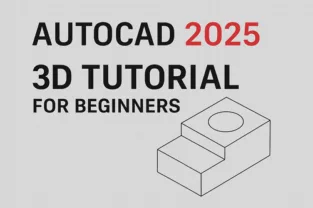
AutoCAD 2025 3D Tutorial for Beginners || AutoCAD 2D to 3D Convert || Step by Step

AutoCAD has always been a powerful tool for engineers, architects, and designers who want to bring their ideas to life. With the release of AutoCAD 2025, creating precise 2D drawings and converting them into 3D models has become even more intuitive. For beginners, learning the step-by-step process of AutoCAD 2D to 3D convert can be a game-changer, helping you visualize projects better and communicate ideas more effectively.

In this tutorial, we’ll walk through the basics of using AutoCAD 2025 to create 3D models from 2D drawings, along with tips to make the transition smoother for new users.


Why Move from 2D to 3D in AutoCAD?

While 2D drafting is essential for floor plans, schematics, and technical layouts, 3D modeling adds depth and realism to your designs. The benefits of converting 2D to 3D in AutoCAD include:

  • Improved visualization – 3D models provide a realistic view of how the final product will look.
  • Better communication – Clients and stakeholders understand 3D visuals more easily than 2D lines.
  • Reduced errors – Spot design issues early by rotating and examining models from different angles.
  • Efficient workflows – Switching to 3D reduces rework and simplifies design modifications.

Getting Started with AutoCAD 2025

Before diving into AutoCAD 2D to 3D convert, make sure you:

  1. Have AutoCAD 2025 installed and updated.
  2. Switch to the 3D Modeling Workspace (found in the top-right corner of AutoCAD).
  3. Familiarize yourself with the 3D tools like Extrude, Revolve, PressPull, and Union.

Step-by-Step Guide: AutoCAD 2D to 3D Convert

Here’s a simple workflow beginners can follow to turn a 2D drawing into a 3D model:

Step 1: Start with a Clean 2D Drawing

  • Open your 2D plan in AutoCAD 2025.
  • Ensure all lines are connected (use the Join command if necessary).
  • Organize layers so each element is easy to identify.

Step 2: Switch to 3D Workspace

  • Go to the top-right corner and select 3D Modeling workspace.
  • The ribbon will update with 3D tools.

Step 3: Create Regions or Surfaces

  • Use the REGION command to convert closed 2D shapes into regions.
  • These regions can then be extruded into 3D solids.

Step 4: Use the Extrude Command

  • Select a closed shape and type EXTRUDE.
  • Enter a height value to give the object thickness.
  • Example: extruding a rectangle into a 3D wall.

Step 5: Apply Revolve for Circular Objects

  • For round objects (like pipes or cylinders), draw a profile in 2D.
  • Use the REVOLVE command around an axis to create 3D geometry.

Step 6: Modify and Refine

  • Use PressPull to push/pull surfaces.
  • Use Union, Subtract, and Intersect to combine or cut objects.
  • Apply Materials and Visual Styles for realistic effects.

Tips for Beginners in AutoCAD 2025 3D

  • Practice simple models first – Start with cubes, cylinders, and basic shapes.
  • Learn shortcuts – Commands like EXTRUDE (EXT), PRESSPULL, and REVOLVE save time.
  • Use isometric view – Switch views frequently (Top, Front, Isometric) to understand geometry.
  • Save regularly – Large 3D models can slow down your system, so save your work often.
  • Experiment with rendering – AutoCAD 2025 has improved rendering for better presentations.

Applications of AutoCAD 2D to 3D Convert

  • Architecture – Transform 2D floor plans into realistic building models.
  • Mechanical engineering – Convert component sketches into machine parts.
  • Interior design – Visualize furniture, layouts, and space planning.
  • Civil engineering – Create 3D bridges, roads, and site layouts.

Conclusion

Mastering AutoCAD 2D to 3D convert in AutoCAD 2025 is an essential step for beginners who want to elevate their design skills. By learning how to extrude, revolve, and modify 3D shapes, you can transform simple 2D drawings into realistic 3D models. Whether you’re an architect, engineer, or student, practicing these tools will help you visualize and communicate your ideas effectively.

With AutoCAD 2025, the process has become more user-friendly, making it the perfect time for beginners to dive into 3D modeling.

Is AutoCAD 2025 beginner-friendly for 3D modeling?

Yes, AutoCAD 2025 has a simplified interface and guided workflows, making it easier for beginners to switch from 2D drafting to 3D modeling.

What’s the difference between 2D and 3D in AutoCAD?

2D is limited to flat drawings with only X and Y coordinates, while 3D adds depth (Z-axis), allowing you to create realistic models.

Can I convert old 2D drawings into 3D in AutoCAD 2025?

Absolutely. Open your existing 2D files, clean up the geometry, and use commands like EXTRUDE and REVOLVE to build 3D models.

Do I need a powerful computer for AutoCAD 3D?

For basic 3D modeling, most modern PCs work fine. However, for large and complex models, a system with higher RAM, dedicated graphics, and SSD storage is recommended.

How can I learn AutoCAD 2D to 3D convert faster?

Start with simple exercises, watch beginner tutorials, and practice regularly. AutoCAD 2025 also offers built-in learning resources.


CS

Claire Sutton

Architectural CAD Specialist & Technical Writer · BArch (Hons), QUT · ASTCAD, Brisbane

Claire has 10 years of experience in Revit BIM modelling, architectural documentation, and CAD conversion projects across Southeast Queensland and NSW. She has delivered NCC-compliant documentation for residential, commercial, and industrial facilities.

More articles by Claire Sutton →
PDF Drawings to DWG File in AutoCAD

In the world of design, engineering, and construction, sharing drawings in PDF format is common practice. However, professionals often need to edit these drawings in AutoCAD, which requires converting them into DWG files. If you’ve ever wondered how to efficiently convert PDF Drawings to DWG File in AutoCAD, this guide will walk you through the process step by step. By the end, you’ll have a clear understanding of how to handle PDF conversions and make your workflow smoother.


Why Convert PDF Drawings to DWG File in AutoCAD?

PDFs are excellent for sharing and printing drawings because they maintain formatting across different devices. However, PDFs are not editable in their native form. On the other hand, DWG files—the native format for AutoCAD—allow full editing capabilities. Converting PDF to DWG files in AutoCAD ensures you can:

  • Edit lines, curves, and shapes directly.
  • Modify text, dimensions, and annotations.
  • Incorporate old project drawings into new designs.
  • Save time by avoiding manual redrawing.

Step-by-Step Guide to Converting PDF to DWG in AutoCAD

Here’s a simple, detailed process to help you convert files accurately.

Step 1: Open AutoCAD

Start by launching AutoCAD on your computer. Ensure you’re using a version that supports PDF import functionality (AutoCAD 2017 and later versions include this feature).

Step 2: Locate the PDF Import Tool

  • Go to the Insert tab on the AutoCAD ribbon.
  • Select the Import PDF option.

Step 3: Choose Your PDF File

A file selection window will appear. Browse and select the PDF drawing you want to convert. AutoCAD allows both single-page and multi-page PDFs to be imported.

Step 4: Adjust Import Settings

AutoCAD will display several import options:

  • Specify Insertion Point, Scale, and Rotation – Allows you to control where and how the PDF is placed.
  • Import PDF Data – Choose whether to import geometry, text, or raster images.
  • Layers – You can decide whether to import objects to one layer or retain original PDF layer settings.

Choose the settings according to your project needs.

Step 5: Complete the Import

Click OK to finalize the import. AutoCAD will convert the PDF elements into editable DWG objects, such as polylines, arcs, and text.

Step 6: Clean Up the Drawing

After conversion, some elements may need adjustments. For example:

  • Text might not align perfectly.
  • Hatch patterns may appear as separate lines.
  • Raster images remain as non-editable objects.

Use AutoCAD’s editing tools to refine the drawing for better accuracy.


Best Practices for Converting PDF to DWG in AutoCAD

To ensure smooth conversions, consider these tips:

  • Use High-Quality PDFs: Low-resolution or scanned PDFs may result in inaccurate DWG conversions.
  • Simplify Before Importing: If possible, reduce the number of layers or details in the original PDF.
  • Check for Scaling Issues: Always verify dimensions after importing to maintain accuracy.
  • Clean Unnecessary Objects: Delete extra lines, duplicate text, or unwanted raster images after conversion.

Benefits of Using AutoCAD’s Built-In PDF to DWG Conversion

  1. Time-Saving: No need for manual tracing of drawings.
  2. Accuracy: Vector data from PDFs is directly converted into editable geometry.
  3. Compatibility: Imported files can be integrated into new or ongoing projects.
  4. Cost-Effective: Eliminates the need for third-party conversion software.

Common Challenges and How to Overcome Them

  • Scanned PDFs: AutoCAD cannot directly convert raster images into editable geometry. In such cases, use OCR (Optical Character Recognition) software before importing.
  • Text Recognition Issues: Sometimes, text may import as polylines instead of editable text. Use AutoCAD’s TXTEXP or manually replace the text.
  • File Size: Large PDFs can slow down AutoCAD. Simplify or break down the file if necessary.

Conclusion

Converting PDF to DWG in AutoCAD is a powerful way to reuse existing drawings without wasting time on manual redrawing. By following the step-by-step guide above, you can import PDFs directly, edit them as needed, and integrate them into your projects with ease. Although you may need to refine the file after import, the process ultimately saves time, boosts productivity, and ensures higher accuracy in your design workflow.

If you often work with shared drawings, mastering PDF to DWG conversion in AutoCAD is an essential skill that enhances efficiency and collaboration across projects.

Can AutoCAD convert scanned PDF drawings to DWG?

AutoCAD’s import tool works best with vector-based PDFs. For scanned (raster) PDFs, you’ll need additional OCR software or manual tracing.

Is the converted DWG file 100% accurate?

Not always. While AutoCAD does a good job, you may need to clean up lines, text, and hatches after import.

Which versions of AutoCAD support PDF to DWG conversion?

AutoCAD 2017 and later versions include a built-in PDF import tool. Older versions require third-party software.

Can I batch convert multiple PDFs to DWG files?

AutoCAD itself doesn’t support batch conversions, but third-party tools can help if you need to process large numbers of files.

Do I lose any data during conversion?

Raster images and some special annotations may not convert to editable objects. Always review the file after import to ensure accuracy


CS

Claire Sutton

Architectural CAD Specialist & Technical Writer · BArch (Hons), QUT · ASTCAD, Brisbane

Claire has 10 years of experience in Revit BIM modelling, architectural documentation, and CAD conversion projects across Southeast Queensland and NSW. She has delivered NCC-compliant documentation for residential, commercial, and industrial facilities.

More articles by Claire Sutton →
Get a free quote — 1800 287 223