1800 287 223 · [email protected]
Architectural Design

Introduction

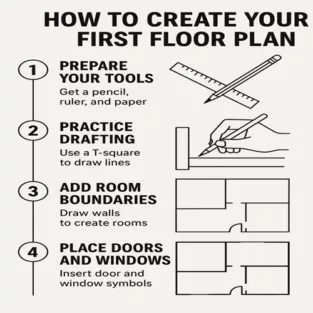
So, you’re ready to dip your toes into the world of Architectural Design & Drafting? Awesome! Creating your first floor plan might sound intimidating, but it’s actually a super rewarding process. Whether you’re planning your dream home or just love design, this step-by-step guide will walk you through everything you need to know — no jargon, just real, beginner-friendly help.

What Is a Floor Plan?

A floor plan is a scaled drawing that shows the layout of a space from a top-down view. It’s the foundation of any architectural project and includes walls, rooms, doors, windows, and sometimes furniture.

Why Floor Plans Are Essential in Architectural Design & Drafting

They help visualise spatial relationships and plan for construction or renovation. In short, no solid structure exists without a solid floor plan first!

Tools You’ll Need to Get Started

  • Graph paper or drafting software
  • Pencil and ruler (or a digital stylus)
  • Measuring tape
  • Computer with CAD software (AutoCAD, SketchUp, or similar)

Preparing for Your Floor Plan

Define the Purpose of the Space

Before you start sketching, ask yourself: What is this space for? Is it a home, office, studio, or something else? Knowing the purpose sets the tone for the entire layout.

Gather Measurements and Site Details

Accuracy is everything! Measure the length, width, and height of the area. If it’s a brand-new space, you can decide your own dimensions, but be realistic.

Choose the Right Scale

Pick a scale that’s easy to manage — typically, 1/4″ = 1′-0″ for residential plans. This makes sure everything fits nicely on your page or screen.

Getting Started with Your Floor Plan

Start with the Perimeter Walls

Think of this like drawing the outer edges of a puzzle. Draw the exterior walls first using straight lines. These define the structure’s boundaries.

Add Interior Walls and Partitions

Once the outer walls are set, sketch in the interior walls to divide rooms. Keep room size functionality in mind — a bedroom shouldn’t be the size of a closet.

Place Doors and Windows

Now make the space usable! Add in doors where you expect entry and exit. Don’t forget windows for natural light. Use standard sizes to keep things realistic.

Detailing the Floor Plan

Adding Furniture and Fixtures

It’s time to make it livable. Add furniture symbols for beds, couches, tables, kitchen counters, etc. This step helps with visualising the flow of the space.

Labelling Each Room Clearly

Write down the name of each room — Bedroom, Living Room, Kitchen, etc. This makes your plan more readable, especially if you’re handing it off to someone else.

Including Dimensions and Annotations

Mark all wall lengths, door widths, and window sizes. Add notes if needed, like “sliding door” or “double-hung window.” Details matter!

Using CAD Software for Precision

Benefits of Using CAD in Architectural Design & Drafting

CAD tools allow for super-accurate measurements, better visualisation, and faster changes. It’s like sketching with superpowers.

Recommended CAD Tools for Beginners

  • AutoCAD LT: Lightweight and beginner-friendly.
  • SketchUp: Great for 3D modelling and easy to learn.
  • Floorplanner: Perfect for quick mockups and planning.

Tips for Creating Clean and Readable Plans

  • Stick to simple line weights.
  • Use consistent symbols for doors and windows.
  • Don’t overcrowd the plan — white space is your friend.

Reviewing and Finalising Your Floor Plan

Common Mistakes to Avoid

  • Ignoring circulation space (no one wants to bump into furniture)
  • Skipping door swing directions
  • Forgetting to mark window heights and widths

Getting Feedback from a Drafting Professional

Even if it’s your first draft, having a seasoned eye review your plan is gold. They’ll catch errors and offer practical insights you may have missed.

Saving and Exporting in the Right Formats

Save your file in multiple formats like DWG, PDF, and PNG. This ensures it’s easy to share and accessible across different devices and platforms.

Conclusion

Creating your first floor plan is an exciting first step into the world of Architectural Design & Drafting. It’s not just about drawing walls — it’s about creating a space that makes sense, feels good, and functions well. Remember, the key is to plan with purpose, measure carefully, and use the right tools. Start simple, stay curious, and you’ll be designing like a pro in no time!

What software is best for beginners in architectural drafting?

SketchUp and Floorplanner are great for beginners. They’re easy to learn and offer intuitive interfaces with enough features to create detailed floor plans.

Can I create a floor plan without technical experience?

Absolutely! You don’t need technical experience to create a floor plan with ASTCAD. Our intuitive tools guide you through each step, and we’ve designed our software to follow Australian building standards and codes, so your plans are compliant from the start. Whether you’re planning a residential layout or a commercial space, our tutorials walk you through dimension input, material specifications, and proper notation that meets local council requirements. We support drafters of all skill levels.

How long does it take to create a basic floor plan?

Creating your first floor plan typically takes 2–4 hours as you familiarize yourself with our tools and techniques. Most of our Australian clients find the process speeds up significantly once they understand local building codes and our software’s layer management system. We recommend setting aside dedicated time for your initial project, as this investment helps you develop efficient workflows for future residential and commercial drafts.

Is hand-drawing still relevant in architectural drafting?

Yes, hand-drawing remains valuable in architectural practice. Many of our clients at ASTCAD start with pencil sketches to explore design concepts before transitioning to CAD software. This traditional approach complements digital tools beautifully, especially when working on Australian residential projects where site-specific considerations require initial conceptual thinking. Hand sketches help capture creative ideas quickly and are often essential during client consultations before committing designs to detailed CAD drawings.

What’s the difference between a floor plan and a blueprint?

A floor plan is a top-down view showing room layout and spatial relationships, while a blueprint is a complete set of technical drawings that includes your floor plan plus elevations, sections, electrical layouts, and construction details. In Australia, blueprints typically follow AS/NZS standards and include all information builders and engineers need to construct a project. We recommend starting with a floor plan to establish your design, then expanding it into a full blueprint set for regulatory compliance and construction purposes.

CS

Claire Sutton

Architectural CAD Specialist & Technical Writer · BArch (Hons), QUT · ASTCAD, Brisbane

Claire has 10 years of experience in Revit BIM modelling, architectural documentation, and CAD conversion projects across Southeast Queensland and NSW. She has delivered NCC-compliant documentation for residential, commercial, and industrial facilities.

More articles by Claire Sutton →
Electrical CAD Drafting

In today’s fast-paced design and construction world, Electrical CAD Drafting has become a vital skill for engineers, designers, and drafters. It plays a significant role in creating accurate, clear, and comprehensive electrical drawings that guide the implementation of wiring systems, lighting plans, panel layouts, and more.

If you’re just starting out, understanding Electrical CAD Drafting for Beginners might feel overwhelming. However, with the right tools, software, and learning resources, mastering it becomes achievable and rewarding.

What is Electrical CAD Drafting?

Electrical CAD (Electrical CAD Drafting) Drafting is the process of using CAD software to create 2D or 3D electrical drawings and schematics. These drawings include wiring diagrams, panel layouts, circuit board designs, and system schematics essential for planning, installation, and maintenance of electrical systems.

For beginners, it’s crucial to understand that CAD drafting is not only about drawing lines but also about creating meaningful designs that follow electrical standards and conventions.

Essential Tools for Electrical CAD Drafting

When starting with Electrical CAD Drafting for Beginners, you’ll need more than just software. Here’s a list of essential tools:

1. Computer with Good Specifications

Electrical CAD software often requires a powerful system to handle large files and detailed graphics. Look for:

  • A fast processor (Intel i5/i7 or AMD Ryzen 5/7)
  • At least 8-16GB RAM
  • A dedicated graphics card
  • SSD storage for faster performance

2. Mouse with Additional Buttons

A programmable mouse can speed up navigation and command selection within CAD environments.

3. Monitor with High Resolution

A larger monitor (or dual monitors) with high resolution makes it easier to view complex diagrams without excessive zooming or panning.

Best Software for Electrical CAD Drafting

Here are some popular software options tailored for Electrical CAD Drafting for Beginners:

1. AutoCAD Electrical

AutoCAD Electrical is a powerful industry-standard software designed specifically for electrical design. It includes built-in symbols, automated numbering, and real-time error checking.

Pros:

  • Comprehensive toolsets
  • Large library of electrical components
  • Supports collaboration

Cons:

  • Expensive for individual learners
  • Steep learning curve

2. SolidWorks Electrical

SolidWorks Electrical offers tools for both schematic design and 3D layout, making it ideal for complex systems and mechanical integration.

Best For: Projects requiring integration with mechanical parts.

3. EPLAN Electric P8

EPLAN is widely used in industrial automation. It provides structured documentation, cable management, and automated report generation.

4. Free or Low-Cost Alternatives

  • KiCad (for PCB design)
  • QElectroTech (open-source)
  • TinyCAD (schematic capture program)

These are great options to start learning without high initial investment.

Learning Resources for Electrical CAD Drafting for Beginners

If you’re eager to learn Electrical CAD Drafting for Beginners, the internet is full of useful tutorials and courses. Here are some effective resources:

1. Online Courses and Platforms

  • Udemy and Coursera offer beginner-friendly courses that guide users through electrical drafting step by step.
  • LinkedIn Learning has structured CAD learning paths focused on electrical applications.

2. YouTube Channels

Channels like AutoCAD Tips & Tricks, Electrical Engineering Portal, and CAD in black regularly post free tutorials and tips.

3. Books and eBooks

  • AutoCAD Electrical for Beginners by CADCIM Technologies
  • Electrical Drafting and Design by Hemstreet & Thornley

4. Forums and Communities

  • CADTutor
  • Autodesk Community
  • Reddit r/cad

These platforms are great for asking questions, sharing experiences, and learning from others.

Tips for Getting Started

Here are some practical tips to make your journey into Electrical CAD Drafting for Beginners smoother:

  1. Start with 2D Drawings – Master the basics of 2D drafting before moving on to complex 3D layouts.
  2. Learn Standard Symbols – Get familiar with electrical symbols like switches, outlets, transformers, etc.
  3. Practice Real Projects – Try replicating simple home wiring diagrams or basic panel layouts.
  4. Understand Drawing Standards – Study ANSI, IEC, or NFPA standards that apply to electrical drafting in your region.
  5. Use Templates and Blocks – Save time by creating reusable components and templates.

Final Thoughts

Starting your journey in Electrical CAD Drafting for Beginners is a smart investment in today’s tech-driven engineering world. With the right combination of tools, software, and learning platforms, you can build a strong foundation and gradually move towards expert-level design skills.

Whether you aim to become a certified drafter or simply want to add electrical design to your skill set, remember that consistent practice, curiosity, and staying updated with industry trends are your best allies.

What is the difference between AutoCAD and AutoCAD Electrical?

AutoCAD is general-purpose CAD software for various industries, whereas AutoCAD Electrical is specifically designed for electrical control system design. We find it invaluable for Australian electrical projects as it includes comprehensive libraries of electrical symbols compliant with local standards, plus automated tools for wire numbering and circuit design. This specialisation saves our clients significant time on complex electrical drafting work.

Is Electrical CAD Drafting difficult to learn?

Electrical CAD drafting does present a learning curve, but it’s absolutely achievable for beginners with dedication. We recommend starting with fundamental tools like AutoCAD or Revit, which are industry standards in Australian engineering practices. With consistent practice and our comprehensive resources tailored to local standards and conventions, most beginners develop solid proficiency within a few months. The key is understanding Australian electrical codes and regulations alongside software skills, which we help integrate into your learning journey.

Do I need an engineering degree to learn electrical CAD drafting?

No, you don’t need an engineering degree to start with electrical CAD drafting. At ASTCAD, we’ve trained many beginners who simply have a keen interest in electrical systems and solid computer skills. Most Australian drafters learn through our online courses, hands-on practice, and by familiarising themselves with local standards like AS/NZS 3000. With dedication, anyone can master the fundamentals and build a rewarding career in electrical drafting.

What are the career options after learning Electrical CAD Drafting?

Learning electrical CAD drafting opens exciting career paths across Australia’s growing engineering and construction sectors. You can pursue roles as an Electrical CAD Drafter, Design Engineer, or Panel Layout Designer in industries ranging from renewable energy to infrastructure projects. Many of our graduates also transition into positions as Electrical Technicians or progress toward professional engineering qualifications. At ASTCAD, we’ve seen our students successfully secure positions with major Australian firms, with strong demand for CAD skills across both metropolitan and regional projects nationwide.


JH

James Hartley

Senior Mechanical Engineer · BEng (Mechanical), UQ · Member, Engineers Australia · ASTCAD, Brisbane

James has 14 years of hands-on experience delivering CAD design, structural drafting, and engineering documentation across Australia’s mining, oil & gas, and manufacturing sectors. He specialises in SolidWorks, Autodesk Inventor, and AutoCAD for complex multi-discipline projects.

More articles by James Hartley →
CAD Conversion

In the fast-paced world of design and engineering, CAD Conversion has become an essential process for enhancing productivity, maintaining data accuracy, and upgrading legacy data. Whether you’re transitioning from paper blueprints or updating old file formats, understanding the basics of CAD Conversion for Beginners can streamline your workflow and reduce costly errors.

In this comprehensive guide, we’ll walk you through the step-by-step process of getting started with CAD conversion, offering essential tips and insights that are perfect for newcomers.

What is CAD Conversion?

CAD Conversion is the process of converting design data from one format to another. This could include:

  • Converting paper-based or scanned drawings (raster) into editable CAD files (vector).
  • Converting between different CAD formats (e.g., DWG to DGN or PDF to DWG).
  • Translating 2D CAD drawings into 3D models.

For many beginners, CAD conversion serves as the first step toward digital transformation in design and manufacturing.

Why CAD Conversion is Important

  • Preserves design data from old blueprints and paper documents.
  • Improves efficiency by enabling quick edits and updates in CAD software.
  • Enhances collaboration across departments or teams using different CAD platforms.
  • Supports compliance with industry standards and digital archiving needs.

Step-by-Step Guide to Getting Started with CAD Conversion for Beginners

Step 1: Identify the Source Material

Begin by gathering all the files or drawings you need to convert. This can include:

  • Hand-drawn paper blueprints
  • Scanned raster images (TIFF, BMP, JPG)
  • Legacy CAD files in older or obsolete formats
  • PDF drawings

Knowing your source will determine the type of conversion technique you’ll use.

Step 2: Choose the Right CAD Software

Many CAD platforms support file conversion, such as:

  • AutoCAD
  • MicroStation
  • SolidWorks
  • Revit
  • BricsCAD

For CAD conversion for beginners, AutoCAD is often a user-friendly choice due to its widespread use and simple interface.

Step 3: Decide Between Manual and Automated Conversion

  • Manual Conversion involves redrawing or tracing the source drawing using CAD tools. This is time-consuming but highly accurate.
  • Automated Conversion uses specialised software to convert scanned images or PDFs into vector format. It’s faster but may require post-editing to fix errors.

Tip: Beginners may start with automated tools but should learn some manual techniques to ensure precision.

Step 4: Clean Up the Source File

Before starting the conversion, clean up the source file:

  • Remove smudges or unwanted marks from scanned images
  • Ensure scanned drawings are high resolution (at least 300 DPI)
  • Correct any distortions or alignment issues

A clean source ensures better accuracy in the final CAD file.

Step 5: Convert and Trace

Depending on your method:

  • Manual Method: Open a blank CAD file and use the Line, Polyline, and Object Snap tools to trace the geometry.
  • Automated Method: Import your raster or PDF file into CAD software and use built-in vectorization tools or plugins to convert to line work.

Once complete, check the geometry for alignment, proportions, and accuracy.

Step 6: Add Layers and Annotations

Organise the drawing using layers (e.g., walls, electrical, plumbing) and add necessary annotations, dimensions, and title blocks. Layer management is crucial for maintaining clarity and readability.

Step 7: Save and Export

Once your drawing is complete:

  • Save it in the desired CAD format (DWG, DXF, etc.)
  • Export or share with your team or client

Consider maintaining both the source and converted files for record-keeping.

Best Practices for CAD Conversion for Beginners

  • Always back up your source files before conversion.
  • Use a naming convention to keep track of different versions.
  • Cross-check converted files with the original for accuracy.
  • Take time to learn layer management and standard symbols used in CAD.
  • If you’re dealing with complex conversions (e.g., mechanical assemblies), seek help from professional CAD conversion services.

Common Challenges in CAD Conversion

  • Loss of quality in scanned images can lead to poor vector conversion.
  • Text recognition errors when converting from PDF.
  • Layer mismanagement may lead to cluttered and unreadable files.
  • Unsupported file types requiring third-party tools or plugins.

Starting simple and gradually increasing the complexity of your projects will help you master the process over time.

Conclusion

Getting started with CAD Conversion for Beginners doesn’t have to be overwhelming. By following a structured approach—starting with understanding your source material, choosing the right tools, and practising careful conversion techniques—you can build confidence and skill in no time. CAD conversion is a crucial step in modernising your design workflow, and mastering it opens the door to a world of digital possibilities.

If you’re looking for professional assistance or want to accelerate your CAD conversion journey, ASTCAD offers expert CAD Conversion services tailored to your needs. Contact us today to learn more.

What is the difference between raster and vector files in CAD Conversion?

Raster files are pixel-based images like scanned plans, while vector files use mathematical paths and objects that CAD software can edit and scale. We specialise in converting your raster drawings into editable vector formats, which is essential for Australian construction and engineering projects where precision and compliance matter. Vector files allow us to modify dimensions, layers, and details to meet current Australian Standards, making them ideal for renovation, renovation, and new builds.

Can I convert a PDF drawing into an editable CAD file?

Yes. Most modern CAD software allows you to import a PDF and convert its geometry into editable linework, though you may need to adjust text and dimensions manually.

Is manual CAD conversion better than automated?

Both have their place depending on your needs. Manual conversion offers greater accuracy and is ideal for detailed or complex architectural and engineering drawings, which is especially important for Australian building codes and compliance requirements. Automated conversion is faster and suitable for basic layouts, but typically requires clean-up afterward. We recommend assessing your project complexity and timeline to determine which approach works best for your team.

What file format should I use when saving a converted drawing?

The most common and widely accepted format is DWG, which is the industry standard across Australian architectural and engineering firms. However, if you’re collaborating with users on other platforms or need to share files with clients using different software, we recommend DXF format for broader compatibility. We can also convert to PDF for easy viewing and sharing without modification concerns. The best choice depends on your specific project requirements and who you’re working with.

Do I need professional help for CAD conversion?

While many businesses can handle basic CAD conversions independently, we recommend professional help if you’re managing large drawing batches, working with complex technical content, or require high accuracy for regulated industries like engineering or architecture. Our Australian team understands local compliance standards and industry specifications, ensuring your converted files meet Australian Building Codes and relevant engineering standards. Professional conversion also saves your team valuable time and minimises costly errors.


CS

Claire Sutton

Architectural CAD Specialist & Technical Writer · BArch (Hons), QUT · ASTCAD, Brisbane

Claire has 10 years of experience in Revit BIM modelling, architectural documentation, and CAD conversion projects across Southeast Queensland and NSW. She has delivered NCC-compliant documentation for residential, commercial, and industrial facilities.

More articles by Claire Sutton →
CAD Automation

In today’s fast-paced engineering and design landscape, efficiency is everything. Computer-Aided Design (CAD) tools have evolved rapidly, and with them comes a powerful game-changer: CAD Automation. Whether you’re an architect, mechanical engineer, or product designer, CAD automation can significantly reduce manual tasks, boost accuracy, and streamline your entire workflow.

In this beginner’s guide, we’ll help you understand what CAD automation is, its benefits, common applications, and how to get started even if you’re new to it.

What is CAD Automation?

CAD Automation refers to the use of scripts, macros, or software tools that automatically generate or modify CAD drawings and models. Instead of manually drawing every line, curve, or component, CAD automation enables repetitive or complex tasks to be performed with minimal human input.

Automation can include anything from automatically updating part numbers in a drawing to generating full assemblies based on predefined parameters. This not only saves time but also enhances precision.

Why Should You Use CAD Automation?

Here are some of the key advantages of integrating CAD automation into your design workflow:

  1. Increased Efficiency
    Automating repetitive tasks frees up valuable time. Engineers and designers can focus more on creativity and problem-solving.
  2. Reduced Human Error
    By removing manual steps, the risk of errors decreases. This results in better quality control and fewer costly revisions.
  3. Improved Consistency
    Automation ensures that the same standards and formatting are applied across all drawings, reducing discrepancies.
  4. Faster Project Turnaround
    With automated workflows, project timelines shrink. What used to take hours can now be done in minutes.
  5. Scalability
    As your project scope grows, automation scales with you. It handles complexity more effectively than manual processes.

Common Applications of CAD Automation

CAD automation is used across multiple industries. Here are some practical applications:

  • Automated Drawing Generation: Generate detailed 2D drawings from 3D models with a single click.
  • Parameter-Driven Design: Create models that update automatically when you change a few key variables (length, width, material).
  • BOM (Bill of Materials) Automation: Automatically update parts lists, descriptions, and quantities.
  • Batch File Processing: Apply changes or renderings across multiple files simultaneously.
  • Custom Plug-ins and Macros: Streamline specific workflows within CAD software like AutoCAD, SolidWorks, or Inventor.

How to Get Started with CAD Automation

Getting started may sound intimidating, but it’s easier than you think. Follow these beginner-friendly steps:

1. Understand Your Current Workflow

Begin by identifying tasks you do repeatedly. These are perfect candidates for automation. Examples include inserting standard components, exporting files, or updating title blocks.

2. Choose the Right CAD Software

Most modern CAD platforms like AutoCAD, SolidWorks, Fusion 360, and Revit offer automation features or support scripting languages like Python, LISP, or VBA.

3. Start Small with Built-in Tools

Explore built-in automation options first:

  • In AutoCAD, use Action Recorder to create macros.
  • In SolidWorks, try Design Tables and Macros.
  • In Fusion 360, leverage parametric design capabilities.

4. Learn Basic Scripting

Learning a basic scripting language like AutoLISP (for AutoCAD) or Python (for Fusion 360) will unlock powerful automation potential. Plenty of free resources are available online.

5. Use Plugins and APIs

Consider installing third-party plugins or working with your software’s API (Application Programming Interface) to build custom tools tailored to your workflow.

6. Test and Refine

Start with simple scripts and test them on smaller projects. Gradually build up as your confidence grows. Debug and optimise regularly.

7. Consult with CAD Automation Experts

If your project is large or highly specific, consulting a professional CAD automation service (like ASTCAD) can accelerate your setup and deliver tailored automation solutions.

Best Practices for CAD Automation

  • Keep your scripts organised and documented.
  • Regularly backup your original files before running automation.
  • Use version control for your macros or scripts.
  • Test new automation tools in a sandbox environment.
  • Keep learning and stay updated with the latest CAD trends.

Final Thoughts

CAD Automation is revolutionizing the way engineers and designers work. Whether you’re looking to speed up drafting, reduce errors, or scale your design process, automation offers a smart, efficient solution. By starting small and gradually building your knowledge, even beginners can take full advantage of this powerful technology.

Ready to automate your CAD workflow? Reach out to ASTCAD today and discover how our CAD Automation services can elevate your project efficiency and accuracy.

Is CAD automation only for advanced users?

Not at all. At ASTCAD, we’ve designed our automation tools to suit all skill levels, from beginners using our action recorders to experienced users writing custom scripts. Whether you’re working on residential plans, commercial drawings, or infrastructure projects compliant with Australian standards, you can start automating tasks immediately without any coding knowledge. As your confidence grows, you can explore more advanced features like parametric design and APIs to further streamline your workflow.

What software supports CAD automation?

At ASTCAD, we work with the most popular CAD platforms used by Australian drafters and engineers, including AutoCAD, Revit, and Fusion 360, all of which offer robust automation capabilities through APIs and scripting languages. Whether you’re designing architectural plans, engineering drawings, or construction documentation, we can help you implement automation tailored to Australian standards and workflows to significantly reduce repetitive tasks and boost productivity.

Can CAD automation integrate with other systems?

Yes, CAD automation integrates seamlessly with your existing systems including ERP, PLM, and project management platforms through APIs and custom connectors. We’ve helped Australian engineering firms link their CAD workflows with accounting software, inventory systems, and client databases to eliminate manual data entry and improve accuracy. Our solutions ensure your design data flows automatically between platforms, reducing errors and keeping all teams synchronized in real-time. Whether you’re managing large infrastructure projects or architectural drawings, we can configure integrations tailored to your specific Australian industry requirements and compliance needs.

Is it expensive to implement CAD automation?

At ASTCAD, we’ve found that CAD automation is more affordable than many Australian firms expect. Basic automation using built-in tools costs nothing, while custom solutions for your specific workflows depend on complexity and scale. We recommend starting with free features to see the impact, then investing in advanced automation as your team grows. Many of our clients recoup costs quickly through improved productivity and fewer design revisions, making it a smart investment for competitive Australian engineering practices.

How do I find the right CAD automation service provider?

Look for providers with proven experience in your industry and a strong track record of successful projects. We at ASTCAD specialize in Australian drafting and engineering standards, offering customized CAD automation solutions that streamline your workflow and reduce design time. Check client reviews, request case studies, and ensure the provider understands local compliance requirements and industry-specific needs relevant to your projects.


JH

James Hartley

Senior Mechanical Engineer · BEng (Mechanical), UQ · Member, Engineers Australia · ASTCAD, Brisbane

James has 14 years of hands-on experience delivering CAD design, structural drafting, and engineering documentation across Australia’s mining, oil & gas, and manufacturing sectors. He specialises in SolidWorks, Autodesk Inventor, and AutoCAD for complex multi-discipline projects.

More articles by James Hartley →
Structural Steel Shop Drawings

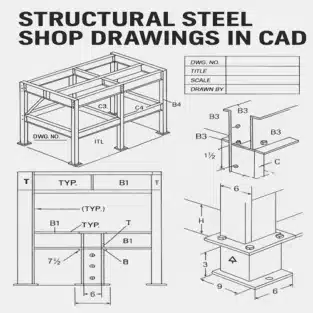
Creating accurate structural steel shop drawings is a critical step in any steel construction project. These drawings ensure that every steel component is fabricated and installed precisely according to the engineering intent. If you’re new to CAD or steel detailing, this guide will walk you through the process step by step.

What Are Structural Steel Shop Drawings?

Structural steel shop drawings are detailed and scaled plans used by fabricators to manufacture steel components. Unlike general design drawings, these include precise dimensions, material specifications, welding details, hole locations, and assembly instructions.

They serve as the final blueprint before steel elements are cut, welded, and assembled, and are often required for approval by engineers, architects, and contractors.

Software You Can Use for Structural Steel Shop Drawings

Several CAD programs are commonly used, including:

  • AutoCAD
  • Tekla Structures
  • Advance Steel
  • Revit (with extensions)

Each offers different features. For this tutorial, we’ll focus on AutoCAD, a widely used platform that supports 2D drafting and can be adapted for steel detailing.

Step-by-Step Guide: Creating Structural Steel Shop Drawings in CAD

Step 1: Set Up the Drawing Environment

  • Open AutoCAD and set the drawing units to millimetres or inches (as per your project standards).
  • Create or import a title block that includes project name, drawing number, date, scale, and drafter initials.
  • Set up layers for different elements (e.g., beams, columns, annotations, centerlines).

Step 2: Import or Reference the Structural Model

  • If you have a 3D model from the design team, insert it as an XREF or import it as a DWG.
  • Use this as a base to extract or reference key dimensions and member locations.

Step 3: Identify Structural Steel Elements

  • Break down the project into individual parts: columns, beams, base plates, gusset plates, stiffeners, etc.
  • Refer to the structural design drawings to determine steel profiles (e.g., W-beams, HSS, angles).

Step 4: Draft Individual Components

  • Start with 2D views: top, side, and section views of each component.
  • Draw accurate profiles of steel sections using standard dimensions from the AISC or your regional steel handbook.
  • Add cutting lengths, hole diameters, and weld symbols.

Step 5: Add Annotations and Labels

  • Clearly label each part with:
    • Part number or mark
    • Material specification
    • Quantity required
    • Welding instructions
  • Use leader lines and callouts to avoid clutter.

Step 6: Add Assembly and Erection Drawings

  • Once individual parts are drafted, create assembly drawings showing how parts are connected.
  • Include:
    • Bolt sizes and patterns
    • Weld sizes and types
    • Connection plates and stiffeners
  • Provide erection sequences and reference the orientation of members.

Step 7: Apply Dimensions and Tolerances

  • Use dimension tools to indicate:
    • Overall lengths
    • Hole centers
    • Edge distances
    • Weld lengths
  • Always apply standard tolerances as per AISC or project specifications.

Step 8: Double-Check for Errors

  • Cross-check:
    • Member sizes with the structural drawings
    • Fabrication feasibility
    • Consistency in labelling and material specs
  • Use AutoCAD’s Audit and Layer Manager tools to clean up the drawing.

Step 9: Export and Submit for Review

  • Save your file in DWG and PDF format.
  • Submit to the structural engineer or quality control team for approval.
  • After review, incorporate any markups or revisions before final submission to the fabricator.

Tips for Beginners

  • Use templates: Create reusable templates for beams, columns, and plates.
  • Keep it clean: Use layers and line weights effectively to improve readability.
  • Stay organised: Number every drawing sheet and keep a drawing log.
  • Refer to standards: Always follow AISC, BS, or IS standards based on your project location.

Why Structural Steel Shop Drawings Are Essential

Without detailed and accurate structural steel shop drawings, fabrication errors, delays, and costly onsite modifications become inevitable. These drawings bridge the gap between engineering intent and real-world execution.

Conclusion

Creating your first structural steel shop drawings in CAD may feel overwhelming, but following a systematic approach ensures accuracy and efficiency. With practice and adherence to industry standards, you’ll be able to produce shop drawings that meet the demands of any steel fabrication project.

For professional assistance in generating high-quality shop drawings, reach out to ASTCAD—your trusted partner for structural CAD drafting services.

What’s the difference between structural drawings and shop drawings?

Structural drawings are created by engineers to convey the overall design intent and are typically stamped by a Professional Engineer. Shop drawings are prepared by fabricators and detailers like our team to show precisely how each component will be manufactured, assembled, and erected on site. In Australia, shop drawings must comply with AS/NZS 5131 standards and are critical for construction approval and fabrication accuracy.

Are 3D models required for structural steel shop drawings?

While not mandatory, 3D models help visualize complex connections and are increasingly used to coordinate with BIM workflows. In Australia, many projects now require 3D coordination to comply with design standards and facilitate shop fabrication. We recommend creating at least a basic 3D model to catch clashes early and improve communication with fabricators and contractors on-site.

How accurate should shop drawings be?

Extremely accurate—down to the millimeter. Any discrepancy can cause misfits during assembly.

Who approves structural steel shop drawings?

In Australia, the structural engineer of record typically approves shop drawings, often in consultation with the project architect and relevant certifiers. We recommend submitting your drawings through your engineer’s review process, as they’ll verify compliance with the design documentation, Australian Standards (AS 4100 for steel structures), and any state-based building codes. Most fabricators won’t commence work until formal approval is stamped and signed off. We can help you prepare drawings that streamline this approval process.

Can I create structural steel shop drawings without AutoCAD?

Yes, software like Tekla Structures and Advance Steel are more advanced and tailored for steel detailing, but AutoCAD remains a widely accessible tool for 2D shop drawings.


JH

James Hartley

Senior Mechanical Engineer · BEng (Mechanical), UQ · Member, Engineers Australia · ASTCAD, Brisbane

James has 14 years of hands-on experience delivering CAD design, structural drafting, and engineering documentation across Australia’s mining, oil & gas, and manufacturing sectors. He specialises in SolidWorks, Autodesk Inventor, and AutoCAD for complex multi-discipline projects.

More articles by James Hartley →
Structural Floor Plan

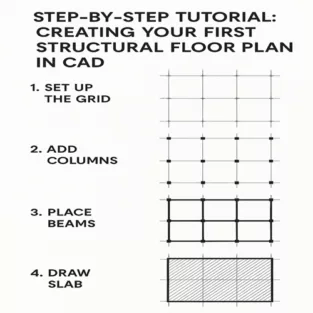
Creating a structural floor plan in CAD might sound like rocket science at first, but trust me—it’s totally doable with the right steps. If you’re diving into structural design and drafting services for the first time, this guide is your go-to resource. Let’s break it down and build your skills, one step at a time!

What is a Structural Floor Plan?

Definition and Purpose

A structural floor plan shows the bones of a building. It focuses on how the building holds itself up—beams, columns, slabs, load-bearing walls, and foundations.

Differences from Architectural Plans

While architectural plans focus on spaces, aesthetics, and user experience, structural plans deal with physics. No pretty tiles or lighting layouts here—just strength and stability.

Understanding the Basics Before You Start

Load-Bearing Elements

You need to know what parts of your design carry the most weight—columns, beams, and structural walls.

Beam and Column Layout

These are the framework of your building—placing them wrong could lead to structural failures.

Slabs and Reinforcements

Slabs are the horizontal components (like floors and ceilings), and they need reinforcement to prevent bending and breaking.

Step 1 – Setting Up Your Workspace

Units and Scales

Start by setting your units (metric or imperial) and scale according to the local standards.

Grid Settings and Templates

Grids help in aligning elements properly. Use templates for consistent results—especially handy when working with large projects.

Step 2 – Import or Draw the Base Layout

Using Architectural Plans as a Reference

Usually, structural floor plans are built over existing architectural plans. Import them to guide your drawing.

Drawing Walls and Structural Elements

Begin sketching the walls that will bear loads. Use line or polyline tools for precise placement.

Step 3 – Placing Columns and Beams

Identifying Column Positions

Columns typically align with corners or intersections of load-bearing walls. Place them symmetrically when possible.

Aligning Beams with Columns

Beams connect the columns and support the slab. Make sure the spacing and alignment are clean and logical.

Step 4 – Designing Slabs

Types of Slabs

  • One-way slabs
  • Two-way slabs
  • Flat slabs

Detailing Slab Reinforcement

Use hatch or line patterns to show rebar layout, including spacing and thickness.

Step 5 – Adding Dimensions and Annotations

Dimensioning Best Practices

Don’t clutter your plan. Use consistent units and spacing. Group related dimensions together.

Labelling Structural Elements

Clearly label each element—beams (B1, B2), columns (C1, C2), and so on. This makes referencing easy during construction.

Step 6 – Checking and Validating Your Plan

Cross-Checking Alignment

Make sure everything lines up—columns, beams, walls. Misalignments can cause on-site issues.

Clash Detection and Load Path Review

Check for elements overlapping improperly and review how loads are transferred through the structure.

Step 7 – Exporting and Printing

File Formats

Export in DWG for CAD, PDF for sharing, and DXF for CNC work.

Plotting and Sharing with Teams

Use proper title blocks and scales before printing. Coordinate with architects and MEP teams.

Tips for Accuracy and Efficiency

Layer Management

Use different layers for beams, columns, slabs, etc., with colour coding. It’ll save you from a ton of confusion later.

Using Blocks and Templates

Reuse components like column blocks or dimension styles. It’s a huge time-saver.

Tips for Accuracy and Efficiency

Layer Management

Use different layers for beams, columns, slabs, etc., with colour coding. It’ll save you from a ton of confusion later.

Using Blocks and Templates

Reuse components like column blocks or dimension styles. It’s a huge time-saver.

Benefits of Using Structural Design and Drafting Services

Time-Saving

These services streamline your workflow by providing ready-to-use floor plans.

Expert Guidance and Precision

They know all the codes, tricks, and traps. When in doubt, it’s smart to outsource.

Common Mistakes to Avoid

Skipping Structural Details

Leaving out reinforcements or slab types is a recipe for disaster. Always be thorough.

Not Coordinating with Other Disciplines

Your structural plan should sync with architectural, plumbing, and electrical plans. Miscommunication here can be costly.

Conclusion

And there you have it—a complete step-by-step tutorial on creating your first structural floor plan in CAD. Whether you’re a beginner or brushing up your skills, these fundamentals will get you started on the right foot. Don’t rush the process, and remember: accuracy today saves time (and money) tomorrow.

What software is best for structural floor planning in CAD?

We recommend AutoCAD for beginners learning structural floor planning basics, though many Australian practices transition to Revit or Tekla for more complex building information modelling. Our team finds Revit particularly valuable for coordinating with engineers and architects on Australian building code compliance, while Tekla excels for detailed steel fabrication drawings. The choice depends on your project complexity and whether you need integrated structural analysis tools aligned with Australian standards.

Do I need architectural plans before making a structural plan?

Yes, architectural plans guide the layout of structural elements like columns and beams.

How long does it take to create a basic structural floor plan?

If you’re new, it might take a few hours. With practice or using Structural Design and Drafting Services, it’s much faster.

Can I design slabs without reinforcement details?

Technically yes, but it’s not recommended. Reinforcement is critical for slab performance and safety.

Why use Structural Design and Drafting Services?

They bring in expert knowledge, ensure compliance with standards, and deliver accurate, ready-to-use plans.


JH

James Hartley

Senior Mechanical Engineer · BEng (Mechanical), UQ · Member, Engineers Australia · ASTCAD, Brisbane

James has 14 years of hands-on experience delivering CAD design, structural drafting, and engineering documentation across Australia’s mining, oil & gas, and manufacturing sectors. He specialises in SolidWorks, Autodesk Inventor, and AutoCAD for complex multi-discipline projects.

More articles by James Hartley →
3D Modelling

If you’re new to 3D modelling and looking for a structured way to sharpen your skills, a 30-day challenge can be the perfect solution. Practising daily not only improves your proficiency but also builds discipline and creativity. Whether you’re a hobbyist, student, or aspiring professional, this 30-day 3D modelling challenge is designed to guide beginners through fun and practical exercises that lay a strong foundation.

Why a 30-Day 3D Modelling Challenge?

The key to mastering any skill is consistency. With 3D modelling, the more time you spend experimenting with tools, shapes, and designs, the more confident you become. This challenge gives you a clear path to follow so you can avoid feeling overwhelmed or stuck. By the end of 30 days, you’ll have a mini portfolio of your progress and a deeper understanding of modelling techniques.

Tools You’ll Need

Before you start, pick a 3D modelling software that suits your level and goals. Popular beginner-friendly programs include:

  • Blender (Free, powerful, great community support)
  • TinkerCAD (Web-based, simple UI, ideal for absolute beginners)
  • Fusion 360 (Great for product design and engineering)
  • SketchUp (Ideal for architectural and interior modelling)

Choose one and stick with it for the full challenge to build muscle memory.

30-Day 3D Modelling Challenge Breakdown

Here’s your step-by-step guide. Each task increases slightly in complexity and introduces new skills:

Week 1: Fundamentals and Basic Shapes

  • Day 1: Explore the interface of your software
  • Day 2: Create basic 3D shapes (cube, sphere, cylinder)
  • Day 3: Practice scaling, rotating, and moving objects
  • Day 4: Combine shapes to make a simple object (e.g., a cup)
  • Day 5: Learn about mesh editing or modifiers
  • Day 6: Create a chair using primitives
  • Day 7: Reflect and organise your files

Week 2: Intermediate Objects and Techniques

  • Day 8: Model a table or desk
  • Day 9: Learn how to use extrusion tools
  • Day 10: Model a lamp or bottle
  • Day 11: Practice beveling and smoothing
  • Day 12: Add simple textures or colours
  • Day 13: Model a simple house
  • Day 14: Render your favourite model so far

Week 3: Complex Objects and Environment Design

  • Day 15: Model a book or stack of books
  • Day 16: Create a basic room layout
  • Day 17: Add furniture to your room
  • Day 18: Learn to use arrays or mirror modifiers
  • Day 19: Model a plant or decorative item
  • Day 20: Use lighting for better visualisation
  • Day 21: Showcase your full room in a rendered scene

Week 4: Creativity and Portfolio Building

  • Day 22: Choose your favourite object and recreate it with improvements
  • Day 23: Start modelling a custom character or mascot
  • Day 24: Add more detail and texture to your model
  • Day 25: Model a vehicle or mechanical object
  • Day 26: Animate a simple scene (e.g., rotating fan)
  • Day 27: Fix errors or redo models from earlier days
  • Day 28: Prepare your best works for a portfolio
  • Day 29: Create a collage or presentation of your models
  • Day 30: Share your work online or with friends

Tips to Stay Motivated

  • Set a timer for 30–60 minutes each day
  • Join online communities like Reddit’s r/3Dmodeling or Blender Artists
  • Don’t aim for perfection—focus on progress
  • Keep a digital folder of each day’s work

Conclusion

The journey to becoming proficient in 3D modelling doesn’t have to be daunting. With a structured 30-day challenge, you can make tangible progress and develop a strong foundation. Whether your goal is to create game assets, product designs, or architectural models, daily practice will set you up for success.

Keep modelling, stay curious, and don’t be afraid to experiment—your next design might be your best yet!

How long should I practice 3D modeling daily as a beginner?

Aim for at least 30–60 minutes each day. Consistent short sessions are more effective than occasional long ones.

What is the best software for learning 3D modeling?

Blender is one of the most popular free programs. It’s powerful and supported by a vast online community. TinkerCAD is better for absolute beginners, especially younger users.

Do I need a powerful computer for 3D modeling?

Not necessarily. Basic 3D modeling tasks can be performed on most mid-range computers. However, for rendering or animation, a better graphics card helps.

Can I learn 3D modeling without any prior design experience?

Absolutely! Our 30-day challenge is specifically designed for complete beginners with no prior design experience. Many CAD tools, including those we recommend at ASTCAD, offer beginner-friendly interfaces that let you start with simple sketches and gradually progress to complex 3D models. We’ve guided thousands of Australian drafting and engineering students through this exact journey, so you’re in good hands starting your CAD learning today.

How can I tell if I’m improving in 3D modeling?

The best way to track your progress is to compare your early models with your recent work, looking for improvements in design smoothness, proportions, and detail complexity. You’ll also notice faster tool proficiency and greater confidence when tackling complex geometry. At ASTCAD, we recommend keeping a portfolio folder of your weekly projects so you can visually document your development. Many of our Australian engineering clients find that reviewing compliance with AS/NZS standards in your models is another great indicator of growing expertise and professional readiness.


JH

James Hartley

Senior Mechanical Engineer · BEng (Mechanical), UQ · Member, Engineers Australia · ASTCAD, Brisbane

James has 14 years of hands-on experience delivering CAD design, structural drafting, and engineering documentation across Australia’s mining, oil & gas, and manufacturing sectors. He specialises in SolidWorks, Autodesk Inventor, and AutoCAD for complex multi-discipline projects.

More articles by James Hartley →
2D CAD Drawings

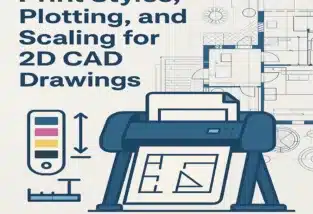
Creating precise and professional-quality 2D CAD drawings requires proper setup of print styles, plotting configurations, and scaling adjustments. Whether you’re an architect, engineer, or designer, understanding these aspects ensures that your final printed drawings maintain clarity and accuracy. In this guide, we will cover the essential steps for setting up print styles, configuring plotting settings, and applying appropriate scaling for your 2D CAD drawings.

Understanding Print Styles in 2D CAD Drawings

Print styles define how different elements in a CAD drawing appear when printed. These styles control properties such as line weight, colour, and transparency, ensuring consistency and readability.

Types of Print Styles

  1. Named Print Styles (STB – Style Table Files)
    • Allows customisation of object properties.
    • Different objects can have unique styles.
    • Useful for complex projects requiring specific appearance settings.
  2. Color-Dependent Print Styles (CTB – Color Table Files)
    • Assigns properties based on object colours.
    • Each colour is mapped to a specific line weight or plot setting.
    • Suitable for simpler workflows where colour coding is standard.

How to Set Up Print Styles in AutoCAD

  1. Open Page Setup Manager (Type PAGESETUP in the command line).
  2. Select an existing layout or create a new one.
  3. Click on Plot Style Table (STB or CTB) and choose a predefined style or create a custom one.
  4. Adjust the line weight, screening, and transparency settings.
  5. Save and apply the print style to your drawing.

Configuring Plotting for 2D CAD Drawings

Plotting refers to the process of sending the 2D CAD drawing to a printer or creating a digital output like a PDF.

Steps to Configure Plotting in AutoCAD

  1. Open the Plot Dialogue Box
    • Type PLOT in the command line or press Ctrl + P.
  2. Select a Printer or Plotter
    • Choose a physical printer or DWG to PDF for digital outputs.
  3. Set Paper Size and Orientation
    • Pick the correct paper size (A3, A4, etc.).
    • Choose portrait or landscape mode.
  4. Specify Plot Area
    • Options:
      • Display (Plots everything visible on screen).
      • Extents (Plots everything in the drawing).
      • Window (Select a specific area).
  5. Adjust Plot Scale
    • Match the scale with the drawing units (e.g., 1:100, 1:50, etc.).
    • Ensure “Fit to Paper” is unchecked for precise scaling.
  6. Choose Plot Style Table (CTB/STB)
    • Select an appropriate print style to control line weights and colours.
  7. Preview and Print
    • Click Preview to check before final plotting.
    • Hit OK to generate the output.

Scaling in 2D CAD Drawings

Scaling ensures that drawings are printed at the correct size and proportion. Incorrect scaling can lead to misinterpretation of dimensions and layout errors.

Types of Scaling in 2D CAD Drawings

  1. Model Space Scaling
    • The drawing is created at a 1:1 scale.
    • Dimensions and text should be adjusted using annotation scaling.
  2. Paper Space Scaling (Layouts)
    • Viewports allow setting different scales for different views.
    • Common scales: 1:1, 1:50, 1:100, etc.

How to Set Up Scaling in AutoCAD

  1. Switch to Layout Tab
  2. Create a New Viewport (Type MVIEW and specify the area).
  3. Select the Viewport and Adjust Scale
    • Click on the viewport boundary.
    • Set the desired scale in the properties panel (e.g., 1:100).
  4. Lock the Viewport Scale
    • Prevents accidental zooming or changes.
  5. Check and Finalise
    • Ensure all annotations, dimensions, and title blocks align with the scale.

Conclusion

Setting up print styles, configuring plotting settings, and applying proper scaling are essential for producing professional 2D CAD drawings. By following the steps outlined above, you can ensure that your drawings are clear, accurate, and well-formatted for printing or digital sharing. Properly configured 2D CAD drawings not only improve workflow efficiency but also enhance communication with clients and stakeholders.

Would you like assistance with custom templates or troubleshooting specific plotting issues? Let us know!


JH

James Hartley

Senior Mechanical Engineer · BEng (Mechanical), UQ · Member, Engineers Australia · ASTCAD, Brisbane

James has 14 years of hands-on experience delivering CAD design, structural drafting, and engineering documentation across Australia’s mining, oil & gas, and manufacturing sectors. He specialises in SolidWorks, Autodesk Inventor, and AutoCAD for complex multi-discipline projects.

More articles by James Hartley →
2D CAD Drafting

In the modern world of engineering, architecture, and design, 2D CAD Drafting plays a crucial role in creating accurate and detailed technical drawings. Whether you’re a student, a beginner, or a professional transitioning to CAD, understanding the basics is essential. This guide will help you get started with 2D CAD Drafting, covering essential tools, best practices, and common FAQs to make your journey smoother.

What is 2D CAD Drafting?

2D CAD Drafting refers to the creation of two-dimensional technical drawings using 2D CAD drafting (CAD) software. These drawings include floor plans, schematics, mechanical parts, and electrical layouts. Unlike hand-drawn sketches, 2D CAD Drafting provides precision, scalability, and ease of modification.

Essential Tools for 2D CAD Drafting

To get started with 2D CAD Drafting, you need the following tools:

1. CAD Software

Popular 2D CAD Drafting software includes:

  • AutoCAD – The industry standard for engineering and architectural drafting.
  • DraftSight – A cost-effective alternative for professionals and students.
  • BricsCAD – A user-friendly software compatible with DWG files.
  • LibreCAD – A free and open-source tool for basic drafting needs.

2. Hardware Requirements

A good computer setup enhances efficiency in 2D CAD Drafting. Recommended specifications include:

  • A multi-core processor (Intel i5/i7 or AMD Ryzen 5/7)
  • At least 8GB RAM (16GB preferred for complex projects)
  • A dedicated graphics card (NVIDIA or AMD recommended)
  • A high-resolution monitor for detailed viewing

3. Input Devices

  • Mouse with a scroll wheel – Essential for zooming and panning.
  • Graphic tablet (optional) – Useful for freehand sketching and annotations.

Step-by-Step Guide to Getting Started

Step 1: Install and Set Up the Software

Download and install your preferred 2D CAD Drafting software. Ensure your system meets the required specifications. Customise toolbars, templates, and shortcuts to streamline your workflow.

Step 2: Learn Basic Commands

Familiarize yourself with essential 2D CAD Drafting commands:

  • LINE (L) – Draws straight lines.
  • CIRCLE (C) – Creates circles.
  • RECTANGLE (REC) – Draws rectangles.
  • OFFSET (O) – Copies objects at a specified distance.
  • TRIM (TR) – Removes excess parts of objects.
  • EXTEND (EX) – Lengthens objects to meet other lines.

Step 3: Create Your First Drawing

  • Open a new drawing file.
  • Set up the drawing units (metric or imperial).
  • Use layers to organise elements (e.g., walls, dimensions, annotations).
  • Start with simple shapes and gradually progress to complex designs.

Step 4: Add Dimensions and Annotations

Accurate dimensions are crucial in 2D CAD Drafting. Use:

  • Linear dimensions for straight measurements.
  • Radial and diametric dimensions for circles and arcs.
  • Text annotations to add notes and descriptions.

Step 5: Save and Export Your Work

Save your work in different formats:

  • DWG/DXF – Standard file formats for CAD drawings.
  • PDF – For sharing and printing.
  • PNG/JPEG – For presentations.

Best Practices for Beginners

  • Use Layers: Organise different components for easy editing.
  • Set Object Snaps (OSNAP): Helps in precise placement.
  • Use Keyboard Shortcuts: Increases speed and efficiency.
  • Save Regularly: Prevents data loss in case of system failure.
  • Keep Learning: Explore tutorials, forums, and online courses.

2D CAD Drafting is an essential skill for professionals in various industries. By learning the basics, practising essential commands, and following best practices, beginners can quickly become proficient. Whether you are designing floor plans, mechanical parts, or schematics, mastering 2D CAD Drafting will improve your accuracy and efficiency in technical drawing creation. Keep exploring and refining your skills to stay ahead in the field!

Are you ready to start your journey with 2D CAD Drafting? Let us know your thoughts and experiences in the comments!

What is the best software for beginners in 2D CAD Drafting?

For Australian beginners in 2D CAD drafting, we recommend AutoCAD for comprehensive features and professional-standard outputs, or LibreCAD if you’re looking for a free, user-friendly alternative. Both software options work well with Australian standards and building codes. We find that AutoCAD’s extensive tools help you transition into more complex projects, while LibreCAD offers excellent value for learning fundamental drafting skills without financial commitment.

Can I learn 2D CAD Drafting without prior design experience?

Yes! Many online courses and tutorials make learning 2D CAD Drafting accessible even for beginners with no prior experience.

How long does it take to master 2D CAD Drafting?

Basic proficiency in 2D CAD drafting typically takes a few weeks of consistent practice, especially if you’re following Australian building standards and conventions. However, mastering advanced techniques and becoming highly skilled can take several months to a year, depending on your dedication and the complexity of projects you work on. We recommend starting with fundamental tools and gradually progressing to more sophisticated features used in Australian construction and engineering workflows.

What industries use 2D CAD Drafting?

Industries such as architecture, mechanical engineering, electrical design, and civil engineering rely on 2D CAD Drafting for technical drawings.

Can I convert hand-drawn sketches to 2D CAD Drafting?

Yes, absolutely! At ASTCAD, we can convert your hand-drawn sketches into professional 2D CAD drawings that comply with Australian Standards. Simply scan your sketch and send it to our team, and we’ll digitise it using industry-standard software, ensuring accuracy and compliance with AS 1100 drafting conventions. This approach is ideal for clients who prefer working from conceptual drawings before formal documentation begins.


JH

James Hartley

Senior Mechanical Engineer · BEng (Mechanical), UQ · Member, Engineers Australia · ASTCAD, Brisbane

James has 14 years of hands-on experience delivering CAD design, structural drafting, and engineering documentation across Australia’s mining, oil & gas, and manufacturing sectors. He specialises in SolidWorks, Autodesk Inventor, and AutoCAD for complex multi-discipline projects.

More articles by James Hartley →
Transportation and Logistics Industry Drafting

The transportation and logistics industry heavily relies on accurate drafting for efficient infrastructure planning, vehicle routing, and facility management. Whether you’re designing roadways, railways, or warehouses, precision is critical. In this guide, we’ll explore essential transportation industry drafting tips and logistics industry drafting tips to help beginners understand the fundamentals of industry-specific drafting.

Understanding Drafting in Transportation and Logistics

What is Drafting?

Drafting involves creating technical drawings and schematics that serve as blueprints for transportation and logistics infrastructure. These drafts guide engineers, planners, and builders in executing projects efficiently.

Why is Drafting Crucial in the Industry?

Without proper drafting, transportation networks and logistics facilities can suffer from inefficiencies, safety risks, and costly errors. Well-planned drafts ensure smooth traffic flow, optimal storage utilisation, and regulatory compliance.

Essential Drafting Tools and Software

Popular CAD Software for Drafting

  • AutoCAD – Widely used for 2D and 3D drafting
  • Revit – Ideal for infrastructure design
  • SolidWorks – Useful for mechanical transport components
  • SketchUp – Great for warehouse and logistics layouts

Manual vs. Digital Drafting Tools

While manual drafting is still relevant for initial sketches, CAD software has revolutionized the industry with precision, speed, and automation.

Fundamental Drafting Standards and Regulations

Drafting in transportation and logistics must comply with industry standards, such as:

  • ISO 128 – Technical drawing standard
  • ASME Y14.5 – Geometric dimensioning and tolerancing
  • FHWA and AASHTO Guidelines – U.S. road and highway drafting regulations

Key Drafting Techniques for Transportation Projects

Creating Accurate Schematics for Transportation Infrastructure

  • Use layers to separate roadways, railways, and utilities
  • Incorporate real-world measurements and GIS data

Roadway and Railway Drafting Essentials

  • Follow safety regulations for road width and curvature
  • Consider traffic flow and pedestrian pathways

Drafting for Logistics Infrastructure

Warehouse and Distribution Center Layouts

  • Optimise storage space with efficient rack arrangements
  • Ensure smooth movement of goods with clear pathways

Load and Route Planning Schematics

  • Create diagrams for cargo loading efficiency
  • Plan truck routes to minimise travel time and fuel consumption

Common Challenges in Transportation Industry Drafting

  • Spatial Constraints – Limited space requires innovative layout solutions
  • Safety Considerations – Designs must prioritise safety for vehicles and pedestrians

Best Practices for Effective Drafting in Logistics

  • Use precise measurements to avoid costly errors
  • Collaborate with engineers and planners to ensure feasibility
  • Maintain clear documentation for future modifications

3D Drafting in Modern Transportation Planning

How 3D Modelling Enhances Drafting

3D modelling allows drafters to visualise infrastructure projects more effectively, reducing design flaws before construction begins.

Benefits of Digital Twins in Logistics

Digital twins simulate real-world conditions to optimise warehouse and supply chain management.

Automation and AI in Drafting

  • AI-powered software speeds up drafting processes
  • Automated error detection minimises human mistakes
  • Generative design tools provide innovative layout suggestions

Case Studies: Real-World Applications of Transportation Drafting

  • Highway expansion projects – Improved road networks with efficient drafting
  • Smart warehouses – Optimised layouts using advanced drafting techniques

Tips for Beginners in Transportation Industry Drafting

  1. Start with simple layouts before tackling complex projects
  2. Learn industry-specific regulations and standards
  3. Practice using CAD software regularly
  4. Seek feedback from experienced drafters
  5. Stay updated with technological advancements in drafting

Future Trends in Transportation and Logistics Drafting

  • Sustainable drafting practices – Eco-friendly material planning
  • Integration of IoT – Smart infrastructure with real-time monitoring

Conclusion

Drafting plays a vital role in the transportation and logistics industry, ensuring the efficiency and safety of infrastructure and supply chains. Beginners should focus on mastering CAD software, understanding industry standards, and continuously improving their drafting skills. With technological advancements, AI, and automation, the future of drafting looks promising for transportation and logistics.

What skills are needed for transportation industry drafting?

To excel in transportation industry drafting, you’ll need proficiency in CAD software like AutoCAD, a solid understanding of Australian transport regulations and standards, and meticulous attention to detail. We recommend familiarising yourself with AS/NZS standards that govern vehicle design and logistics infrastructure in Australia. Strong spatial reasoning, communication skills, and the ability to interpret technical specifications are equally important, as our drafters work closely with engineers and project managers to deliver compliant, precise designs.

Which software is best for logistics drafting?

AutoCAD, Revit, and SketchUp are among the best software options for drafting in logistics.

How can beginners improve their drafting skills?

Practice regularly, learn from experienced drafters, and stay updated with industry trends.

What are common drafting mistakes to avoid?

Ignoring measurements, overlooking safety regulations, and failing to document changes properly.

How is AI changing the drafting process in logistics?

AI automates repetitive tasks, improves accuracy, and provides predictive design solutions.


JH

James Hartley

Senior Mechanical Engineer · BEng (Mechanical), UQ · Member, Engineers Australia · ASTCAD, Brisbane

James has 14 years of hands-on experience delivering CAD design, structural drafting, and engineering documentation across Australia’s mining, oil & gas, and manufacturing sectors. He specialises in SolidWorks, Autodesk Inventor, and AutoCAD for complex multi-discipline projects.

More articles by James Hartley →
Get a free quote — 1800 287 223