1800 287 223 · [email protected]
Convert MCD to DWG

In the world of architecture, engineering, and design, compatibility between file formats is essential. If you’ve ever worked with Vectorworks, you might have encountered files with the .mcd extension. However, most professionals working in AutoCAD prefer .dwg format due to its widespread compatibility. This blog provides a comprehensive step-by-step guide on how to convert MCD to DWG efficiently.

What is an MCD File?

MCD stands for MiniCAD Drawing, a file format used by older versions of Vectorworks (previously MiniCAD). These files contain design data, drawings, and 2D/3D objects used in architecture and engineering drafting. However, the MCD format is now outdated and has been replaced by the .vwx format in newer Vectorworks versions.

Why Convert MCD to DWG?

AutoCAD and many other CAD software programs use the DWG (Drawing) format, making it a standard for sharing design files. Converting your MCD file to DWG ensures:

  • Greater software compatibility
  • Easier collaboration with teams using AutoCAD
  • Simplified project management and archival
  • Access to more editing and annotation tools

How to Convert MCD File to DWG File – Step-by-Step

Follow these detailed steps to convert an MCD file to DWG format successfully:


Step 1: Check the Source Software

To convert MCD files, you will need access to Vectorworks—preferably the version that supports MCD files. If your file is from an older version, you may need to install an older version of Vectorworks first to open the file.

  • If you have a .mcd file, try using Vectorworks 2008 or earlier.
  • Open the MCD file within Vectorworks to confirm the content loads correctly.

Step 2: Save or Export as VWX (Optional but Recommended)

If you’re using a very old Vectorworks version:

  • First, save the MCD file as a VWX file, the newer format supported by recent Vectorworks versions.
  • This will help avoid compatibility issues in the next step.

Step 3: Use Vectorworks to Export as DWG

Vectorworks has a built-in export feature to convert files to AutoCAD DWG format.

To export the file:

  1. Open the MCD (or VWX) file in Vectorworks.
  2. Click on File > Export > Export DXF/DWG.
  3. A dialogue box will appear—choose the correct AutoCAD version (e.g., 2013, 2018, or 2021).
  4. Choose the layers, classes, or sheets you want to export.
  5. Click OK to begin the conversion.
  6. Vectorworks will generate a .dwg file that you can now open in AutoCAD.

Step 4: Verify the DWG Output in AutoCAD

Once the file is exported:

  1. Open AutoCAD.
  2. Go to File > Open and select your converted DWG file.
  3. Review the file for accuracy—check dimensions, layers, text, and geometry to ensure everything is intact.
  4. Make any necessary adjustments or layer reassignments within AutoCAD.

Alternative Method: Use File Conversion Software

If you don’t have access to Vectorworks, you can try using third-party file conversion tools or services. Some tools that claim to support MCD to DWG conversion include:

  • AnyConv
  • Zamzar
  • CloudConvert (limited success)
  • Professional CAD conversion services

Note: These tools often have limitations and may not support complex geometry or layer formatting, so use them only if the file is simple or if you have no other option.


Tips for Successful Conversion

  • Backup your original MCD file before conversion.
  • Use the latest compatible version of Vectorworks for better export options.
  • Maintain consistent units (mm/inches) during the export process.
  • Check layer visibility and class settings before exporting to DWG.

Common Issues and Fixes

IssueSolution
File not opening in VectorworksTry using an older version of Vectorworks or contact the file provider.
Exported DWG missing elementsEnable all layers/classes before exporting.
Text or dimensions look offRecheck font compatibility and dimension scale settings.
AutoCAD reports file errorUse DWG TrueView to check and recover corrupted files.

Being able to convert MCD file to DWG file is crucial for professionals dealing with legacy Vectorworks designs and modern AutoCAD workflows. Whether you’re using built-in Vectorworks export features or third-party conversion tools, following this guide ensures accurate and efficient results. Always verify the converted file for formatting, accuracy, and completeness to avoid issues during project development.

What software do I need to convert an MCD file to DWG?

To convert an MCD file to DWG format, you’ll need Vectorworks software, preferably version 2008 or earlier. We recommend this version because it offers the most reliable MCD compatibility and export functionality for Australian drafting standards. Once you have the file open in Vectorworks, you can simply export it as a DWG file, which is compatible with AutoCAD and most other industry-standard design programs used across Australian engineering and construction firms.

Can AutoCAD open MCD files directly?

No, AutoCAD cannot open MCD files directly as it doesn’t support this format. We recommend converting your MCD file to DWG using Vectorworks or a specialised converter tool before opening it in AutoCAD. This is particularly important for Australian projects where DWG remains the industry standard for compliance with local design standards and building codes. Our team can assist with conversion if needed.

Is there any free way to convert MCD files to DWG?

There is no fully free method unless you already have access to Vectorworks. Some online tools claim support, but reliability is not guaranteed.

Will the DWG file retain layers and line weights from the MCD file?

Yes, the DWG file will retain layers and line weights from your MCD file when you configure the export settings correctly in Vectorworks. We recommend checking that your layer names comply with Australian standards and that line weights are set to match your organisation’s drafting conventions before exporting. Our team can assist with specific configuration questions to ensure your converted files meet local engineering requirements.

What if I don’t have Vectorworks installed?

If you don’t have Vectorworks installed, we recommend contacting a professional CAD conversion service like ASTCAD to handle the conversion for you. Our team can quickly convert your MCD files to DWG format, ensuring compatibility with AutoCAD and other standard Australian drafting software. This is particularly useful if you’re collaborating with contractors or consultants who require DWG files for construction documentation or compliance with local building standards.
CS

Claire Sutton

Architectural CAD Specialist & Technical Writer · BArch (Hons), QUT · ASTCAD, Brisbane

Claire has 10 years of experience in Revit BIM modelling, architectural documentation, and CAD conversion projects across Southeast Queensland and NSW. She has delivered NCC-compliant documentation for residential, commercial, and industrial facilities.

More articles by Claire Sutton →
Architectural Design

Introduction

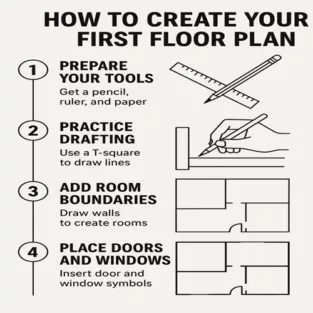
So, you’re ready to dip your toes into the world of Architectural Design & Drafting? Awesome! Creating your first floor plan might sound intimidating, but it’s actually a super rewarding process. Whether you’re planning your dream home or just love design, this step-by-step guide will walk you through everything you need to know — no jargon, just real, beginner-friendly help.

What Is a Floor Plan?

A floor plan is a scaled drawing that shows the layout of a space from a top-down view. It’s the foundation of any architectural project and includes walls, rooms, doors, windows, and sometimes furniture.

Why Floor Plans Are Essential in Architectural Design & Drafting

They help visualise spatial relationships and plan for construction or renovation. In short, no solid structure exists without a solid floor plan first!

Tools You’ll Need to Get Started

  • Graph paper or drafting software
  • Pencil and ruler (or a digital stylus)
  • Measuring tape
  • Computer with CAD software (AutoCAD, SketchUp, or similar)

Preparing for Your Floor Plan

Define the Purpose of the Space

Before you start sketching, ask yourself: What is this space for? Is it a home, office, studio, or something else? Knowing the purpose sets the tone for the entire layout.

Gather Measurements and Site Details

Accuracy is everything! Measure the length, width, and height of the area. If it’s a brand-new space, you can decide your own dimensions, but be realistic.

Choose the Right Scale

Pick a scale that’s easy to manage — typically, 1/4″ = 1′-0″ for residential plans. This makes sure everything fits nicely on your page or screen.

Getting Started with Your Floor Plan

Start with the Perimeter Walls

Think of this like drawing the outer edges of a puzzle. Draw the exterior walls first using straight lines. These define the structure’s boundaries.

Add Interior Walls and Partitions

Once the outer walls are set, sketch in the interior walls to divide rooms. Keep room size functionality in mind — a bedroom shouldn’t be the size of a closet.

Place Doors and Windows

Now make the space usable! Add in doors where you expect entry and exit. Don’t forget windows for natural light. Use standard sizes to keep things realistic.

Detailing the Floor Plan

Adding Furniture and Fixtures

It’s time to make it livable. Add furniture symbols for beds, couches, tables, kitchen counters, etc. This step helps with visualising the flow of the space.

Labelling Each Room Clearly

Write down the name of each room — Bedroom, Living Room, Kitchen, etc. This makes your plan more readable, especially if you’re handing it off to someone else.

Including Dimensions and Annotations

Mark all wall lengths, door widths, and window sizes. Add notes if needed, like “sliding door” or “double-hung window.” Details matter!

Using CAD Software for Precision

Benefits of Using CAD in Architectural Design & Drafting

CAD tools allow for super-accurate measurements, better visualisation, and faster changes. It’s like sketching with superpowers.

Recommended CAD Tools for Beginners

  • AutoCAD LT: Lightweight and beginner-friendly.
  • SketchUp: Great for 3D modelling and easy to learn.
  • Floorplanner: Perfect for quick mockups and planning.

Tips for Creating Clean and Readable Plans

  • Stick to simple line weights.
  • Use consistent symbols for doors and windows.
  • Don’t overcrowd the plan — white space is your friend.

Reviewing and Finalising Your Floor Plan

Common Mistakes to Avoid

  • Ignoring circulation space (no one wants to bump into furniture)
  • Skipping door swing directions
  • Forgetting to mark window heights and widths

Getting Feedback from a Drafting Professional

Even if it’s your first draft, having a seasoned eye review your plan is gold. They’ll catch errors and offer practical insights you may have missed.

Saving and Exporting in the Right Formats

Save your file in multiple formats like DWG, PDF, and PNG. This ensures it’s easy to share and accessible across different devices and platforms.

Conclusion

Creating your first floor plan is an exciting first step into the world of Architectural Design & Drafting. It’s not just about drawing walls — it’s about creating a space that makes sense, feels good, and functions well. Remember, the key is to plan with purpose, measure carefully, and use the right tools. Start simple, stay curious, and you’ll be designing like a pro in no time!

What software is best for beginners in architectural drafting?

SketchUp and Floorplanner are great for beginners. They’re easy to learn and offer intuitive interfaces with enough features to create detailed floor plans.

Can I create a floor plan without technical experience?

Absolutely! You don’t need technical experience to create a floor plan with ASTCAD. Our intuitive tools guide you through each step, and we’ve designed our software to follow Australian building standards and codes, so your plans are compliant from the start. Whether you’re planning a residential layout or a commercial space, our tutorials walk you through dimension input, material specifications, and proper notation that meets local council requirements. We support drafters of all skill levels.

How long does it take to create a basic floor plan?

Creating your first floor plan typically takes 2–4 hours as you familiarize yourself with our tools and techniques. Most of our Australian clients find the process speeds up significantly once they understand local building codes and our software’s layer management system. We recommend setting aside dedicated time for your initial project, as this investment helps you develop efficient workflows for future residential and commercial drafts.

Is hand-drawing still relevant in architectural drafting?

Yes, hand-drawing remains valuable in architectural practice. Many of our clients at ASTCAD start with pencil sketches to explore design concepts before transitioning to CAD software. This traditional approach complements digital tools beautifully, especially when working on Australian residential projects where site-specific considerations require initial conceptual thinking. Hand sketches help capture creative ideas quickly and are often essential during client consultations before committing designs to detailed CAD drawings.

What’s the difference between a floor plan and a blueprint?

A floor plan is a top-down view showing room layout and spatial relationships, while a blueprint is a complete set of technical drawings that includes your floor plan plus elevations, sections, electrical layouts, and construction details. In Australia, blueprints typically follow AS/NZS standards and include all information builders and engineers need to construct a project. We recommend starting with a floor plan to establish your design, then expanding it into a full blueprint set for regulatory compliance and construction purposes.


CS

Claire Sutton

Architectural CAD Specialist & Technical Writer · BArch (Hons), QUT · ASTCAD, Brisbane

Claire has 10 years of experience in Revit BIM modelling, architectural documentation, and CAD conversion projects across Southeast Queensland and NSW. She has delivered NCC-compliant documentation for residential, commercial, and industrial facilities.

More articles by Claire Sutton →
CAD Conversion

In the fast-paced world of design and engineering, CAD Conversion has become an essential process for enhancing productivity, maintaining data accuracy, and upgrading legacy data. Whether you’re transitioning from paper blueprints or updating old file formats, understanding the basics of CAD Conversion for Beginners can streamline your workflow and reduce costly errors.

In this comprehensive guide, we’ll walk you through the step-by-step process of getting started with CAD conversion, offering essential tips and insights that are perfect for newcomers.

What is CAD Conversion?

CAD Conversion is the process of converting design data from one format to another. This could include:

  • Converting paper-based or scanned drawings (raster) into editable CAD files (vector).
  • Converting between different CAD formats (e.g., DWG to DGN or PDF to DWG).
  • Translating 2D CAD drawings into 3D models.

For many beginners, CAD conversion serves as the first step toward digital transformation in design and manufacturing.

Why CAD Conversion is Important

  • Preserves design data from old blueprints and paper documents.
  • Improves efficiency by enabling quick edits and updates in CAD software.
  • Enhances collaboration across departments or teams using different CAD platforms.
  • Supports compliance with industry standards and digital archiving needs.

Step-by-Step Guide to Getting Started with CAD Conversion for Beginners

Step 1: Identify the Source Material

Begin by gathering all the files or drawings you need to convert. This can include:

  • Hand-drawn paper blueprints
  • Scanned raster images (TIFF, BMP, JPG)
  • Legacy CAD files in older or obsolete formats
  • PDF drawings

Knowing your source will determine the type of conversion technique you’ll use.

Step 2: Choose the Right CAD Software

Many CAD platforms support file conversion, such as:

  • AutoCAD
  • MicroStation
  • SolidWorks
  • Revit
  • BricsCAD

For CAD conversion for beginners, AutoCAD is often a user-friendly choice due to its widespread use and simple interface.

Step 3: Decide Between Manual and Automated Conversion

  • Manual Conversion involves redrawing or tracing the source drawing using CAD tools. This is time-consuming but highly accurate.
  • Automated Conversion uses specialised software to convert scanned images or PDFs into vector format. It’s faster but may require post-editing to fix errors.

Tip: Beginners may start with automated tools but should learn some manual techniques to ensure precision.

Step 4: Clean Up the Source File

Before starting the conversion, clean up the source file:

  • Remove smudges or unwanted marks from scanned images
  • Ensure scanned drawings are high resolution (at least 300 DPI)
  • Correct any distortions or alignment issues

A clean source ensures better accuracy in the final CAD file.

Step 5: Convert and Trace

Depending on your method:

  • Manual Method: Open a blank CAD file and use the Line, Polyline, and Object Snap tools to trace the geometry.
  • Automated Method: Import your raster or PDF file into CAD software and use built-in vectorization tools or plugins to convert to line work.

Once complete, check the geometry for alignment, proportions, and accuracy.

Step 6: Add Layers and Annotations

Organise the drawing using layers (e.g., walls, electrical, plumbing) and add necessary annotations, dimensions, and title blocks. Layer management is crucial for maintaining clarity and readability.

Step 7: Save and Export

Once your drawing is complete:

  • Save it in the desired CAD format (DWG, DXF, etc.)
  • Export or share with your team or client

Consider maintaining both the source and converted files for record-keeping.

Best Practices for CAD Conversion for Beginners

  • Always back up your source files before conversion.
  • Use a naming convention to keep track of different versions.
  • Cross-check converted files with the original for accuracy.
  • Take time to learn layer management and standard symbols used in CAD.
  • If you’re dealing with complex conversions (e.g., mechanical assemblies), seek help from professional CAD conversion services.

Common Challenges in CAD Conversion

  • Loss of quality in scanned images can lead to poor vector conversion.
  • Text recognition errors when converting from PDF.
  • Layer mismanagement may lead to cluttered and unreadable files.
  • Unsupported file types requiring third-party tools or plugins.

Starting simple and gradually increasing the complexity of your projects will help you master the process over time.

Conclusion

Getting started with CAD Conversion for Beginners doesn’t have to be overwhelming. By following a structured approach—starting with understanding your source material, choosing the right tools, and practising careful conversion techniques—you can build confidence and skill in no time. CAD conversion is a crucial step in modernising your design workflow, and mastering it opens the door to a world of digital possibilities.

If you’re looking for professional assistance or want to accelerate your CAD conversion journey, ASTCAD offers expert CAD Conversion services tailored to your needs. Contact us today to learn more.

What is the difference between raster and vector files in CAD Conversion?

Raster files are pixel-based images like scanned plans, while vector files use mathematical paths and objects that CAD software can edit and scale. We specialise in converting your raster drawings into editable vector formats, which is essential for Australian construction and engineering projects where precision and compliance matter. Vector files allow us to modify dimensions, layers, and details to meet current Australian Standards, making them ideal for renovation, renovation, and new builds.

Can I convert a PDF drawing into an editable CAD file?

Yes. Most modern CAD software allows you to import a PDF and convert its geometry into editable linework, though you may need to adjust text and dimensions manually.

Is manual CAD conversion better than automated?

Both have their place depending on your needs. Manual conversion offers greater accuracy and is ideal for detailed or complex architectural and engineering drawings, which is especially important for Australian building codes and compliance requirements. Automated conversion is faster and suitable for basic layouts, but typically requires clean-up afterward. We recommend assessing your project complexity and timeline to determine which approach works best for your team.

What file format should I use when saving a converted drawing?

The most common and widely accepted format is DWG, which is the industry standard across Australian architectural and engineering firms. However, if you’re collaborating with users on other platforms or need to share files with clients using different software, we recommend DXF format for broader compatibility. We can also convert to PDF for easy viewing and sharing without modification concerns. The best choice depends on your specific project requirements and who you’re working with.

Do I need professional help for CAD conversion?

While many businesses can handle basic CAD conversions independently, we recommend professional help if you’re managing large drawing batches, working with complex technical content, or require high accuracy for regulated industries like engineering or architecture. Our Australian team understands local compliance standards and industry specifications, ensuring your converted files meet Australian Building Codes and relevant engineering standards. Professional conversion also saves your team valuable time and minimises costly errors.


CS

Claire Sutton

Architectural CAD Specialist & Technical Writer · BArch (Hons), QUT · ASTCAD, Brisbane

Claire has 10 years of experience in Revit BIM modelling, architectural documentation, and CAD conversion projects across Southeast Queensland and NSW. She has delivered NCC-compliant documentation for residential, commercial, and industrial facilities.

More articles by Claire Sutton →
AutoCAD Drafter

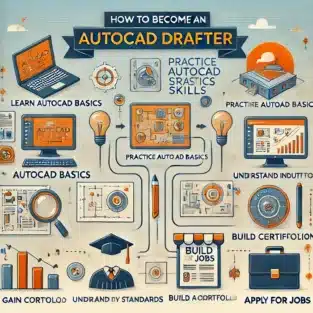
In today’s digitally-driven world, the demand for skilled AutoCAD drafters continues to grow. Whether you’re interested in architecture, engineering, or design, a career as an AutoCAD drafter offers a pathway to exciting opportunities. Here’s a step-by-step guide to help you become an AutoCAD drafter and excel in this rewarding field.

AutoCAD Drafter in Easy Steps

Step 1: Understand the Role of an AutoCAD Drafter

Before diving into the journey, it’s essential to grasp the responsibilities of an AutoCAD drafter. AutoCAD drafters use computer-aided design (CAD) software to create detailed technical drawings and blueprints. These documents guide the construction of buildings, machinery, and other structures. The role requires precision, creativity, and a strong understanding of technical concepts.

Step 2: Obtain the Right Education

To start your journey, pursue a relevant educational background:

  • High School Diploma: Focus on subjects like mathematics, computer science, and drafting.
  • Associate’s Degree: Many aspiring drafters enroll in programs that specialise in drafting, CAD technology, or engineering.
  • Certifications: Consider industry-recognised certifications in AutoCAD drafting to boost your employability. Popular programs include Autodesk Certified User (ACU) or Autodesk Certified Professional (ACP).

Step 3: Learn AutoCAD Software

Mastery of AutoCAD is critical to becoming a successful drafter. Here’s how to gain expertise:

  • Enroll in Training Courses: Sign up for AutoCAD drafter training programs offered by online platforms or local institutions.
  • Practice Regularly: Use tutorials, exercises, and projects to sharpen your skills.
  • Stay Updated: AutoCAD software evolves constantly, so ensure you’re familiar with the latest versions and features.

Step 4: Develop Essential Skills

An AutoCAD drafter needs a blend of technical and soft skills. Focus on:

  • Attention to Detail: Precision is key to creating accurate and functional designs.
  • Mathematics and Geometry: A solid understanding of these subjects is essential for drafting calculations.
  • Problem-Solving: Be prepared to troubleshoot design challenges.
  • Communication: Collaborate effectively with engineers, architects, and clients.

Step 5: Gain Practical Experience

Experience is invaluable in the drafting industry. Build your portfolio by:

  • Internships: Work with established firms to gain hands-on experience.
  • Freelancing: Offer AutoCAD drafter services to small businesses or startups.
  • Personal Projects: Create sample drafts to showcase your skills to potential employers.

Step 6: Network with Industry Professionals

Networking can open doors to job opportunities and mentorship:

  • Join Professional Organisations: Groups like the American Design Drafting Association (ADDA) can connect you with industry experts.
  • Attend Workshops and Seminars: Participate in events to stay informed and meet professionals.
  • Leverage Social Media: Use platforms like LinkedIn to connect with professionals in the AutoCAD drafter field.

Step 7: Secure an AutoCAD Drafter Job

Once you’ve honed your skills and built a portfolio, you’re ready to start job hunting:

  • Create a Resume: Highlight your education, certifications, and experience.
  • Apply Strategically: Look for positions that align with your expertise and interests.
  • Prepare for Interviews: Be ready to discuss your skills and showcase your drafts.

Step 8: Continue Learning and Growing

The drafting field is ever-evolving, so staying ahead is vital:

  • Advanced Certifications: Pursue advanced AutoCAD drafter training or certifications in specialised areas.
  • Learn Related Software: Expand your skill set with tools like Revit, SolidWorks, or SketchUp.
  • Seek Feedback: Regularly review your work and improve based on constructive criticism.

Why Become an AutoCAD Drafter?

An AutoCAD drafter job offers numerous benefits, including:

  • Diverse Career Opportunities: Work in industries like construction, manufacturing, and interior design.
  • Competitive Salary: Skilled drafters are in high demand and command attractive salaries.
  • Creative Fulfillment: Combine technical expertise with artistic creativity.

Final Thoughts

Becoming an AutoCAD drafter is a fulfilling journey that combines technical proficiency with creative problem-solving. By following these steps and leveraging AutoCAD drafter services and training opportunities, you’ll set yourself on the path to a successful career in this dynamic field. Start today and transform your passion for design into a thriving profession.

How do I start drafting in AutoCAD?

To start drafting in AutoCAD, follow these simple steps:

Install AutoCAD Software
Download and install AutoCAD from Autodesk’s official website. Use the free trial version or subscribe based on your needs.

Familiarize Yourself with the Interface
Launch the program and explore its user interface. Focus on the Ribbon (tools), Command Line, Drawing Area, and Status Bar.

Set Up Your Workspace
Customize the workspace to suit your drafting needs. Choose a workspace type, such as Drafting & Annotation or 3D Modeling.

Create a New Drawing
Click on File > New to start a new drawing. Choose a template that fits your project requirements (e.g., Metric or Imperial).

Learn Basic Commands
Practice essential commands like:LINE: Draw straight lines.
CIRCLE: Draw circles.
RECTANGLE: Create rectangles.
TRIM: Cut unwanted parts of your design.
ZOOM and PAN: Navigate your drawing.
Set Drawing Units and Limits
Define the units (metric or imperial) and set drawing limits to match the project’s scale and scope.

How do I learn AutoCAD drafting?

To learn AutoCAD drafting effectively, follow these steps:

1. Understand AutoCAD and Its Applications
Research what AutoCAD drafting involves and its applications in industries like architecture, engineering, and manufacturing.

2. Get the Software
Download and install AutoCAD from Autodesk’s official site. Start with a free trial or student version to explore its features.

3. Take Online Courses
Enroll in AutoCAD training programs from platforms like Coursera, Udemy, or LinkedIn Learning. Look for courses tailored to beginners and industry-specific needs.

4. Start with the Basics
Learn fundamental commands (e.g., LINE, CIRCLE, TRIM, and DIMENSION). Practice creating basic 2D shapes and combining them into meaningful designs.

5. Practice Regularly
Dedicate time to practice. Follow tutorials, replicate sample projects, and solve exercises to build your drafting skills.


CS

Claire Sutton

Architectural CAD Specialist & Technical Writer · BArch (Hons), QUT · ASTCAD, Brisbane

Claire has 10 years of experience in Revit BIM modelling, architectural documentation, and CAD conversion projects across Southeast Queensland and NSW. She has delivered NCC-compliant documentation for residential, commercial, and industrial facilities.

More articles by Claire Sutton →
3D Part Modelling

In recent years, 3D printing has revolutionized various industries, and architecture and construction are no exception. This technological advancement offers numerous benefits that enhance creativity, efficiency, and sustainability in the design and building processes. Specifically, 3D part modelling, a technique used in 3D printing, has enabled architects and constructors to bring more complex, precise, and customised designs to life. In this blog, we will explore the impact of 3D printing on architecture and construction, focusing on how 3D part modelling is transforming the industry.

What is 3D Printing in Architecture and Construction?

3D printing, or additive manufacturing, involves creating three-dimensional objects layer by layer from a digital design. In architecture and construction, 3D printing has proven to be a game-changer, allowing architects to design structures with a level of detail and precision previously unattainable using traditional methods. From 3D part modelling for individual components to printing entire buildings, 3D printing offers new opportunities for customisation and cost-efficiency.

3D printing in construction can produce complex shapes, intricate details, and even materials that are more sustainable or optimised for specific environmental conditions. This flexibility helps architects and designers push the boundaries of traditional design, while also minimising waste and improving construction timelines.

The Role of 3D Part Modelling in Architecture

3D part modelling is a crucial element in the 3D printing process. It involves the creation of a digital 3D model of the parts or components that will be printed. In architecture, this means that every element of a building, from structural supports to decorative features, can be modelled and produced with precision. Some key advantages of 3D part modelling in architecture include:

  1. Customisation and Precision With 3D part modelling, architects can create highly customised components tailored to the specific needs of a project. Whether it’s a complex, organic shape for a facade or a detailed structural element, 3D printing can produce components that fit perfectly within a design. Traditional construction methods often require costly adjustments during the building phase, but 3D part modelling eliminates much of this uncertainty.
  2. Efficient Prototyping One of the most significant advantages of 3D printing and part modelling is the ability to rapidly prototype designs. Architects can create detailed models of their concepts within a matter of hours or days, rather than weeks. This speed allows for quicker decision-making, reduces the time spent on revisions, and gives clients a better understanding of how the final project will look.
  3. Design Complexity With traditional construction methods, creating complex or intricate designs is often costly and time-consuming. However, 3D part modelling makes it possible to manufacture highly intricate shapes that would be impossible or prohibitively expensive using conventional construction techniques. Curved walls, geometrically complex facades, and organic architectural forms are no longer out of reach.

How 3D Printing Enhances Construction Efficiency

The construction industry is known for its inefficiencies, from delays and budget overruns to material waste. However, 3D printing is bringing significant improvements to this sector, particularly by optimising the construction process in several key ways:

  1. Faster Construction Times 3D printing enables faster construction times by allowing for the rapid production of building parts. In some cases, entire structures can be printed in just a few days or weeks, compared to months of traditional construction. This can significantly reduce labour costs and project timelines. In addition, 3D printing can function autonomously, requiring less direct supervision and allowing construction workers to focus on other critical aspects of the project.
  2. Reduced Material Waste Traditional construction methods often involve significant material waste. For example, large quantities of excess concrete are usually poured and discarded when building foundations or walls. However, with 3D printing, material is used more efficiently, as only the required amount is printed, layer by layer. This reduction in waste not only benefits the environment but also leads to cost savings for the project.
  3. Cost-Effective Solutions While 3D printers and the initial setup may require significant investment, the long-term cost savings can be substantial. By reducing material waste, improving construction timelines, and cutting down on labour costs, 3D printing can make construction projects more affordable. Moreover, the ability to use alternative materials, such as recycled plastic or sustainable concrete, further reduces costs and environmental impact.
  4. On-Site 3D Printing An emerging trend is on-site 3D printing, where large-scale printers are brought to the construction site to print structures directly. This eliminates the need for transporting heavy building materials, which can save time and reduce logistical challenges. Moreover, on-site printing reduces the dependency on traditional construction methods, which can be influenced by weather, supply chain issues, or labour shortages.

3D Printing and Sustainable Construction

Sustainability is a major concern in modern architecture and construction, and 3D printing is contributing significantly to greener practices. Through 3D part modelling and printing, architects and builders can incorporate sustainable materials, such as recycled plastic, and optimise structures to reduce energy consumption. By using only the necessary amount of material for each component, 3D printing also significantly reduces waste, making it an eco-friendly alternative to conventional construction methods.

Furthermore, 3D printing allows for the creation of energy-efficient designs, such as buildings that are optimised for natural light or passive cooling, without the constraints of traditional building techniques. For example, intricate facades and insulating walls can be 3D printed to meet specific environmental needs, improving the energy performance of buildings.

Challenges and Future Outlook

Despite the many benefits, there are still challenges that need to be addressed for 3D printing to reach its full potential in architecture and construction. One of the main obstacles is the current limitations in material strength and variety, which may make 3D printing unsuitable for certain large-scale or high-strength structural elements. Additionally, the upfront cost of 3D printers can be prohibitive for some firms, although this cost is expected to decrease as the technology becomes more widespread.

As technology advances and more research is conducted, the possibilities for 3D printing in architecture and construction will continue to expand. The development of new materials and the improvement of 3D printing techniques will enable even more efficient, sustainable, and creative building solutions.

Conclusion

3D printing is undeniably reshaping the architecture and construction industries. Through 3D part modelling, architects and builders are able to create highly customised, precise, and complex designs with reduced waste and faster turnaround times. The ability to prototype quickly, coupled with on-site printing and sustainable materials, is making construction projects more efficient and cost-effective. As the technology continues to evolve, it is likely that 3D printing will play an even more significant role in the future of construction, providing innovative solutions to the challenges faced by the industry today.


CS

Claire Sutton

Architectural CAD Specialist & Technical Writer · BArch (Hons), QUT · ASTCAD, Brisbane

Claire has 10 years of experience in Revit BIM modelling, architectural documentation, and CAD conversion projects across Southeast Queensland and NSW. She has delivered NCC-compliant documentation for residential, commercial, and industrial facilities.

More articles by Claire Sutton →
AutoCAD Conversion

AutoCAD conversion is essential for companies across various industries, providing a seamless way to transition between file types, improve accuracy, and enhance collaboration on complex projects. In this blog, we’ll cover the key aspects of AutoCAD conversion, its importance, common conversion types, and tips for optimising the process.

Why AutoCAD Conversion Matters

AutoCAD conversion is the process of transforming design data into compatible formats, ensuring that all stakeholders—engineers, architects, and designers—can access and use the information effectively. Converting files into AutoCAD-compatible formats is essential in maintaining the accuracy and integrity of design data. Whether it’s legacy data or newer file formats, AutoCAD conversion enables organisations to work with historical records, share files with collaborators, and meet project requirements seamlessly.

Common Types of AutoCAD Conversions

  1. PDF to AutoCAD
    Converting PDFs to AutoCAD is among the most common needs in architecture and engineering. While PDFs provide a snapshot of design documents, converting them into DWG or DXF files allows for editing and modification in AutoCAD. This is especially useful for updating designs, creating as-built drawings, or making revisions.
  2. Image to AutoCAD
    This process involves converting images (JPEG, PNG, TIFF) into vector-based AutoCAD files. Image conversion is valuable when working with scanned blueprints or hand-drawn sketches that need digital precision. Using tools such as raster-to-vector conversion software can make this process faster and more accurate.
  3. 2D to 3D Conversion
    Many industries are moving toward 3D modelling to create highly detailed and accurate designs. Converting 2D AutoCAD drawings into 3D models provides a more comprehensive view of projects, improving analysis, visualisation, and accuracy in construction, manufacturing, and design.
  4. Revit to AutoCAD
    Revit is commonly used for BIM (Building Information Modelling) projects, but there may be situations where a Revit file needs to be converted to AutoCAD for use by team members who work within an AutoCAD environment. This conversion allows for easier cross-platform collaboration.
  5. Point Cloud to AutoCAD
    In industries where laser scanning and 3D measurements are essential, point cloud data can be converted into AutoCAD formats. This is particularly beneficial for renovation projects or when precise site measurements are required.

Key Benefits of AutoCAD Conversion

  1. Enhanced Collaboration
    AutoCAD conversion ensures that data can be shared in a compatible format, enabling teams to collaborate effectively. Cross-disciplinary projects often involve stakeholders using different software platforms; converting files into AutoCAD-compatible formats ensures all team members have access to accurate information.
  2. Data Preservation
    Converting legacy data into AutoCAD formats allows businesses to maintain and preserve historical information, ensuring it’s available and usable in future projects. This is especially important for industries with regulatory requirements for archiving project data.
  3. Improved Accuracy and Consistency
    Manual re-drawing of designs from incompatible formats can lead to errors and inconsistencies. AutoCAD conversion minimises this risk, ensuring that designs are transferred accurately and efficiently without any loss of detail.
  4. Cost and Time Efficiency
    Automating conversion processes reduces the need for manual rework and accelerates project timelines. Instead of redrawing or creating designs from scratch, conversions allow for immediate use and further development, resulting in significant time and cost savings.

Tips for Successful AutoCAD Conversion

  1. Use Specialised Conversion Tools
    Numerous software tools are available to facilitate AutoCAD conversions. Using dedicated conversion software ensures higher accuracy and reduces the likelihood of errors. Tools such as AutoCAD itself, as well as third-party solutions, can efficiently handle various conversion formats, improving productivity and reliability.
  2. Check for File Compatibility
    Not all file types are directly compatible with AutoCAD. Before converting, verify the compatibility between the source and target file formats to ensure a smooth conversion. This may involve pre-processing or cleaning up files to ensure they translate accurately.
  3. Optimise and Clean Up Files Post-Conversion
    Once a file has been converted, it’s crucial to review and clean it up in AutoCAD. Conversion processes may introduce artifacts or misalignments; therefore, verifying dimensions, line work, and object integrity will ensure the converted file is usable and meets project standards.
  4. Work with an Experienced Conversion Partner
    If your company regularly handles large volumes of conversions or complex projects, consider partnering with an AutoCAD conversion service provider. Professionals with experience in CAD conversions bring expertise that can improve accuracy and efficiency, especially with challenging file types or large data sets.
  5. Document the Process
    Keeping a record of the conversion process, including any challenges or settings used, can be valuable for future conversions. This documentation helps standardise procedures, making the process more efficient and repeatable over time.

AutoCAD Conversion Services: Choosing the Right Provider

For companies looking to outsource AutoCAD conversions, selecting the right service provider is critical. Here are factors to consider:

  1. Experience and Expertise
    Look for providers with proven expertise in AutoCAD conversion and a history of delivering high-quality, accurate conversions. A knowledgeable team will be able to handle complex file formats and provide solutions that fit your project needs.
  2. Service Offerings and Capabilities
    Not all conversion services offer the same capabilities. Check if the provider can handle the types of conversions you need, such as 2D to 3D, image to AutoCAD, or point cloud conversions. It’s beneficial to work with a provider who offers a range of services and flexibility.
  3. Turnaround Time
    In fast-paced industries, turnaround time is crucial. Make sure your service provider can meet your project deadlines and offer quick yet accurate conversions.
  4. Quality Control
    Quality control processes are essential in ensuring that converted files meet industry standards and project requirements. A reputable provider should have quality assurance measures in place, such as double-checking files for accuracy and consistency.
  5. Data Security and Confidentiality
    With sensitive project data involved, ensure your service provider follows strict data security protocols. Ask about their data handling and storage policies to confirm they can safely manage your files.

Conclusion

AutoCAD conversion is more than just transforming files; it’s about enhancing collaboration, preserving data integrity, and improving project efficiency. With the right tools, processes, and partnerships, AutoCAD conversion can streamline workflows and ensure that design data is accessible to everyone who needs it. Whether you’re converting PDF files, transitioning 2D drawings into 3D models, or working with legacy data, understanding the fundamentals of AutoCAD conversion helps companies achieve greater accuracy, save time, and reduce costs.

By following best practices and considering professional AutoCAD conversion services, your organisation can maximise the benefits of seamless data compatibility across projects. In a world where design data is essential to project success, effective AutoCAD conversion is a powerful asset that keeps your team aligned and your projects on track.


CS

Claire Sutton

Architectural CAD Specialist & Technical Writer · BArch (Hons), QUT · ASTCAD, Brisbane

Claire has 10 years of experience in Revit BIM modelling, architectural documentation, and CAD conversion projects across Southeast Queensland and NSW. She has delivered NCC-compliant documentation for residential, commercial, and industrial facilities.

More articles by Claire Sutton →
2D to 3D Conversion

The demand for 2D to 3D conversion is growing rapidly across industries, from architecture to manufacturing. Converting 2D drawings into accurate 3D models is essential for enhancing visualisation, improving design accuracy, and streamlining production. However, even experienced professionals can encounter challenges that may hinder the conversion process. To help you achieve flawless results, we’ve compiled expert tips on how to avoid common pitfalls in 2D to 3D conversion services.

2D to 3D Conversion Service

1. Misinterpreting 2D Data

One of the most frequent mistakes during 2D to 3D conversion is misinterpreting the 2D drawings. In 2D designs, some features may be implied through symbols or lines that don’t translate directly into a 3D model. Ensuring a thorough understanding of the 2D blueprint is critical before conversion.

Tip: Carefully review all 2D documentation and engage with the designer or client to clarify ambiguous areas. If necessary, annotate the 2D drawings with notes on how specific details should be modelled in 3D.

2. Overlooking Scale and Proportions

A lack of attention to scale and proportions during the conversion process can lead to major inaccuracies in the 3D model. Misalignment between the 2D design’s scale and the intended real-world dimensions can result in significant rework.

Tip: Verify that the scale in the original 2D drawing is accurate and consistent throughout the design. During the conversion process, ensure that the proportions remain true to the original scale. This is particularly important for complex projects like architectural designs or precision engineering models.

3. Choosing the Wrong Software

The choice of software for 2D to 3D conversion services plays a crucial role in the accuracy and efficiency of the conversion process. Using incompatible or outdated software can introduce errors and slow down the workflow.

Tip: Select specialised software tailored to your industry’s needs, whether it’s AutoCAD, SolidWorks, Revit, or another platform. Ensure that your software supports seamless integration of 2D and 3D elements. Regularly update your tools to take advantage of the latest features.

4. Failing to Optimise Geometry

Converting a 2D drawing into a 3D model without optimising the geometry can lead to excessive detail or unnecessary complexity in the final model. Overly complex geometry can cause file size issues and complicate manufacturing processes.

Tip: Simplify the geometry wherever possible while maintaining accuracy. Remove redundant details that do not contribute to the functionality or aesthetic of the final 3D model. Streamlining the design can lead to faster rendering and easier modification.

5. Ignoring Design Intent

A common pitfall is focusing solely on the technical conversion of 2D to 3D while overlooking the overall design intent. Misinterpreting how the 3D model should look or function can lead to a final product that doesn’t align with the project’s objectives.

Tip: Always keep the design intent in mind during the conversion process. Collaborate with stakeholders to ensure that the final 3D model meets the design’s functional and aesthetic goals.

6. Lack of Collaboration with Experts

Attempting to handle 2D to 3D conversion without the guidance of skilled professionals can result in costly errors. Conversion requires a combination of technical expertise, industry-specific knowledge, and precision.

Tip: Work with experienced 2D to 3D conversion services to ensure that the process is handled efficiently and accurately. Professional services can offer valuable insights, reduce conversion time, and eliminate errors that may arise from misinterpretation.

Conclusion

Avoiding these common pitfalls in 2D to 3D conversion can help you achieve flawless results and enhance the overall quality of your projects. By paying attention to detail, selecting the right software, and collaborating with experts, you can streamline the conversion process and produce accurate, functional 3D models. When in doubt, partnering with a reliable 2D to 3D conversion service like ASTCAD can ensure that your project is in capable hands, delivering exceptional outcomes with minimal hassle.

What is the process of 2D to 3D image processing?

The process of 2D to 3D image processing involves converting a flat, two-dimensional image into a three-dimensional representation. This is used in various fields such as medical imaging, animation, gaming, architecture, and more. The process typically follows these steps:

1. Image Collection
The first step is gathering the necessary 2D images, drawings, or scans that will be used for conversion. These could be technical drawings, photos, or medical scans (like MRIs or CTs), depending on the application.

2. Image Preprocessing
Before conversion, the 2D images are cleaned up and optimized for better accuracy in the 3D model. This might include:
Enhancing contrast or brightness to highlight features.
Noise reduction to remove unwanted artifacts.
Edge detection to define boundaries and contours more clearly.
This step ensures the image quality is sufficient for accurate 3D rendering.

What is 3D image processing techniques?

3D image processing techniques involve methods and algorithms that analyze, manipulate, and enhance 3D images or data to extract valuable information or create detailed visual representations. These techniques are widely used in fields such as medical imaging, computer vision, virtual reality, robotics, and scientific research. Below are the key techniques involved in 3D image processing:

1. 3D Reconstruction
This technique converts 2D images or slices into a 3D model by estimating depth and structure. It’s often used in medical imaging (like CT and MRI scans) or computer vision. Common methods include:
Stereoscopic reconstruction: Using two images from different viewpoints to build a 3D model.
Shape-from-shading: Infers depth from lighting and shading in a single 2D image.
Photogrammetry: Creates 3D models from a series of photographs taken from different angles.

2. Point Cloud Processing
A point cloud is a set of data points in 3D space representing the external surface of an object. Processing point clouds involves:
Registration: Aligning multiple point clouds from different angles or positions into a unified coordinate system.
Downsampling: Reducing the number of points while maintaining the object’s shape to optimize processing.
Segmentation: Identifying and separating meaningful parts of the object from the point cloud.


CS

Claire Sutton

Architectural CAD Specialist & Technical Writer · BArch (Hons), QUT · ASTCAD, Brisbane

Claire has 10 years of experience in Revit BIM modelling, architectural documentation, and CAD conversion projects across Southeast Queensland and NSW. She has delivered NCC-compliant documentation for residential, commercial, and industrial facilities.

More articles by Claire Sutton →
Landscape Development Design

Landscape development design plays a crucial role in transforming outdoor spaces into beautiful, functional areas. Whether it’s a residential garden, commercial space, or public park, well-planned landscape development can enhance aesthetic appeal, increase property value, and contribute to environmental sustainability. In this guide, we’ll cover the essential aspects of landscape development design, highlighting how to create balanced, practical, and visually stunning landscapes.

What is Landscape Development Design?

Landscape development design is the process of planning, organising, and executing the physical layout of outdoor spaces. It encompasses various elements, such as plantings, structures, pathways, lighting, and water features. The goal is to create outdoor environments that meet both the functional and aesthetic needs of the users while respecting the natural surroundings.

A Landscape Development Design Service provides professional assistance in designing these outdoor spaces. Experts collaborate with clients to develop personalized, sustainable solutions that align with the site’s characteristics, environmental considerations, and desired functionality.

Key Elements of Landscape Development Design

1. Site Analysis and Planning

The first step in landscape development design is to assess the site. This involves analysing the topography, soil quality, climate, sunlight exposure, and existing vegetation. A thorough site analysis helps determine what can realistically be achieved within the space and sets the foundation for the design process. Understanding the natural layout and constraints is critical in developing a successful landscape.

2. Hardscaping

Hardscaping refers to the non-plant elements in a landscape, such as pathways, patios, retaining walls, and other structures. The right hardscaping elements can add structure and usability to an outdoor space, while complementing the overall design aesthetic. When planning hardscaping, consider materials that blend well with the natural environment and enhance the functionality of the space.

3. Plant Selection and Softscaping

Softscaping involves the living elements of the landscape, including plants, trees, and grass. Selecting the right plants for your design is critical not only for aesthetics but also for sustainability. Native plants are often preferred because they are well-adapted to the local climate and soil, require less water, and promote biodiversity. Additionally, plants should be selected based on their growth patterns, seasonal changes, and compatibility with the overall design theme.

4. Water Features

Adding water elements, such as fountains, ponds, or streams, can elevate a landscape design. Water features introduce a sense of tranquility and movement into the space, while also helping with water management. Proper placement and sizing of water features should be carefully planned to ensure that they fit the scale of the landscape.

5. Lighting

Effective lighting enhances the beauty of a landscape after dark, creating a sense of ambiance and safety. Pathway lights, spotlights for key features, and ambient lighting around seating areas can help highlight the best parts of the design. Lighting can also contribute to the security of the space by illuminating dark areas.

The Role of a Professional Landscape Development Design Service

Hiring a Landscape Development Design Service can make a significant difference in the outcome of your project. Professionals bring expertise in design principles, horticulture, and construction, ensuring that the design is both aesthetically pleasing and functional. A professional service provides the following benefits:

  • Tailored Solutions: Professional landscape designers consider your preferences and lifestyle, creating custom designs that match your vision. They ensure that the space is functional, easy to maintain, and aligned with the natural characteristics of the site.
  • Sustainability: Sustainable landscape development is becoming increasingly important, with a focus on conserving resources and protecting the environment. Experts can help you incorporate water-saving features, energy-efficient lighting, and eco-friendly plant selections.
  • Cost-Effective Execution: With a professional service, you can avoid costly mistakes and delays. Experts can foresee challenges during the planning stage, ensuring that the project runs smoothly and stays within budget.
  • Long-Term Maintenance: A well-thought-out landscape development design will require ongoing care to maintain its beauty and functionality. Many services offer maintenance plans to keep your outdoor space looking its best year-round.

Benefits of Well-Executed Landscape Development Design

Investing in a thoughtful landscape development design offers many advantages, both immediate and long-term. Here are some key benefits:

1. Enhanced Aesthetic Appeal

A well-designed landscape significantly improves the appearance of a property. It can serve as an inviting entryway to a home or a pleasant, serene environment for a commercial or public space. The combination of hardscaping and softscaping elements creates a visually appealing space that complements the architecture.

2. Increased Property Value

A beautifully designed landscape adds value to your property. Curb appeal plays a major role in real estate, and homes or commercial spaces with professional landscape development often command higher market prices.

3. Improved Functionality

Functional outdoor spaces can improve quality of life. Well-designed landscapes provide areas for recreation, relaxation, or work, creating additional space for various activities. For businesses, a well-landscaped outdoor area can also serve as a welcoming environment for clients and employees.

4. Environmental Impact

By incorporating eco-friendly elements like native plants, water-efficient irrigation systems, and sustainable materials, landscape development design can have a positive impact on the environment. Green spaces contribute to air purification, provide habitats for wildlife, and help manage stormwater runoff.

Tips for Successful Landscape Development Design

If you’re planning to undertake a landscape development project, here are a few essential tips to keep in mind:

  • Start with a Vision: Clearly define your goals and preferences for the space. Whether you want a low-maintenance garden, an entertainment area, or a peaceful retreat, having a vision will guide your design decisions.
  • Balance Aesthetics with Functionality: A beautiful landscape should also be practical. Consider how you intend to use the space and prioritise elements that serve both form and function.
  • Plan for the Future: Landscapes evolve over time. Select plants and materials that will age gracefully and require minimal maintenance as the landscape matures.
  • Focus on Sustainability: Incorporate water-wise plants, efficient irrigation systems, and eco-friendly materials to create a landscape that is both beautiful and environmentally responsible.

Conclusion

A well-executed Landscape Development Design can transform any outdoor space into a harmonious blend of beauty and functionality. By considering essential elements such as plant selection, hardscaping, and sustainable practices, you can create a space that enhances the quality of life for its users while adding long-term value to the property. Whether you’re working on a small garden or a large public area, professional Landscape Development Design Services can help you bring your vision to life with expert guidance and practical solutions.

What is a development landscape?

A development landscape refers to the overall context, environment, or ecosystem in which development—whether it be software, infrastructure, or real estate—takes place. It encompasses the various factors, stakeholders, resources, and constraints that influence the development process. The term can be applied in different industries with specific meanings:

1. Software Development Landscape
In software or technology, the development landscape refers to the environment and tools used to create, test, and deploy software applications. This includes programming languages, frameworks, development methodologies (like Agile or DevOps), platforms, version control systems, and deployment environments. Additionally, the landscape also refers to the trends and challenges in the field, such as cloud computing, AI integration, and cybersecurity.
Key components of a software development landscape include:
Tools and Technologies: Programming languages, IDEs, cloud services, etc.
Methodologies: Agile, Scrum, DevOps, etc.
Ecosystems: Platforms like mobile (Android/iOS) or web development.
Trends: AI, microservices, containerization (e.g., Docker), etc.

2. Real Estate or Urban Development Landscape
In real estate or urban planning, the development landscape refers to the physical and regulatory environment in which land or property development occurs. This includes land use policies, zoning regulations, environmental considerations, local economies, and infrastructure planning.
Key components of a real estate development landscape include:
Regulations and Zoning Laws: Rules governing what can be built and where.
Market Conditions: Economic factors that affect demand and pricing.
Environmental Factors: Sustainability, green building practices, and impact assessments.
Community and Stakeholders: Input from local residents, businesses, and governments.

What is design development in landscape architecture?

Design development in landscape architecture is a crucial phase in the overall landscape design process, bridging the gap between conceptual ideas and the final, detailed plans used for construction. It involves refining the initial conceptual design, developing detailed layouts, and selecting specific materials, plantings, and features. This phase ensures that the vision for the landscape is practically achievable, aesthetically cohesive, and aligned with functional requirements.

Here’s a breakdown of what design development entails in landscape architecture:
1. Refining the Conceptual Design
In the conceptual design phase, broad ideas and themes are explored. During design development, these ideas are fine-tuned and brought to a more tangible level. This includes:
Detailed site analysis: Further analysis of the site conditions, such as topography, soil quality, climate, and drainage, to ensure the design is appropriate for the location.
Functional layout: Defining specific spaces and their intended use, such as seating areas, gardens, walkways, water features, and gathering spaces.
Circulation and flow: Determining how people will move through the landscape and ensuring that pathways and access points are functional and accessible.

2. Material and Plant Selection
During the design development phase, the specific materials and plants that will be used in the project are selected. This includes:
Hardscape materials: Choosing the types of paving, stone, wood, or other materials for paths, walls, decks, and structures.
Softscape elements: Selecting the types of trees, shrubs, grasses, and other plantings that will work best for the site’s climate, aesthetics, and sustainability.
Water features and lighting: Determining the types and locations of water features (like fountains or ponds) and outdoor lighting.


CS

Claire Sutton

Architectural CAD Specialist & Technical Writer · BArch (Hons), QUT · ASTCAD, Brisbane

Claire has 10 years of experience in Revit BIM modelling, architectural documentation, and CAD conversion projects across Southeast Queensland and NSW. She has delivered NCC-compliant documentation for residential, commercial, and industrial facilities.

More articles by Claire Sutton →
Construction Drawings

Construction drawings are the backbone of any construction project. They translate the architect’s vision into a detailed plan that builders, contractors, and engineers can follow. Understanding these drawings is crucial for ensuring that a project is executed accurately and efficiently. In this guide, we’ll break down the process of understanding construction drawings, making it easier for you to navigate through the complexities of these essential documents.

Construction Drawings Tips and Tricks

1. Start with the Title Block

The title block is usually located at the bottom right corner of a construction drawing and contains key information such as the project name, drawing number, date, and scale. This is where you can find out who created the drawing and when it was last updated. The scale indicates the ratio between the drawing’s dimensions and the actual dimensions of the building, which is vital for accurate interpretation.

2. Understand the Different Types of Drawings

Construction drawings come in various forms, each serving a specific purpose. The most common types include:

  • Site Plans: Show the overall layout of the construction site, including the position of the building, landscaping, roads, and utilities.
  • Floor Plans: Detail the layout of each floor, showing walls, windows, doors, and other architectural elements.
  • Elevation Drawings: Provide a view of the building from the outside, showing the height and external materials.
  • Section Drawings: Cut through the building to show the internal structure, including walls, floors, and roofs.
  • Detail Drawings: Focus on specific components or assemblies, providing a more detailed view of complex areas.

Familiarizing yourself with these types of drawings is essential to grasp the full scope of a construction project.

3. Learn the Language of Symbols and Notations

Construction drawings are filled with symbols and notations that convey important information. These symbols represent various elements like doors, windows, electrical outlets, and plumbing fixtures. Learning what these symbols mean is crucial for understanding the drawing. Additionally, notations provide details such as material specifications, dimensions, and construction methods.

Invest time in studying the legend or key that accompanies the drawings, as it will help you decode the symbols and notations used.

4. Interpreting Dimensions and Scale

Dimensions are typically indicated in feet and inches (or metric units), and they define the size and placement of objects within the drawing. Understanding how to read dimensions and scale is vital for accurate construction. The scale is particularly important when transferring the measurements from the drawing to the actual construction site. For instance, a 1:50 scale means that 1 unit on the drawing equals 50 units in reality.

Make sure to double-check dimensions and scales to ensure that everything aligns with the construction specifications.

5. Review Notes and Specifications

Construction drawings are often accompanied by notes and specifications that provide additional guidance on materials, construction techniques, and safety requirements. These notes are critical to ensuring that the project is built to the desired standards. Always review these sections thoroughly to avoid any misunderstandings during the construction process.

6. Cross-Referencing Drawings

A single construction project may involve multiple drawings that need to be cross-referenced. For example, a floor plan might need to be compared with an elevation drawing to ensure consistency in the design. Cross-referencing helps in identifying potential conflicts or discrepancies between different parts of the project. This step is crucial for coordinating various trades, such as plumbing, electrical, and HVAC, ensuring that they work together seamlessly.

7. Consulting with Professionals

If you encounter any uncertainties while interpreting construction drawings, don’t hesitate to consult with architects, engineers, or a construction drawings service. These professionals have the expertise to clarify complex details and ensure that the project is built according to the design intent.

Conclusion

Understanding construction drawings is a skill that takes time and practice to master. By following this step-by-step guide, you’ll be better equipped to interpret these vital documents, leading to smoother project execution and fewer errors on the construction site. Whether you are a builder, contractor, or project manager, having a solid grasp of construction drawings will enhance your ability to contribute to the successful completion of any project.

For more professional assistance, consider using a construction drawings service like ASTCAD to ensure that your project’s drawings are accurate, detailed, and compliant with industry standards.

How to get better at construction drawing?

Getting better at construction drawing involves a mix of developing technical skills, understanding industry standards, and practicing effective communication. Here are some steps you can take to improve your abilities:

1. Master the Basics
Learn Drafting Fundamentals: Start with a solid understanding of basic drafting techniques, including line types, scale, and the use of symbols and notations common in construction drawings.

Familiarize Yourself with CAD Software: Proficiency in computer-aided design (CAD) software is essential. Spend time mastering the tools and features of the software you use, whether it’s AutoCAD, Revit, or another platform.

2. Study Industry Standards
Understand Building Codes and Regulations: Familiarize yourself with local building codes and industry standards, such as those set by organizations like the American Institute of Architects (AIA). Knowing these standards ensures your drawings are compliant and professionally recognized.
Review Real-World Examples: Study existing construction drawings from real projects. Analyze how professionals approach different aspects of a project, such as site plans, floor plans, elevations, and sections.

3. Practice, Practice, Practice
Work on Real Projects: The best way to improve is by doing. If possible, get involved in real construction projects, even if on a small scale. Practical experience will expose you to real-world challenges and nuances that can’t be fully captured in a classroom or textbook.
Take on Complex Challenges: Don’t shy away from complicated projects. Challenging yourself with complex designs, multi-story buildings, or intricate detailing will push your skills further.

4. Enhance Your Technical Knowledge
Learn Structural and Mechanical Systems: Understanding the structural, electrical, and plumbing systems within a building will help you create more accurate and functional drawings. Consider taking courses or reading up on these topics.
Stay Updated on Technology: The field of construction drawing is constantly evolving with new technologies. Stay current with the latest software updates, tools, and best practices in drafting.

5. Improve Your Attention to Detail
Double-Check Your Work: Mistakes in construction drawings can lead to costly errors during construction. Develop a habit of reviewing your work thoroughly, checking dimensions, annotations, and consistency.
Focus on Clarity: Ensure that your drawings are clear and easy to understand. Use consistent symbols, clear labels, and maintain an organized layout to communicate your design effectively.

What makes good construction drawings?

Good construction drawings are the foundation of any successful construction project, providing clear and precise instructions that guide the construction process. Here are the key qualities that make construction drawings effective:

1. Clarity and Legibility
Clear Layout: The drawings should be organized in a logical manner, with a clean and readable layout. This includes consistent use of fonts, line weights, and symbols that are easy to understand.
Unambiguous Information: There should be no room for interpretation. All elements, from dimensions to annotations, should be straightforward and easy to read.

2. Accuracy
Precise Dimensions: Measurements must be exact, with no rounding errors. Accurate dimensions ensure that all components will fit together as planned during construction.
Correct Scale: The drawings should be to scale, and the scale should be appropriate for the level of detail required. This allows for accurate interpretation of the drawing’s elements.

3. Comprehensive Detail
Complete Information: Good construction drawings include all necessary information, such as materials, dimensions, installation details, and finishes. They should cover every aspect of the construction process.
Detailed Sections and Elevations: Including detailed sections and elevations helps to clarify complex areas of the project, providing insight into how different components interact.


CS

Claire Sutton

Architectural CAD Specialist & Technical Writer · BArch (Hons), QUT · ASTCAD, Brisbane

Claire has 10 years of experience in Revit BIM modelling, architectural documentation, and CAD conversion projects across Southeast Queensland and NSW. She has delivered NCC-compliant documentation for residential, commercial, and industrial facilities.

More articles by Claire Sutton →
CAD Conversion Service

In today’s digital age, CAD conversion services have become an essential component for industries ranging from architecture and engineering to manufacturing and construction. Choosing the right CAD conversion service can be a daunting task, given the myriad options available. This guide will help you navigate through the process of selecting a CAD conversion service that best suits your needs.

Understanding CAD Conversion Services

CAD conversion services involve the transformation of paper drawings, PDFs, or other digital formats into precise and editable CAD files. These services are crucial for maintaining accuracy, improving collaboration, and enhancing productivity in various projects. By outsourcing CAD conversion, businesses can focus on their core competencies while ensuring that their design data is accurately digitised.

Key Factors to Consider

When choosing a CAD conversion service, several factors need to be considered to ensure you get the best value for your investment.

  1. Accuracy and Precision: The primary goal of CAD conversion is to achieve high accuracy and precision in the converted files. Look for a service provider with a proven track record of delivering error-free conversions. Check for testimonials, case studies, and client reviews to gauge their reliability.
  2. Experience and Expertise: Experience matters significantly in CAD conversion services. Companies with extensive experience are more likely to understand the nuances of different industries and the specific requirements of your projects. Ensure that the service provider has expertise in the type of conversion you need, whether it’s architectural, mechanical, or civil engineering drawings.
  3. Technology and Tools: Advanced technology and tools are vital for efficient CAD conversion. Ensure that the service provider uses the latest CAD software and conversion tools. This not only ensures high-quality output but also faster turnaround times. Additionally, inquire about their data security measures to safeguard your sensitive design information.
  4. Customisation and Flexibility: Every project is unique, and so are its CAD conversion requirements. A good service provider should offer customizable solutions tailored to your specific needs. Whether you need conversions in specific file formats or require particular details to be highlighted, the ability to customise is crucial.
  5. Turnaround Time: Time is often a critical factor in project completion. Discuss the turnaround time with potential service providers to ensure they can meet your deadlines. Reliable CAD conversion services should be able to provide quick yet accurate conversions without compromising on quality.
  6. Cost-effectiveness: While quality should never be compromised, cost-effectiveness is also a significant factor. Compare the pricing structures of different service providers and look for a balance between quality and affordability. Be cautious of extremely low prices, as they may indicate subpar quality or hidden costs.
  7. Customer Support: Efficient customer support is essential for addressing any issues that may arise during the conversion process. Choose a service provider that offers robust customer support, including easy communication channels, quick response times, and knowledgeable support staff.
  8. Reputation and Reviews: A service provider’s reputation in the industry can give you insights into their reliability and quality of work. Look for reviews and ratings on independent platforms and ask for references from previous clients. A reputable company will have positive feedback and a solid client base.

Steps to Selecting the Right CAD Conversion Service

  1. Define Your Requirements: Clearly outline your CAD conversion needs, including the type of drawings, required file formats, and any specific details. This will help you communicate your expectations to potential service providers.
  2. Research and Shortlist: Conduct thorough research to identify potential CAD conversion service providers. Shortlist a few based on their experience, technology, and reviews.
  3. Request Samples: Ask for sample conversions to evaluate the quality of their work. This will give you a firsthand look at their precision and attention to detail.
  4. Evaluate Proposals: Compare the proposals from different service providers, considering factors like cost, turnaround time, and customisation options.
  5. Check References: Contact references provided by the service providers to get insights into their reliability and quality of work.
  6. Make an Informed Decision: Based on your evaluation, choose the CAD conversion service that best aligns with your requirements and budget.

Conclusion

Choosing the right CAD conversion service is crucial for the success of your projects. By considering factors such as accuracy, experience, technology, customisation, turnaround time, cost-effectiveness, customer support, and reputation, you can make an informed decision. Remember, the right service provider will not only meet your conversion needs but also contribute to the overall efficiency and success of your projects.

Investing time in selecting the right CAD conversion service will pay off in the long run, ensuring that your design data is accurately and efficiently digitised, allowing you to focus on what you do best—bringing your projects to life.


CS

Claire Sutton

Architectural CAD Specialist & Technical Writer · BArch (Hons), QUT · ASTCAD, Brisbane

Claire has 10 years of experience in Revit BIM modelling, architectural documentation, and CAD conversion projects across Southeast Queensland and NSW. She has delivered NCC-compliant documentation for residential, commercial, and industrial facilities.

More articles by Claire Sutton →
Get a free quote — 1800 287 223