
In today’s design and engineering workflows, drawings are often shared in PDF format because it’s easy to view, print, and distribute. However, when you need to edit, modify, or reuse drawings, PDFs quickly become a limitation. This is where PDF to DWG conversions play a crucial role.
Whether you’re an architect, engineer, contractor, or CAD beginner, understanding how to convert PDF files into editable DWG format can save time, reduce rework, and improve accuracy. This beginner-friendly guide walks you through the entire PDF to DWG conversion process, tools, challenges, and best practices.
What Is PDF to DWG Conversion?
PDF to DWG conversion is the process of transforming a PDF drawing into a DWG file, which is the native format used by AutoCAD and other CAD software. Once converted, the drawing becomes fully editable, allowing users to:
- Modify dimensions and layouts
- Edit layers and annotations
- Reuse existing designs
- Extract accurate CAD data
PDF to DWG conversions are commonly used for legacy drawings, as-built plans, and scanned documents.
Why PDF to DWG Conversion Is Important
Here’s why professionals rely on PDF to DWG conversion tutorials and services:
- Editable Drawings: Convert static PDFs into fully editable CAD files
- Cost Efficiency: Avoid redrawing from scratch
- Accuracy Improvement: Maintain scale and geometry
- Better Collaboration: DWG files are easier to share and revise
- Time Saving: Faster updates and revisions
For beginners, learning proper PDF to DWG conversions tips helps avoid common errors early on.
Types of PDFs Used for Conversion
Before starting the conversion process, it’s important to identify the PDF type:
1. Vector-Based PDFs
- Created directly from CAD software
- Contain lines, arcs, and text
- Easier and more accurate to convert
2. Raster-Based (Scanned) PDFs
- Created by scanning paper drawings
- Image-based
- Require additional cleanup and tracing
Knowing the type helps you choose the right conversion method.
Step-by-Step Guide: PDF to DWG Conversion for Beginners
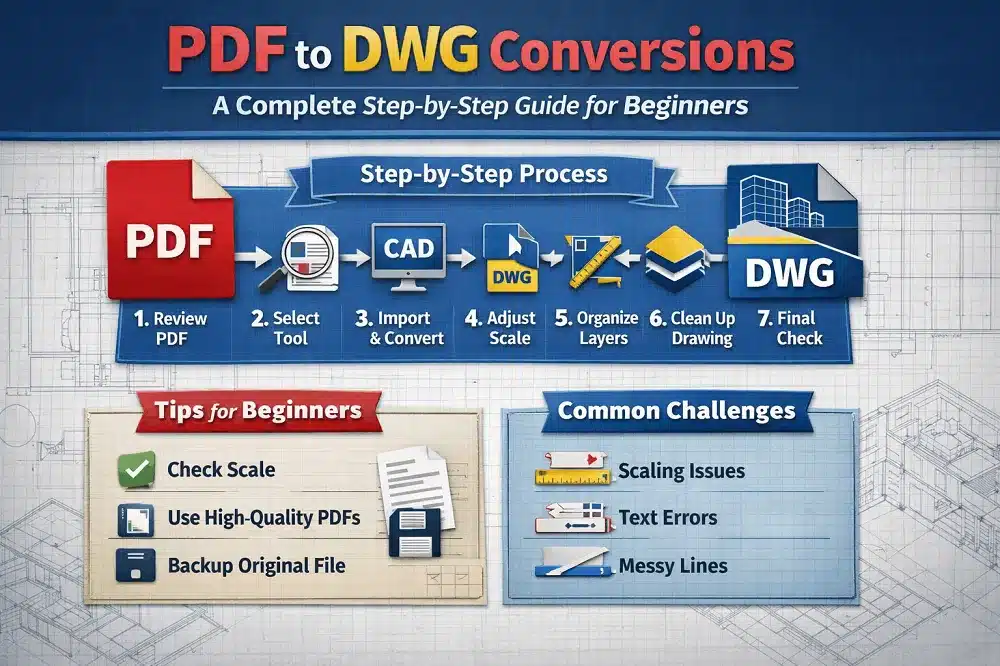
Step 1: Review the PDF File
- Check drawing scale and clarity
- Identify layers, text, and dimensions
- Determine whether it’s scanned or vector-based
Step 2: Choose the Right Conversion Tool
Common options include:
- AutoCAD PDF Import
- Online PDF to DWG converters
- Dedicated CAD conversion software
- Professional PDF to DWG conversion services
For beginners, AutoCAD’s built-in tools are a good starting point.
Step 3: Import or Convert the PDF
- Open AutoCAD
- Use PDFIMPORT command
- Select the PDF file
- Choose pages and import settings
Adjust options like:
- Line recognition
- Text conversion
- Layer creation
Step 4: Check Scaling and Units
One of the most critical PDF to DWG conversions tips:
- Verify drawing units (mm, inches, meters)
- Use known dimensions to scale accurately
- Avoid incorrect proportions early
Step 5: Organize Layers
After conversion:
- Separate walls, dimensions, text, and symbols
- Rename layers clearly
- Delete unnecessary elements
Clean layering improves usability and future editing.
Step 6: Clean and Edit the Drawing
- Remove duplicate lines
- Fix broken geometry
- Align misinterpreted elements
- Convert exploded text into editable text
This step ensures a professional-quality DWG file.
Step 7: Final Quality Check
Before saving:
- Verify dimensions
- Check alignment and accuracy
- Compare with original PDF
- Save in the required DWG version
Common Challenges in PDF to DWG Conversions
Beginners often face these issues:
- Incorrect scaling
- Text converted as polylines
- Extra or broken lines
- Missing layers
- Poor quality scanned PDFs
Following structured PDF to DWG conversions tutorials helps minimize these problems.
Best PDF to DWG Conversion Tips for Beginners
Here are some practical PDF to DWG conversions tips:
- Always verify scale after conversion
- Use high-resolution PDFs whenever possible
- Clean drawings before starting new edits
- Avoid over-trusting auto-conversion tools
- Manually review critical dimensions
- Keep a backup of the original PDF
When to Use Professional PDF to DWG Conversion Services
You may need expert help if:
- The PDF is low-quality or scanned
- Drawings are complex or large-scale
- Accuracy is critical for construction or manufacturing
- You lack time or CAD expertise
Professional services ensure precision, proper layering, and industry standards.
Applications of PDF to DWG Conversion
PDF to DWG conversions are widely used in:
- Architectural drafting
- Structural and MEP drawings
- Manufacturing and fabrication
- Construction documentation
- As-built drawing creation
PDF to DWG conversions are essential for turning static drawings into editable, reusable CAD files. By following this step-by-step beginner’s guide, you can understand the workflow, avoid common mistakes, and apply proven PDF to DWG conversions tips effectively.
Whether you’re learning through PDF to DWG conversions tutorials or outsourcing complex work, mastering this process improves productivity, accuracy, and project efficiency.
What is the best software for PDF to DWG conversion?
AutoCAD’s built-in PDF import tool is ideal for beginners. For complex projects, dedicated CAD conversion software or professional services offer better accuracy.
Can scanned PDFs be converted to DWG?
Yes, but scanned PDFs are raster-based and require extra cleanup. Accuracy depends on scan quality and manual editing.
Is PDF to DWG conversion 100% accurate?
No automatic conversion is 100% accurate. Manual verification and editing are always required to ensure precision.
How long does a PDF to DWG conversion take?
Simple vector PDFs can be converted in minutes, while complex or scanned drawings may take several hours.
Are online PDF to DWG converters safe to use?
Online tools are suitable for simple drawings, but sensitive or confidential files should be handled by trusted software or professional services.
What file version should I save the DWG in?
Save the DWG version compatible with your AutoCAD or client requirements to avoid compatibility issues.